Your first connection
Save a MongoDB connection in the Connection Manager, test it and open it.
A connection is a saved set of settings (server address, authentication, TLS, tunnel) with a name. You create it once in the Connection Manager, then open it with one click whenever you need it. Opening a connection never changes anything on the server.
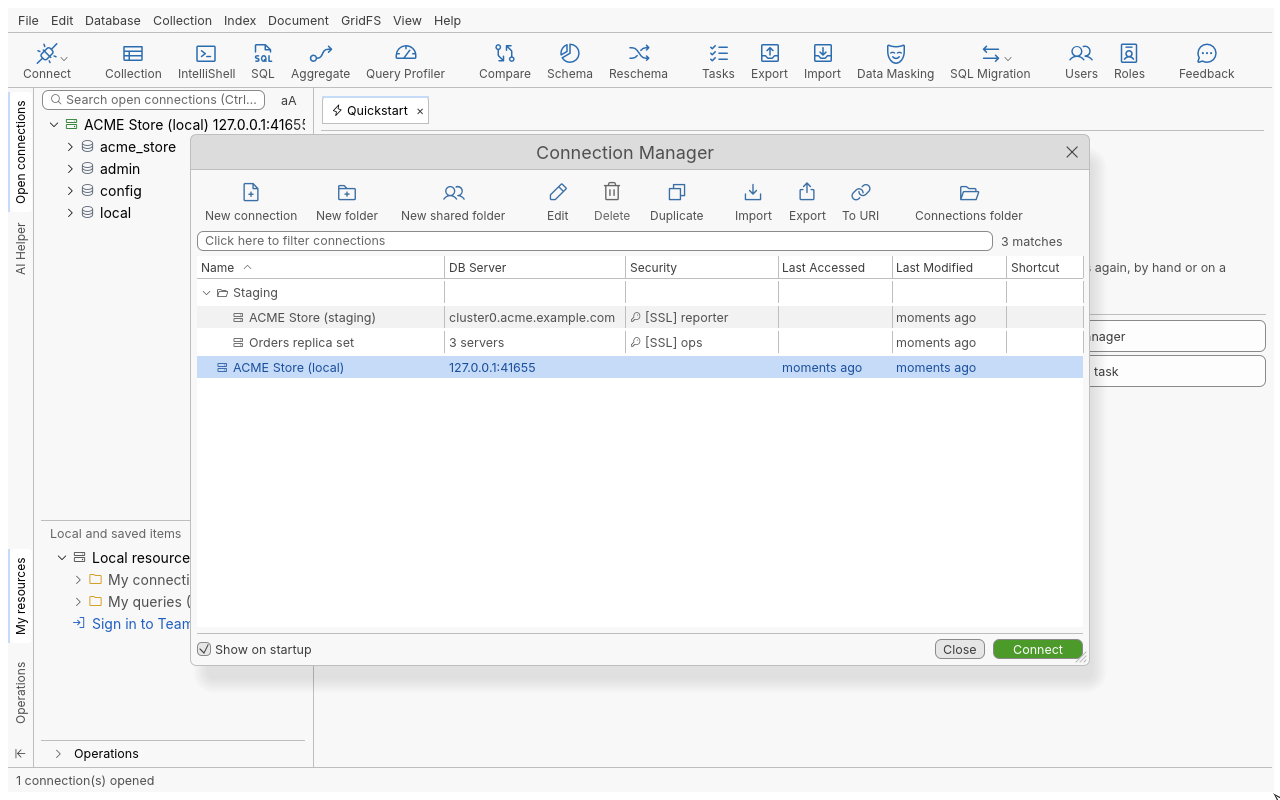
Create a connection from a connection string
This is the fastest way when you already have a mongodb:// or mongodb+srv:// string.
- Click Connect in the Global Toolbar, or press Ctrl+N. The Connection Manager opens.
- Click New connection. The New Connection wizard opens.
- Keep Paste your connection string (SRV or standard) here: selected and paste the string into
URI:, for example
mongodb://localhost:27017/acme_store. - If the string names a user but no password, type the password in Database user password:, or leave it empty to be asked at each connect.
- Click Next. The app reads the string and tells you the connection has been successfully auto-configured. Click OK.
- The connection dialog opens with every field filled in from the string. Type a
Connection name:, for example
ACME Store (local). - Click Test Connection to check the settings without saving them.
- Click Save. The connection appears in the list.
Create a connection by hand
- In the wizard, choose Manually configure my connection settings and click Next.
- On the Server tab, set the connection type, host and port (the defaults are a standalone
server on
localhost, port27017). - Fill in the other tabs only if you need them (see the reference table).
- Type a Connection name:, click Test Connection, then Save.
Open the connection
- In the Connection Manager, select the connection.
- Click Connect, or double-click the connection.
- A Connecting box lists each step of opening the connection with its status. When it succeeds, the Connection Manager closes and the connection appears in the Open connections tree.
Continue with Your first query.
Reference: the connection dialog tabs
| Tab | What you set there | More |
|---|---|---|
| Server | Connection type (Standalone, Replica Set, Sharded Cluster, DNS Seedlist), hosts and ports, and the Read-Only Lock checkbox | Topologies |
| Authentication | None, Basic (SCRAM-SHA-256), Legacy (SCRAM-SHA-1), X.509, Kerberos (GSSAPI), LDAP (PLAIN), AWS, MongoDB OIDC | Authentication |
| SSL | TLS on or off, your own root CA file, client certificate, trust settings | TLS |
| SSH | An SSH tunnel to reach a server behind a bastion host | SSH tunnels |
| Proxy | Direct, the application’s default proxy, or a custom HTTP or SOCKS proxy | Proxies |
| MongoDB Tools | Options for the dump and restore tools on this connection | |
| IntelliShell | Options for IntelliShell on this connection | IntelliShell |
| Advanced | Read preference and other connection options | Topologies |
Reference: the Connection Manager
| Item | What it does |
|---|---|
| New connection, New folder, Edit, Delete, Duplicate | Manage saved connections and the folders that group them |
| Import | Bring in connections from a URI file or other MongoDB tools’ connection files (Import connections) |
| To URI | Show the selected connection as a connection string |
| Columns: Name, DB Server, Security, Last Accessed, Shortcut | Click a column header to sort the list |
| Filter field | Narrows the list and shows the number of matches |
| Show on startup | Opens the Connection Manager every time the application starts |
Tips
- Passwords are not written to the connection file: they go to the protected store you chose at first launch.
- Use folders to separate environments (for example Production and Staging); see Folders.
- Tick Read-Only Lock on the Server tab for connections to production data so nothing can be written by mistake; see Read-only connections.
- Your first connections also appear under Recent Connections on the Quickstart page and in the arrow menu of the Connect toolbar button.
Troubleshooting
| Symptom | Cause and fix |
|---|---|
| Next shows an error under the URI | The string does not start with mongodb:// or mongodb+srv://, or is malformed. Fix it, or configure the connection by hand. |
| Save is greyed | A required field is missing: the connection name, or a field on a tab shown in red (for example a user name for Basic authentication). |
| The Connecting box ends with FAILED | Click Show details to see which step failed and the server’s message. You can copy the error, or ask the AI Helper about it if you set one up. |
| Authentication fails | Check the user, password and authentication database on the Authentication tab. |
| Timeout on a server behind a firewall | Use an SSH tunnel or a proxy. |
| The server is older than 4.2 | See Older servers: such servers are reached through a local relay and without TLS. |