Your first query
Open a collection, filter it with the query bar, sort, page through the results and count them.
Every collection opens in a Collection Tab: a query bar at the top and the matching documents below. Queries only read data; nothing you type in the query bar can change a document.
This example finds the garden products of the fictional acme_store database that have more than
20 items in stock.
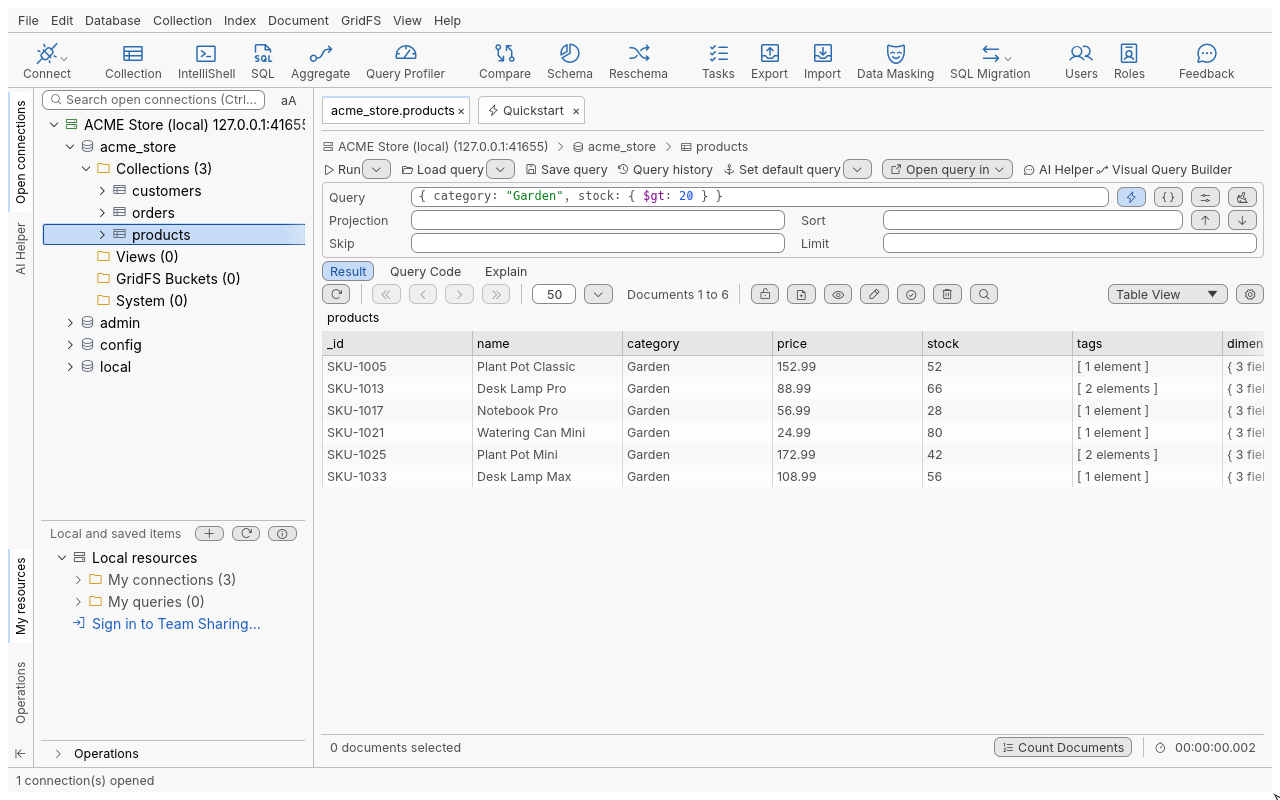
Steps
-
In the Open connections tree, expand your connection, then the
acme_storedatabase, then Collections. -
Double-click
products(or select it and press Enter). A tab opens with the first 50 documents in Table View. -
Click in the Query field and type:
-
Press Enter (or F5), or click Run. The table now shows only the matching documents.
-
To sort by price, most expensive first, type
{ price: -1 }in Sort and press Enter. -
To show only some fields, type
{ name: 1, price: 1, stock: 1 }in Projection. -
Click Count Documents in the status bar of the tab to get the exact number of matches.
Reference: the query bar
| Field | What it holds | Example |
|---|---|---|
| Query | The filter: which documents to return | { "address.city": "Springfield" } |
| Projection | Which fields to return (1 include, 0 exclude) | { name: 1, email: 1 } |
| Sort | The order (1 ascending, -1 descending) | { orderedAt: -1 } |
| Skip | How many documents to skip first | 100 |
| Limit | The maximum number of documents (0 or empty: no limit) | 500 |
The fields accept the MongoDB shell syntax: unquoted field names, single-quoted strings, comments,
and type helpers such as ObjectId("…"), ISODate("…"), NumberDecimal("…") and regular
expressions like /^gar/i. An empty field is simply not used.
Reference: the Collection Tab toolbar
| Button | What it does |
|---|---|
| Run ▾ | Runs the query. The arrow also offers findOne(…) and count(…). |
| Load query, Save query | Reuse queries you saved; see Query history and saved queries |
| Query history | The queries you ran recently |
| Set default query ▾ | Makes the current query the one this collection opens with |
| Open query in ▾ | Continues the query in another tool |
| Visual Query Builder | Builds the query with drag and drop (Ctrl+B); see Visual Query Builder |
| Result, Query Code, Explain | Sub-tabs: the documents, the query as code for your application (Ctrl+G), and how the server runs it |
Under the query bar, the result toolbar has Refresh (Ctrl+R), first, previous, next and last page buttons, the page size (50 by default), the range shown (“Documents 1 to 50”), and the view selector (Table View, Tree View, JSON View). See Paging and Table, Tree and JSON views.
Tips
- Paste a whole shell statement such as
db.products.find({ category: "Garden" }).sort({ price: -1 }).limit(10)into the query bar: the app splits it into the Query, Sort and Limit fields. - Type an
_idvalue alone in Query and press Enter to look up that one document. - Press Ctrl+Space in a field to see completions for field names and operators.
- Next and previous pages (Ctrl+Alt+Right / Left) reuse the query you last ran, not text you typed since.
- Long queries run in the background: the elapsed time shows in the tab’s status bar, and the rest of the window stays usable.
Troubleshooting
| Symptom | Cause and fix |
|---|---|
| A field is underlined in red and nothing runs | The text cannot be read. Hover the field to see the reason, with the line and column. |
| “Skip must be a whole number, 0 or more” | Skip and Limit take plain numbers. |
| The server returns an error (unknown operator, bad regular expression) | The message comes from the server; the fields stay as you typed them so you can fix them. |
| No documents, but you expected some | Check the field names and value types: "20" (a string) does not match 20 (a number). |
Next: Keyboard basics.