Table, Tree and JSON views
Read the same page of documents as a table, a tree or JSON text, and adjust columns, embedded fields and display options.
The Result area of a collection tab shows the current page in one of three views. Switching views never runs the query again: you see the same documents another way, and the selection is kept when it makes sense.
Switch views
- Open a collection.
- Pick a view in the Result view selector at the right of the Result toolbar, or press:
| View | Shortcut | Best for |
|---|---|---|
| Tree View | Ctrl+Alt+1 | Nested documents and arrays |
| Table View | Ctrl+Alt+2 | Comparing fields across many documents |
| JSON View | Ctrl+Alt+3 | Reading or copying documents as text |
The view a tab opens in is set by Preferences > General > Default view when opening a collection.
Table View
One row per document, one column per top-level field.
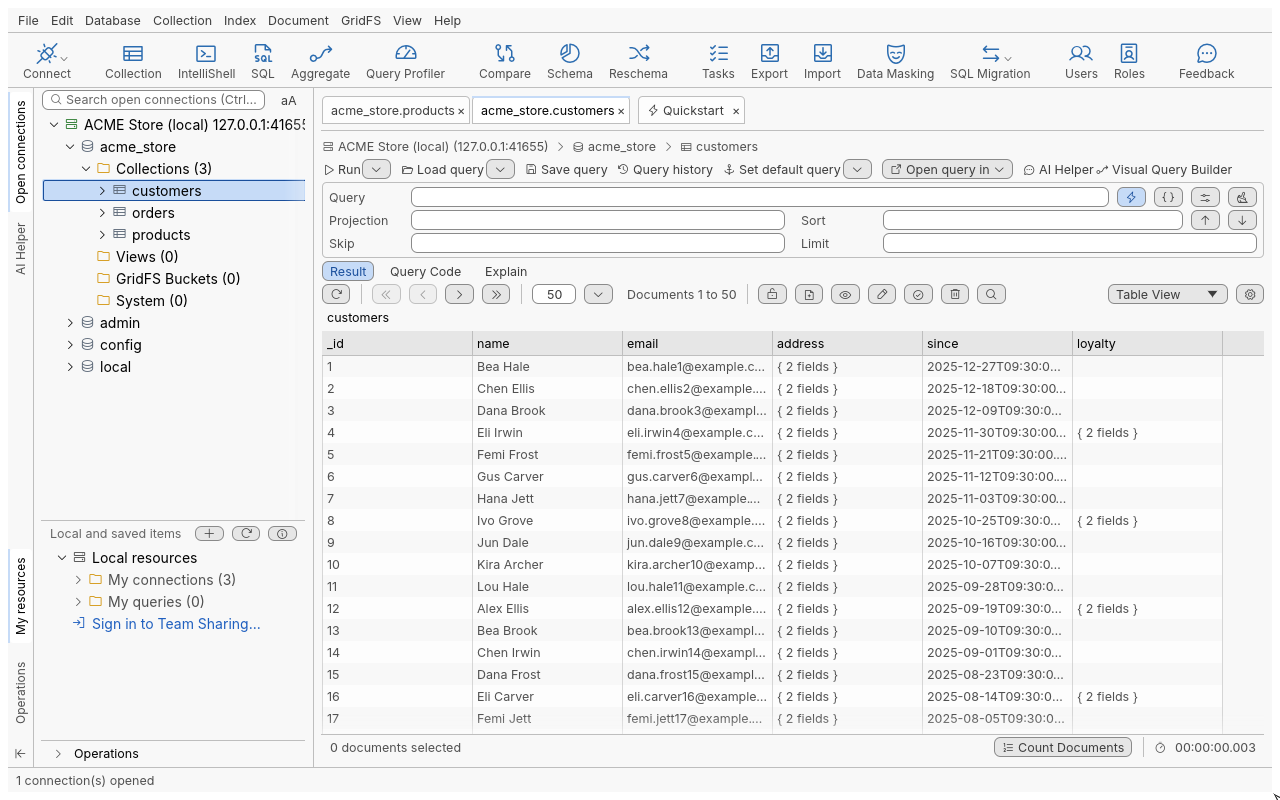
- Embedded documents read
{ 2 fields }, arrays[ 3 elements ]. - A field missing from a document gives an empty cell with no type icon; an empty string gives an empty cell with the string icon.
- Click a header to sort the current page (ascending, descending, then back to natural order). This sorts the page you see; to sort on the server, use the Sort field of the query bar.
- Drag a header to move the column; drag its edge to resize it.
- Very wide results are split into column pages: use First columns, Previous columns, Next columns and Last columns.
Work with embedded fields and columns
Right-click a cell for these entries. The last three are also in the cell menu’s Column submenu and in the menu of a column header.
| Entry | Shortcut | Action |
|---|---|---|
| Step Into Column | Enter | Shows the embedded document or array of this column as the table |
| Step Into Cell | Shift+Enter | Shows the content of this one cell as the table |
| Step Out | Backspace | Goes back up one level |
| Show Embedded Fields / Hide Embedded Fields | Ctrl+Enter | Expands an embedded document into one column per field, or folds it back |
| Show All Embedded Fields / Hide All Embedded Fields | The same for every embedded column | |
| Restore Default View | Undoes stepping in and embedded fields | |
| Hide Column | Ctrl+T | Hides the column |
| Make All Columns Visible | Shows hidden columns again | |
| Restore All Columns Sizes | Resets column widths |
Move with the keyboard
Arrow keys and Tab / Shift+Tab move the current cell; Home / End go to the first or last cell of the row, and with Ctrl to the first or last row. Click, Ctrl-click, Shift-click and Ctrl+A select rows.
Tree View
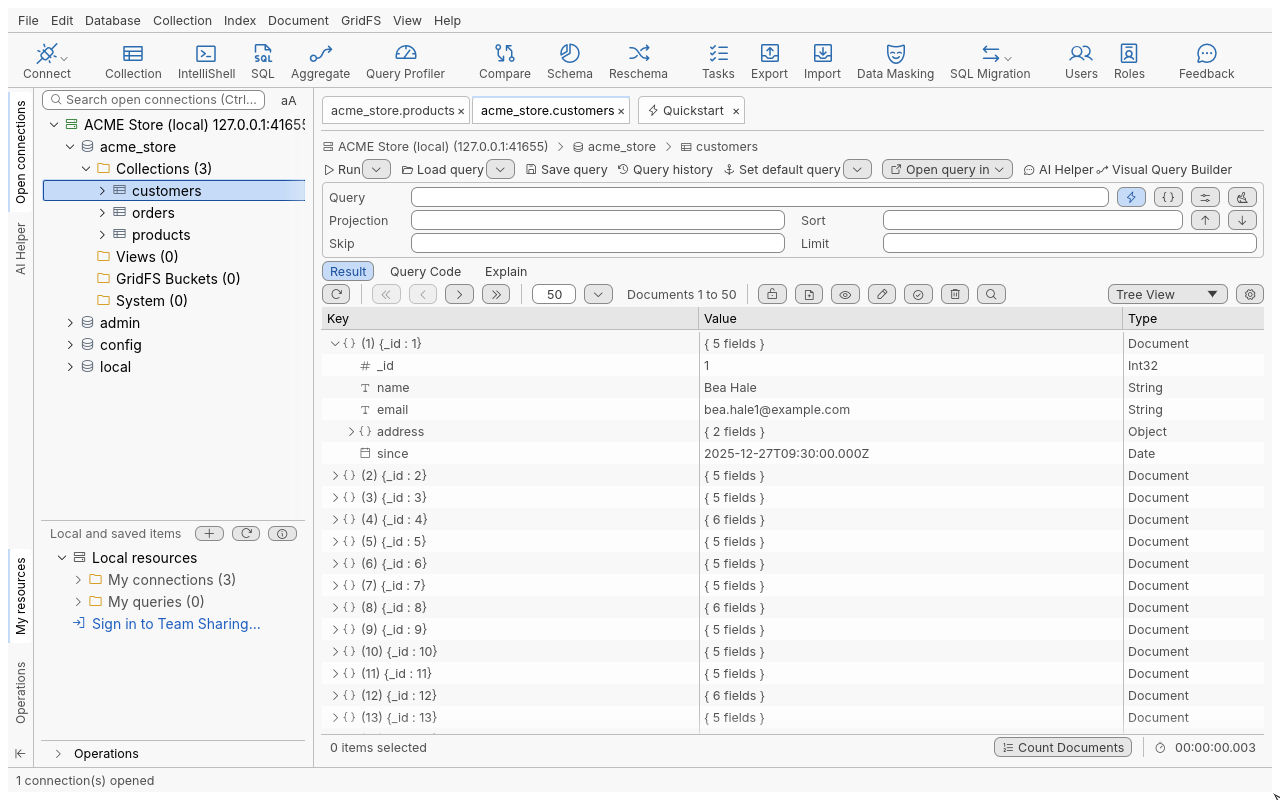
Three columns, Key, Value and Type. Each document is a root row such as
(1) {_id : 5001}; its position in the result matches the range label, so page 2 of size 50 starts
at (51).
| Action | Shortcut |
|---|---|
| Expand | Right |
| Collapse | Left |
| Expand Recursively | Alt+Right |
The first document is expanded when results arrive. Expanded nodes are remembered while you page and when you run the query again. Children are drawn only when you expand a node, so large arrays stay fast.
JSON View
The page as text, one document after another.
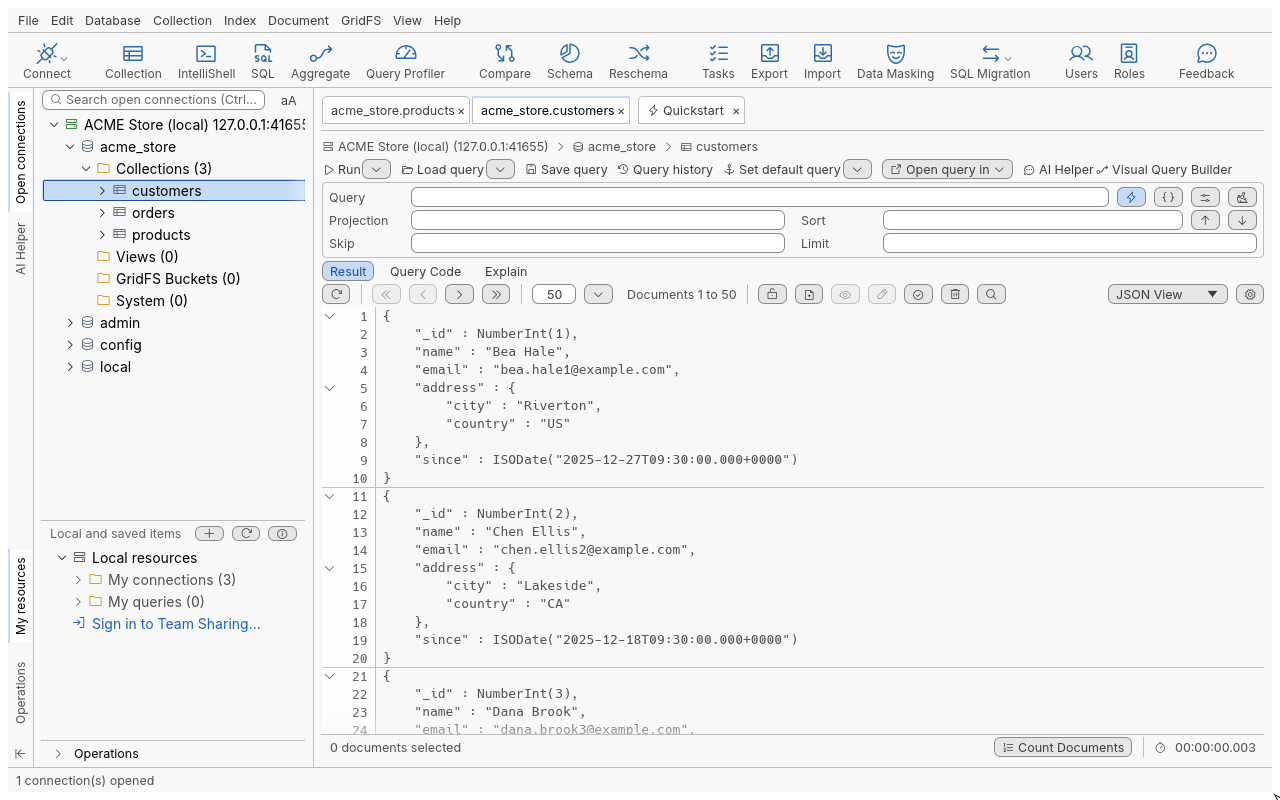
Choose the text format in the Result toolbar:
| Format | What you get |
|---|---|
| JSON: MongoDB Shell Format | Shell syntax with type wrappers, for example ObjectId("…"), ISODate("…") |
| JSON: Legacy Mongo Shell Format | The older shell syntax, for example NumberInt(44) |
| JSON: Mongoexport Format | Extended JSON as export tools write it ($oid, $date) |
| JSON: Simple Format | Plain values, light on type information |
| JSON: Pure, without MongoDB types | Standard JSON only; types such as dates and 64-bit integers lose precision, and the view warns you |
Use Find (Ctrl+F), Find Next (F3) and Find Previous (Shift+F3) to search the text. Long documents can be folded and unfolded line by line. Very long arrays are cut after a number of elements (set in Preferences, default 1,000) with a comment saying how many more there are.
Customize the view
Click the gear (Customize view) at the right of the Result toolbar:
| Option | Effect |
|---|---|
| Show data type icons | An icon before each value showing its BSON type |
| Show data type colors | Colours values by type; Open color settings picks the colours |
| Show keys in natural order / alphabetical order / custom order | Order of fields in Tree and JSON View |
| Do not auto-size columns / Auto-size columns (compact) / Auto-size columns (full values) | Table View column widths |
Tips
- A cell shows at most 1,000 characters; copying it copies the full value (see Copy and paste).
- Values are always shown exactly as stored: types, field order and special numbers (
-0.0,NaN) are preserved.