The collection tab
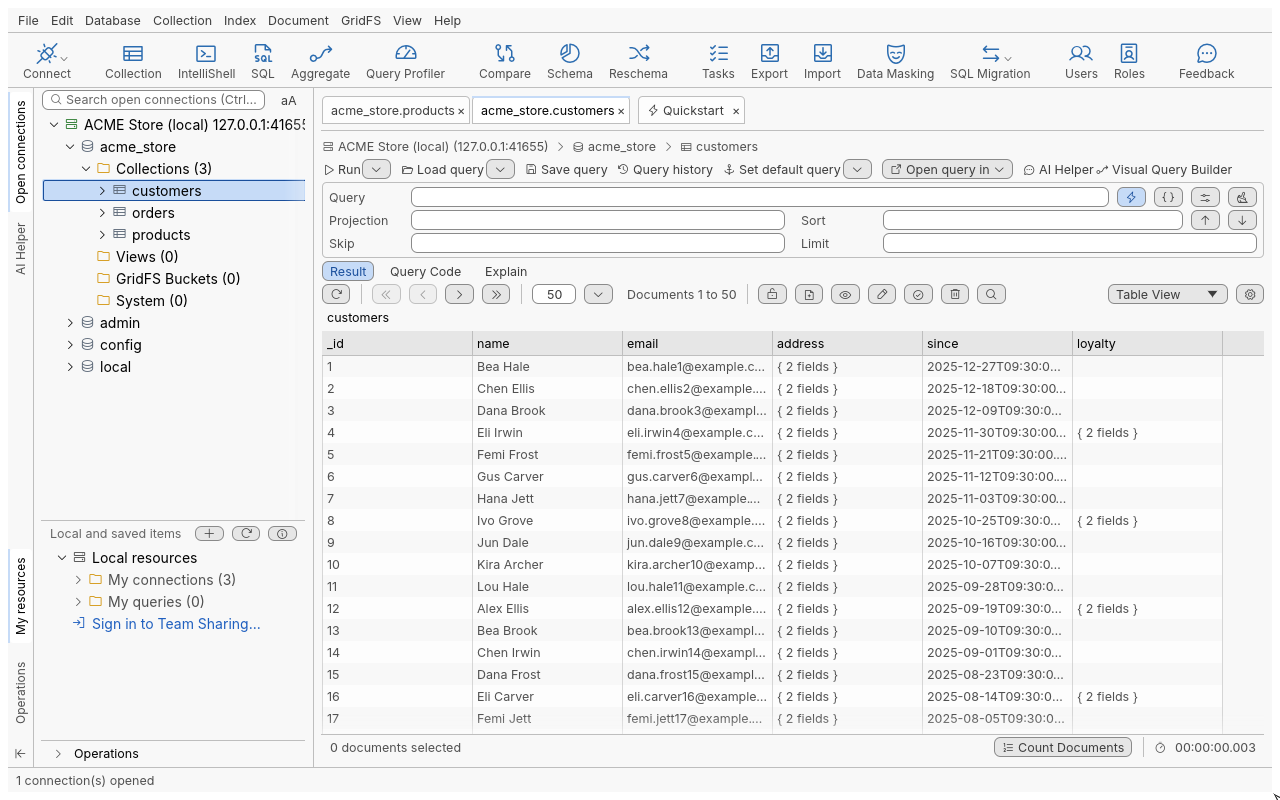
What each part of a collection tab does: breadcrumb, query bar, Result toolbar, sub-tabs and status bar.
A collection tab shows the documents of one collection (or view), one page at a time. It opens when you double-click a collection in the connection tree, or select it and press Enter.
Open a collection
- In the connection tree, expand a connection, a database and its Collections folder.
- Double-click the collection (or press Enter). The tab opens and shows the first page, in the view chosen in Preferences > General > Default view when opening a collection (Table View unless you changed it).
- To open with another page size, right-click the collection and choose Open Collection With Custom Page Size….
Opening a collection never counts or scans the whole collection: the first page shows as soon as the server sends it.
Parts of the tab, top to bottom
| Part | What it does |
|---|---|
| Breadcrumb | Connection, database and collection of this tab. |
| Query toolbar | Run, Load query, Save query, Query history, Set default query, Open query in, and on the right AI Helper and Visual Query Builder. See Query history and saved queries. |
| Query bar | Query, Projection, Sort, Skip and Limit fields. Press Enter in a field to run. See Your first query. |
| Sub-tabs | Result (the documents), Query Code (the query as code for several languages, see Query code) and Explain (how the server runs it, see Explain). |
| Result toolbar | Refresh, paging, page size, the range label, document buttons, the view selector and the gear. |
| Result area | The documents in Table, Tree or JSON View. |
| Status bar | Selection count, Count Documents, and the time the last query took. |
The Result toolbar
| Button | Shortcut | Action |
|---|---|---|
| Refresh | Ctrl+R | Runs the query again for the current page. Turns into Stop while a page loads. |
| First page / Previous page / Next page / Last page | Ctrl+Alt+Left / Right for previous / next | Moves through the result. See Paging. |
| Page size | How many documents per page (1, 5, 10, 25, 50, 100, 200, or any number up to 10,000). | |
| Range label | For example Documents 1 to 50. | |
| Lock (padlock) | Locks this collection read-only for the session. See below. | |
| Insert Document | Ctrl+D | Opens the Insert JSON Document editor. |
| View Document | F3 | Shows the selected document as JSON, read-only. |
| Edit Document | Ctrl+J | Opens the Document JSON Editor. |
| Find | Ctrl+F | Finds text in the current page. |
| Update Dialog | Ctrl+U | Opens Update Documents (an update by query). |
| Delete | F8 | Opens Remove Documents (a delete by query). |
| Result view selector | Ctrl+Alt+1 / 2 / 3 | Tree View, Table View, JSON View. See Views. |
| Gear (Customize view) | Display options of the current view. |
Document editing is described in Edit documents and fields.
The status bar and Count Documents
- On the left: N documents selected (in Tree View: N items selected).
- Count Documents counts the documents matching the current query, in the background. While it runs, the button reads Cancel count; you can also cancel it from the Operations panel. With an empty query, an estimate from the collection metadata (shown with a ≈ sign) appears at once while the exact count runs.
- On the right: the time the last query took, as
hh:mm:ss.mmm. While a query runs, the timer shows how long it has been running.
A known count also lets Last page jump straight to the end.
Lock a collection with the padlock
The padlock in the Result toolbar makes the collection read-only for the rest of the session, in every tab on that collection. Insert, edit, delete and field operations are greyed out, and anything that still reaches the engine (a shortcut, a script driving the app) is refused with nothing written.
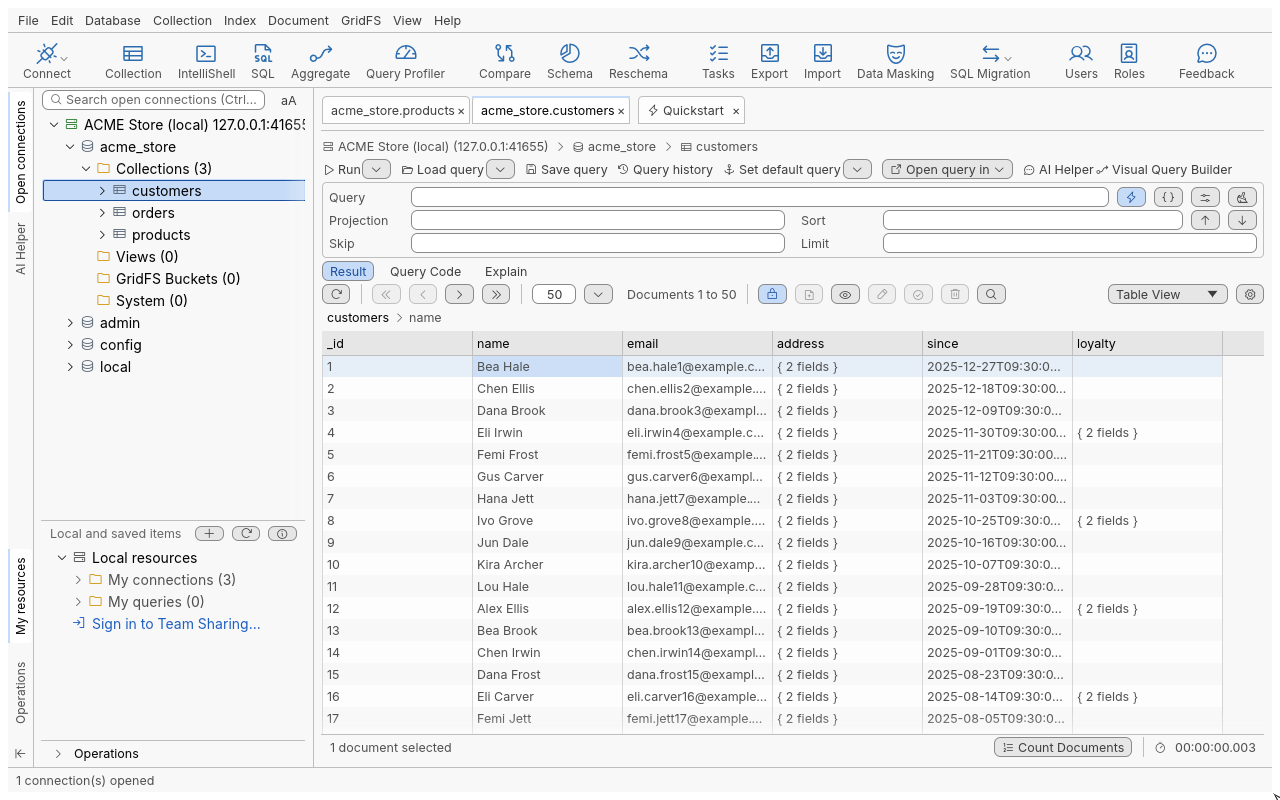
- Click Lock in the Result toolbar. Its tooltip reads Unlock: allow changes to this collection’s documents once locked.
- Click it again to unlock.
The lock is not saved: it ends when you close the application. On a connection that has the Read-Only Lock, the padlock shows locked. Unlocking it there lifts the lock for that tab only, after a confirmation; other tabs stay read-only and the saved connection keeps its lock. See Read-only connections.
Tips
- If you open a collection that already has a tab, that tab comes to the front; use Duplicate Tab for a second one.
- Set default query saves the query bar as this collection’s default; Restore Default Query brings it back and Clear Default Query removes it.
- When a result has no
_id(a projection that excludes it), the documents cannot be changed and the tab says why.
Troubleshooting
| Symptom | What to do |
|---|---|
| The result area shows a server error | The message, code and code name come from the server (for example, not authorised, or a timeout). The tab stays open with your settings; fix the cause and press Refresh. |
| The tab opens empty with “Press Refresh (Ctrl+R) to load documents” | Preferences > General > Run the query when a collection opens is off. Press Ctrl+R. |
| Edit buttons are greyed out | The collection is locked by the padlock, the connection is read-only, the tab shows a view, or no document is selected. |