Edit documents and fields
Insert, view, edit and delete documents, change single values in place, and add, rename, convert or remove a field across many documents, safely.
You can change data directly from a collection tab: edit a whole document as JSON, change one value in a cell, or apply a field change to many documents at once. Every write is guarded so that you never overwrite a change you did not see, never lose a value’s type, and never write to a collection you have locked or a connection you marked read-only.
How your data is protected
| Guarantee | What it means for you |
|---|---|
| Edits start from the stored document | Edit Document reads the document from the server again by its _id; the copy on your screen is not trusted. |
| Conflict detection | When you save, the document is replaced only if it is still exactly what you started from. If someone else changed it meanwhile, nothing is written and you choose: Reload (see the current version) or Overwrite (save your text over the other change). In-place edits check that the field still holds the value you saw. |
_id is never changed | Editing, renaming or removing _id, or saving JSON with a different _id, is refused with an explanation. |
| No silent type changes | A value typed into a cell keeps the cell’s type: 12 in a string cell stays the string “12”. Text that does not fit the type is an error, never stored as something else. Changing a type is always an explicit choice. |
| Nothing else is touched | An in-place edit changes only that field; every other field is kept byte for byte, including changes made by others to other fields. Multi-document field operations use a server-side operator on that one field. |
| Unchanged text writes nothing | Saving a document you did not change sends nothing to the server. |
| Confirmations | Deleting documents, and any field operation on more than one document, asks first, naming the number of documents, the collection and the server. |
| Read-only refusal | On a read-only connection, a view, or a collection locked with the padlock, every write is refused before any question is asked, and nothing is written. Viewing still works. |
Insert documents
- In a collection tab, click Insert Document in the Result toolbar, or press Ctrl+D, or right-click > Document > Insert Document….
- Type the document in the Insert JSON Document editor. You can type one document or an array of
documents.
_idis optional; when missing, an ObjectId is generated. - Click Validate JSON to check the text, or Format JSON to lay it out.
- Click Add Document, or Add & Continue to insert and start another one.
The editor accepts the shell syntax the JSON View shows (ObjectId("…"), ISODate("…"),
NumberLong(…), NumberDecimal(…), UUID("…"), regular expressions…) and Extended JSON. It also
accepts single quotes, unquoted keys, comments and trailing commas. ObjectId(), UUID() and
new Date() with no argument generate a value. Whole numbers become 32-bit or 64-bit integers
depending on their size; numbers with a fraction become doubles.
View a document
Select a document and press F3 (or click View Document, or right-click > Document > View Document (JSON)…). The Document JSON Viewer shows the document as stored now, read-only, with the same text formats as the JSON View. It works on read-only connections and on views.
Edit a whole document as JSON
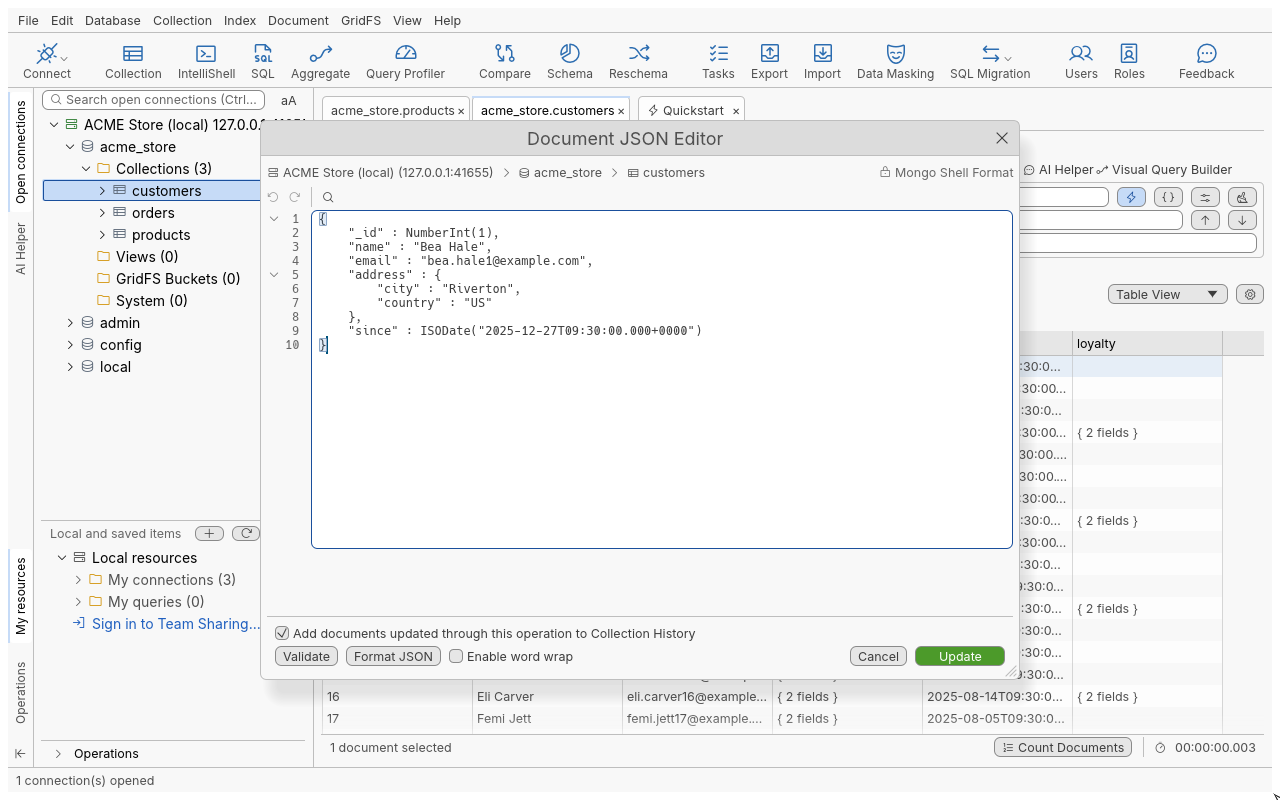
- Select a document and press Ctrl+J (or click Edit Document, or right-click > Document > Edit Document (JSON)…).
- Change the text in the Document JSON Editor. Find and Replace (Ctrl+F), Undo (Ctrl+Z) and Redo (Ctrl+Y) are in its toolbar; Enable word wrap wraps long lines.
- Click Validate to check the text without saving.
- Click Update to save, or Cancel to close without writing.
If the document changed on the server since the editor opened, Update writes nothing and tells you. Click Reload to see the stored version, or Overwrite to save your text anyway, discarding the other change.
Change one value in place
- In Table View or Tree View, double-click a cell (or select it and press F2).
- Type the new value.
- Press Enter to save, or Esc to cancel. Nothing is sent until you press Enter.
To change the type as well, press Ctrl+E, or right-click the value > Field > Edit Value / Type….
Field operations
Right-click a value and open the Field submenu:
| Entry | Shortcut | Dialog |
|---|---|---|
| Edit Value / Type… | Ctrl+E | Edit Value: Type, Set this field in:, value, Set Value |
| Remove Field… | Del | Remove Field with its scope |
| Rename Field… | Shift+F2 | Rename Field: new name, Rename this field in: |
| Add Field/Value… (Tree View) or Add Field (Column)… (Table View) | Ctrl+K | Add Field/Value: name, type, value, Add this field to: |
On an array node in Tree View, Array Element > Add Element… adds an element.
Choose the scope
| Scope | Edit Value | Add, Rename | Remove |
|---|---|---|---|
| Current document only | yes | yes | Remove from current document only |
| Documents matching query criteria | yes | yes | Remove from documents matching current query |
| Documents matching query criteria that have / do not have this field | yes | ||
| All documents in collection | yes | yes | Remove from all documents |
| All documents in collection that have / do not have this field | yes |
“Query criteria” is the query the tab last ran (what the page shows), not text you have typed since. Skip, limit, sort and projection do not narrow the scope.
What each operation does
- Edit Value, Always change value (“Force”) writes the value, of the chosen type, in every document of the scope.
- Edit Value, Only change type (“Convert”) converts each document’s own value to the new type. Only available with a multi-document scope. Conversions are exact or not done: a value that cannot be converted is left as it is, or replaced by the Fallback Value: if you give one. The dialog counts how many documents will be converted and how many cannot be.
- Add Field/Value adds the field only to documents that do not have it; existing values are never overwritten.
- Rename Field renames the field in documents that have it. If a document already has a field with the new name, it is overwritten, and the confirmation warns you how many documents that affects. In the current document only, renaming onto an existing field is refused instead.
- Remove Field removes the field from documents that have it.
Confirmations and results
- Before writing to several documents, the application counts them.
- If none would change, nothing is asked and nothing written.
- Otherwise a confirmation names the operation, the number of documents, the scope, the collection and the server. With an “All documents in collection” scope it also warns that the whole collection is affected.
- After the write, a message says how many documents were updated, and how many were skipped or overwritten and why. The page reloads to show the change.
Operations on the current document only do not ask: they follow the in-place rules above.
A long operation runs in the Operations panel and can be cancelled; cancelling stops it on the server, but documents already written stay written.
Update and remove by query
| Dialog | Open with | What you fill in |
|---|---|---|
| Update Documents | Ctrl+U, Result toolbar Update Dialog | Query tab: which documents (Apply predefined query: all documents, the tab’s query, or the selected documents). Update tab: the update, with Update mode: Simple Update with Update Document or Update with Aggregation Pipeline. Options Upsert and Multi. Validate JSON, Update. |
| Remove Documents | F8, Result toolbar Delete | The query (with Apply predefined query), Skip: and Limit: (0 means no skip, no limit), Validate JSON, Remove. |
Both confirm before writing.
Delete documents
- Select one or more documents.
- Press Shift+Del, or right-click > Document > Delete Document….
- Read the confirmation: it names how many documents, the collection and the server, and reminds you that this cannot be undone.
- Click the confirm button, or Cancel to write nothing.
Documents whose _id is null can be edited and deleted. Documents shown without _id (a
projection that excludes it) cannot be changed, and the tab says why.
Restore deleted or updated documents
Collection History keeps a local copy of the documents you delete or update, so you can put them back. It is on by default; turn it off, or limit what it records and how long it keeps it, in the Preferences (see Preferences) or per connection. The delete and update dialogs have a tick box to leave one operation out of the history.
- In the connection tree, expand the collection and double-click Collection history. Its tab lists the recorded deletions and updates, newest first, with the number of documents of each.
- Select an action. Action preview shows each document before (and, for an update, after) the change.
- Click Restore documents (or press Enter) and confirm. A deletion puts the documents back; an update puts each document back exactly as it was.
A document is in conflict when restoring it would lose later work: a deleted _id exists again,
or an updated document was deleted or changed since. Calculate restore conflicts lists them next
to the document the restore would write. Nothing is written for a conflict until you choose what to
do with it, for all of them or document by document: leave it and remove it from the history,
overwrite the current document, or insert it as a new document with a new _id. Restoring is
refused on a read-only connection.
The history holds only your own changes made from this application, on this computer.
Binary values
On a binary value, right-click > Save to File… writes its bytes to a file (this works on read-only connections), and Load from File… replaces the value with a file’s content, keeping the binary subtype. Load is limited by the 16 MB document size.
Follow a reference
On an ObjectId or a DBRef value, right-click > Document > Follow Reference (Shift+F7) opens the document it refers to.
Troubleshooting
| Message or symptom | What to do |
|---|---|
| The field was changed on the server since the page was loaded | Someone else changed that value. Refresh (Ctrl+R) and edit again. |
| Update reports a conflict | Click Reload to see the current version, or Overwrite if you are sure your text should win. |
| The JSON is refused with a line and column | Fix the text there; Validate shows the same message without saving. |
| A document is too large to edit as text | Change its fields in the Table or Tree View instead. |
| A JSON View text with a “more elements” comment cannot be saved | It was cut for display; saving it would drop elements. Use the Document JSON Editor, which loads the full document. |
| Every write is refused | The connection has the Read-Only Lock, the collection is locked with the padlock, or the tab shows a view. See Read-only connections. |
See also Copy and paste for inserting documents from the clipboard.