Set your preferences
Every page of the Preferences dialog, moving your settings to another computer, and presetting them for an organisation.
The Preferences dialog holds the settings of the whole application. Open it with Edit › Preferences or Ctrl+P (⌘P or ⌘, on macOS).
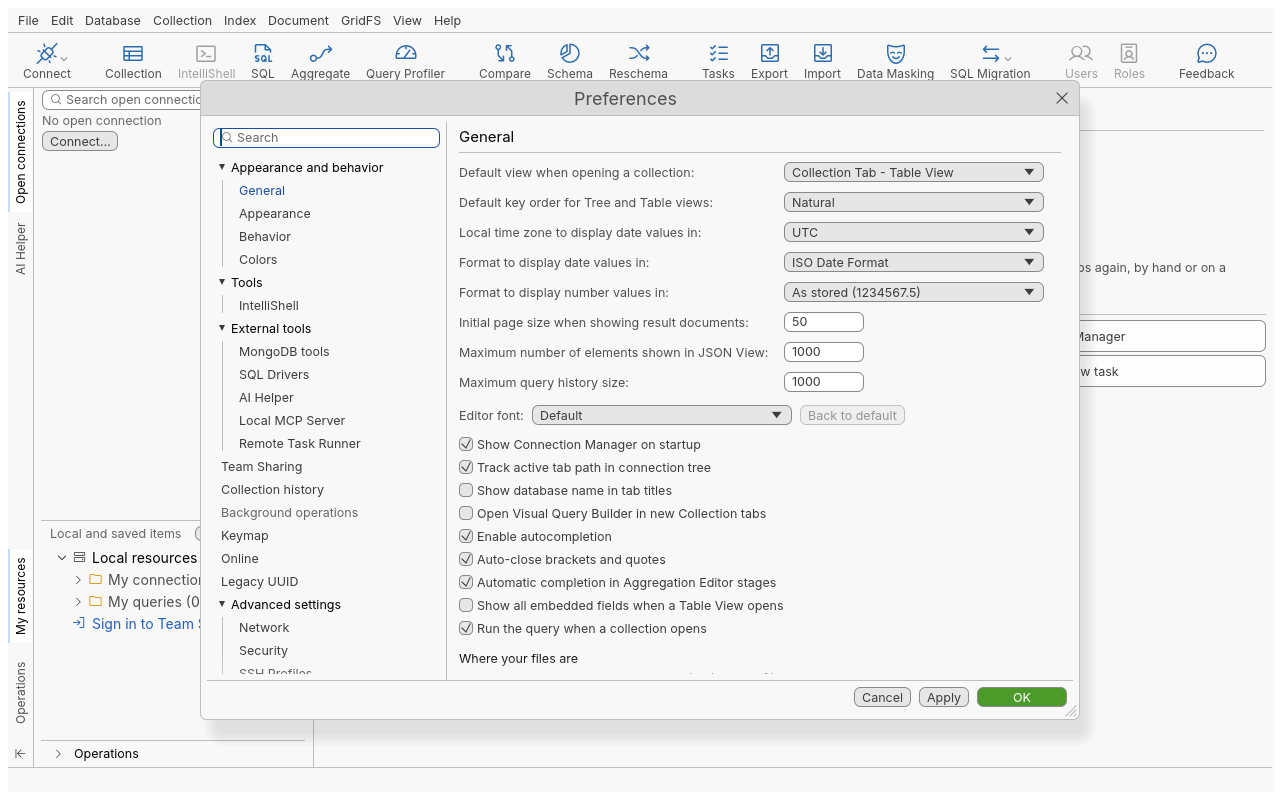
Change a setting
- Open Edit › Preferences.
- Pick a page in the list on the left, or type in the search field at the top: the list keeps only the pages holding a matching setting (for example “proxy” or “page size”).
- Change the setting.
- Click Apply to apply it and keep the dialog open, OK to apply and close, or Cancel to drop your changes.
Values are checked before anything is saved: an out-of-range page size or port is reported on the page, and nothing is written until it is fixed.
Pages
| Group | Page | What it holds |
|---|---|---|
| Appearance and behavior | General | Default view when opening a collection (Table, Tree or JSON View, or IntelliShell, SQL Query or the Aggregation Editor); key order of Tree and Table views (Natural or Alphabetical); time zone, date format and number format of displayed values; initial page size (1 to 10,000 documents); maximum elements shown in JSON View; maximum query history size; Show Connection Manager on startup; Track active tab path in connection tree; Show database name in tab titles; Open Visual Query Builder in new Collection tabs; Enable autocompletion; Auto-close brackets and quotes; Automatic completion in Aggregation Editor stages; Show all embedded fields when a Table View opens; Run the query when a collection opens; the editor font; Where your files are; Move to another computer. |
| Appearance | Theme (Light, Dark, or the system’s), language, font size, editor font size, editor tab width, and what the connection tree shows (stored functions, users, roles). | |
| Behavior | Enable session restore; Cache OIDC tokens; the Confirmations (ask before running an import, an export or a task; explain how to paste copied indexes; ask before IntelliShell updates, deletions and drops; offer to import a connection string found on the clipboard) and Show all messages again for the messages you hid with “Don’t show this message again”. | |
| Colors | Field type colors in the Table and Tree views: show them or not, and the color of each type. | |
| Tools | IntelliShell | Which shell runs (the bundled mongosh, a legacy mongo shell, one found on the PATH, or a given executable), result tab limit, raw output line limit, confirm destructive operations, the default query of a new tab, Query Assist, the startup script. |
| External tools | MongoDB tools | Which mongodump and mongorestore to use: the bundled ones, those on the PATH, or given paths. |
| SQL Drivers | Client libraries you installed for Oracle, IBM Db2 and Sybase sources (see Data). | |
| AI Helper | Provider, key, default model and temperature, consent (see Automation). | |
| Local MCP Server | Turn the server for AI agents on, its port, token and client configuration (see Automation). | |
| Remote Task Runner | Runner address, access token, CA certificate file (see Team). | |
| Team Sharing | Team server, sign in and out, allowed and blocked e-mail addresses (see Team). | |
| Collection history | Record document updates and deletions, automatic purge by age or size, clear everything. | |
| Keymap | Keyboard shortcuts: search, add, remove, reset, export and import (see Keyboard shortcuts). | |
| Online | Check for updates at startup, download updates in the background, update channel (Stable, or Beta for pre-releases). | |
| Legacy UUID | How legacy UUIDs (binary subtype 3) are decoded: .NET/C#, Java, Python, or raw data. | |
| Advanced settings | Network | Proxy for database tools, proxy for the application’s own requests (network access proxy, system proxy or direct connection), Test connectivity, Offline mode, Require post-quantum encryption with the team server and the task runner (otherwise preferred; when ticked, AI providers, the update host and identity providers are also reached with 256-bit encryption only, so one that offers only AES-128 is refused with an error naming this setting). |
| Security | How saved passwords are protected: the system’s credential store or a key store with a master password (see Security). | |
| SSH Profiles | Reusable SSH settings, assigned to connections. |
The Background operations page is listed but not available yet.
Move your settings to another computer
- On the old computer, open Edit › Preferences › General › Move to another computer and click
Export settings…. Choose a
.jsonfile. Every preference file and the saved MongoDB connections are written, without any password. - On the new computer, click Import settings… and choose the file.
- Read the confirmation: it lists every sensitive change first (program paths, proxies, AI Helper, runner or MCP endpoints, confirmations and other security settings). Confirm to import.
- Restart the application, then enter the connections’ passwords again.
Each replaced preference file keeps a .bak copy. A file written by a newer version that this
version does not know is refused rather than half imported. A connection whose folder name cannot
be used here (a dot-folder, a name with : or ?) goes to the top level, and one whose folder
differs only in letter case from yours goes into yours; the import lists each of them.
Preset preferences for every user (administrators)
An administrator can deploy a policy file that every user of the machine gets. The first of these that exists is read:
- the path in the
OXYSDB_POLICY_FILEenvironment variable; policy.jsonnext to the executable;/etc/oxysdb/policy.jsonon Linux,%ProgramData%\oxysdb\policy.jsonon Windows,/Library/Application Support/oxysdb/policy.jsonon macOS.
| Key | Effect |
|---|---|
disableUpdates | Turns off the update check, its start-up run and installing updates. No user preference turns it back on. |
defaults | Replaces the built-in defaults of these preferences; a user’s own saved choice still wins. Unknown keys and invalid values are ignored one by one. |
branding | Shows the organisation in the window title and Help › About Oxys DB Studio, with its support link. |
A policy file that exists but cannot be read or parsed fails closed: updates stay off, and the
reason names the file. On Windows, Group Policy can set the same values in the registry under
Software\Policies\Oxys\OxysDBStudio (computer or user); it wins over the file.
Where your settings are
Edit › Preferences › General › Where your files are and Help › About Oxys DB Studio show the
folders. By default, settings and connections are in the system’s per-user configuration folder
(~/.config/oxysdb on Linux), data and history in the per-user data folder
(~/.local/share/oxysdb on Linux), and logs in ~/.oxysdb.
| Environment variable | Overrides |
|---|---|
OXYSDB_CONFIG_DIR | The settings and connections folder. |
OXYSDB_DATA_DIR | The data folder (the logs follow it unless OXYSDB_LOG_DIR is set). |
OXYSDB_LOG_DIR | The logs folder. |
Portable mode: a folder named oxysdb-data next to the executable holds the settings,
connections, data and logs instead, so the application and its settings can move together (on a USB
drive, for example). The environment variables above take precedence over it.
Tips
- Every preference is also a command (
prefs.get,prefs.set,prefs.reset), usable from the command line. - Commands kept for problem reports: (General page,
commandJournalSize; default 200, 0 to 10,000) sets how many commands the in-memory journal of bug reports keeps; 0 turns it off. - The theme changes as soon as you click Apply or OK.
Troubleshooting
| Problem | What to do |
|---|---|
| “Settings recovered” at start-up | A preference file was unreadable. It was moved aside, the defaults are used, and the next save replaces it. Check the logs for the file’s name. |
| A setting comes back after a restart | An administrator policy may preset it. Your own choice wins over a policy default, but disableUpdates cannot be overridden. |
| A page says “Not available yet.” | That page has no working setting in this version. |