Security
How Oxys DB Studio protects your passwords and your data, and how to report a vulnerability.
Oxys DB Studio is meant to be pointed at production databases. This page explains, in plain words, what protects your credentials and your data, and how to report a security problem.
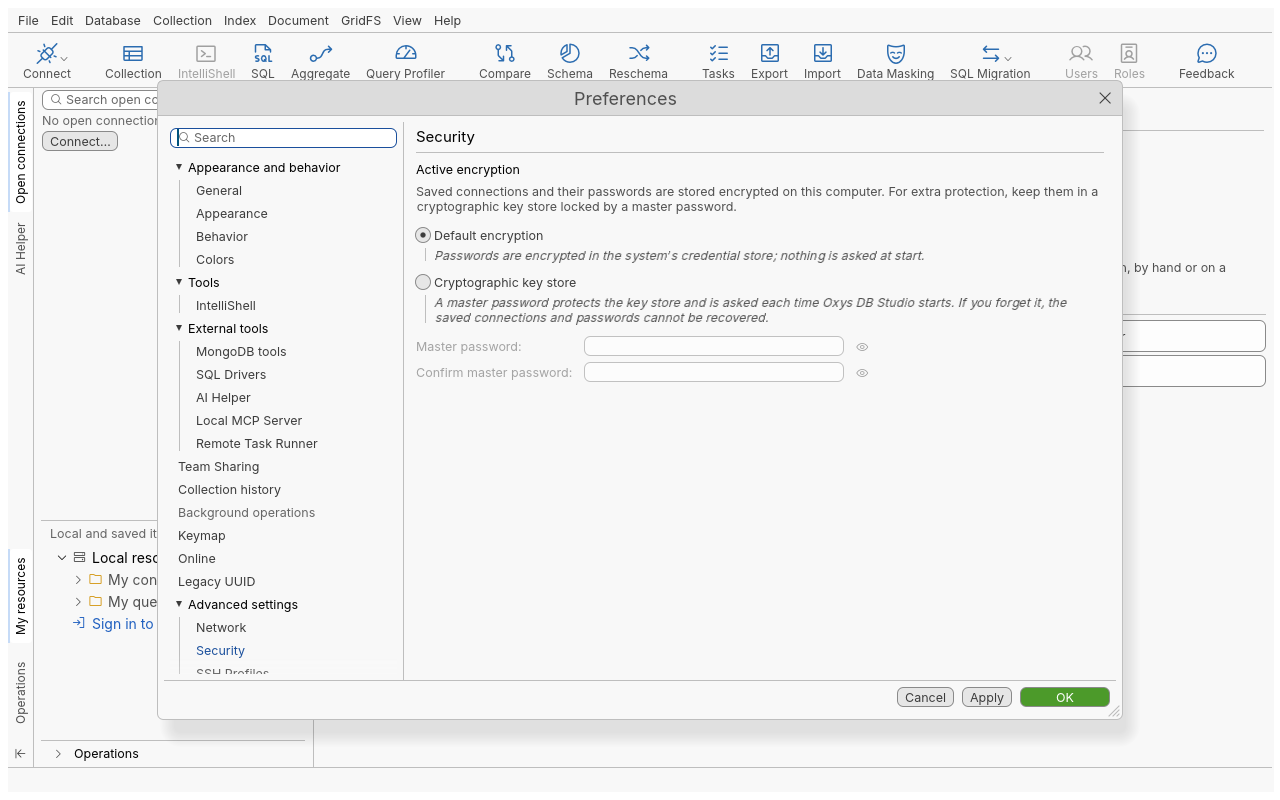
Saved passwords
You choose how saved passwords are protected the first time you start the application. Change it later in Edit › Preferences › Advanced settings › Security.
| Mode | How it works | Asked at start-up |
|---|---|---|
| Default encryption | Passwords go to the operating system’s credential store (Keychain, Windows Credential Manager, Secret Service). Connection files hold no password. | Nothing |
| Cryptographic key store | One file, encrypted with a master password you choose, holds every saved connection and secret. Until the master password is given, no saved connection or password can be read. | The master password, at every start |
When you switch to the key store, every connection and secret is moved into it, the new file is checked to decrypt to the same content, and only then are the old copies deleted. Switching back writes them out again before the key store is removed. Change master password re-encrypts the key store. There is no way to recover a forgotten master password: keep it in a password manager.
Passwords are never written to logs, error messages, job names, exported settings or issue reports: credentials in connection strings are masked.
Writes you did not ask for
- Confirmations. Every destructive operation (drop, clear, delete many, overwrite on import, sync, masking or reschema into an existing collection…) asks first. Some ask you to type the name of what will be destroyed. The same rule applies to the command line, the MCP server and scheduled tasks: a command never runs a destructive action on its first call. See Automation.
- Read-Only Lock. A connection saved with the Read-Only Lock refuses every write in the application’s engine, before anything is sent, whatever the tool (UI, command line, MCP, tasks). The lock is a safeguard of the application: it does not change the account’s privileges on the server, so also use read-only database accounts where you can. See Connections.
- Imports that replace data drop the target collection only after the first record has been read successfully, so a source that cannot be read leaves the target untouched. See Data.
- Local MCP server. Off by default; when on, it listens on
127.0.0.1only, requires a per-install token on every request, and offers read-only tools only, enforced by the engine. See Automation.
Files and network
- Settings, connection and history files are written atomically (a temporary file, then a rename), with the previous version kept. A corrupt file is moved aside and reported, never silently overwritten. Folders created by the application are private to your user.
- Database connections support TLS, client certificates, SSH tunnels and SOCKS proxies (see Connections). The application’s own web requests use the proxy chosen in Preferences › Advanced settings › Network, and Offline mode turns them all off.
- Encrypted connections resist future quantum computers where the other end allows it: the
application’s own HTTPS requests, Team Sharing and the remote task runner offer the post-quantum
key exchange X25519MLKEM768 first, and SSH tunnels offer
mlkem768x25519-sha256(OpenSSH 9.9 or later on the server). For your own team server and runner, the network settingpqTlscan require it (network.configure), as their--tls-pq requireoption does on the server side; it then also refuses a team server reached over plain HTTP, other than on this computer. - Updates are downloaded with a checksum and two signatures, a classical one (Ed25519) and a post-quantum one (ML-DSA-65), and install only when both check out. Details, and what is not post-quantum yet: Encryption and quantum resistance. Administrators can turn updates off for every user (see Preferences).
- Nothing is sent to the project: no telemetry, no crash reporting. See Privacy.
Self-hosted servers
The team server and the task runner hold credentials for other people’s databases. Run them as dedicated, unprivileged users, serve them over HTTPS, and treat the runner’s access token like an SSH key for the runner’s account. The security checklist of the Self-hosting section lists every step.
Report a vulnerability
Please report vulnerabilities privately, never in a public issue, merge request, forum or chat.
- Open a new issue on the project’s GitLab: https://gitlab.com/oxys-apps/oxysdb/-/issues/new.
- Tick “This issue is confidential” before you submit. Only you and the maintainers can see it.
- Title it
Security: <short summary>.
If you cannot use GitLab, open a public issue that only asks for a private channel, without any detail.
Include:
- the version (Help › About Oxys DB Studio › Copy gives the version, build and platform) and how you installed it;
- the component: desktop app, command line, team server, task runner, local MCP server, or a library;
- what an attacker can read, write or run, and what they need first;
- steps to reproduce, ideally a minimal proof of concept, with test data only: never send real credentials, connection strings or customer data;
- any suggested fix, and whether and when you plan to publish.
| Step | Target |
|---|---|
| Acknowledgement | Within 5 working days |
| First assessment | Within 15 working days |
| Fix | Within 90 days at most, sooner for critical issues, with an update at least every 30 days |
| Disclosure | Once a fixed release is out, with credit unless you prefer to stay anonymous |
Only the latest release receives security fixes; please check that the problem still happens with it. This is a volunteer open-source project: there is no bug bounty.
Out of scope: vulnerabilities in MongoDB servers, mongosh or the database tools you install yourself (report those to their vendors), and findings that need an already-compromised machine or account.
Troubleshooting
| Problem | What to do |
|---|---|
| “Wrong master password” at start-up | Type it again carefully (it is case-sensitive). Without it, saved connections cannot be read. |
| “no credential store is available on this system; the password was not saved” | Common on a Linux server or minimal desktop. Install and unlock a Secret Service provider, or choose the cryptographic key store. Until then, passwords are asked when you connect. |
| A write says the connection has the Read-Only Lock | Remove the lock in the connection’s settings if the write is intended. |