Privacy: what leaves your computer
No telemetry, no analytics, no account: every network connection the application can make, when, and how to turn it off.
Oxys DB Studio has no telemetry, no analytics, no automatic crash reporting and no account. It connects only to what this page lists, and most of it only after you ask. The project’s own checks fail the build when a component that can make web requests is not listed here, and a test checks that everyday work sends nothing you did not ask for.
Every outbound connection
| Connection | When | What is sent | How to turn it off |
|---|---|---|---|
| Your databases (MongoDB, PostgreSQL, MySQL and the other SQL sources you set up), directly or through an SSH tunnel or a SOCKS proxy | Only when you connect | What your queries, imports and other operations need, to the servers you configured | Do not connect |
| IntelliShell (the bundled mongosh) | When you open IntelliShell | mongosh connects to the same server as the connection | Do not open IntelliShell |
| Update check | At start-up (Preferences › Online › Check for updates at startup, on by default) and with Help › Check for Updates | A plain request for the project’s release feed: no query string, no body, no identifier, no cookie; the user agent is oxysdb/<version> | Untick the preference; an administrator can turn it off for everyone (disableUpdates, see Preferences) |
| Update download | Only when you choose to update | The release archive, its checksum and its signature | Do not choose an update |
| MongoDB OIDC sign-in | Only when a connection uses the OIDC mechanism | Discovery and token requests to the identity provider the server names; your browser opens its sign-in page | Tokens stay in memory; untick Preferences › Behavior › Cache OIDC tokens to drop them after use |
| AI Helper | Only after you configure a provider with your own key and accept the consent prompt | Your prompt; the names and types of the fields of the collections it is about (never their values); the results of the read-only tools the assistant runs (queries it runs for you can return documents) | Leave the AI Helper unconfigured (the default), or Revoke consent |
| Team Sharing | Only after you sign in to a team server | Your e-mail address, the session token, and what you share (connections, queries, scripts) | Do not sign in |
| Local MCP server | Only when you turn it on (off by default) | Nothing leaves the machine: it listens on 127.0.0.1 only, for agents on this computer | Leave it off |
| Remote task runner | Only after you configure a runner and send it a task | The task and the connections it uses, with their saved passwords, over TLS, to your own runner | Do not configure a runner |
| Links (documentation, the issue tracker, release notes) | When you click them | The application only asks your browser to open the page | Do not click them |
The team server (oxysdb-server) and the task runner (oxysdb-runner) run on your own
infrastructure. They connect only to the database you configure for them, and their metrics are
served only on a listener you turn on: they send nothing anywhere. See
Self-hosting.
Proxy
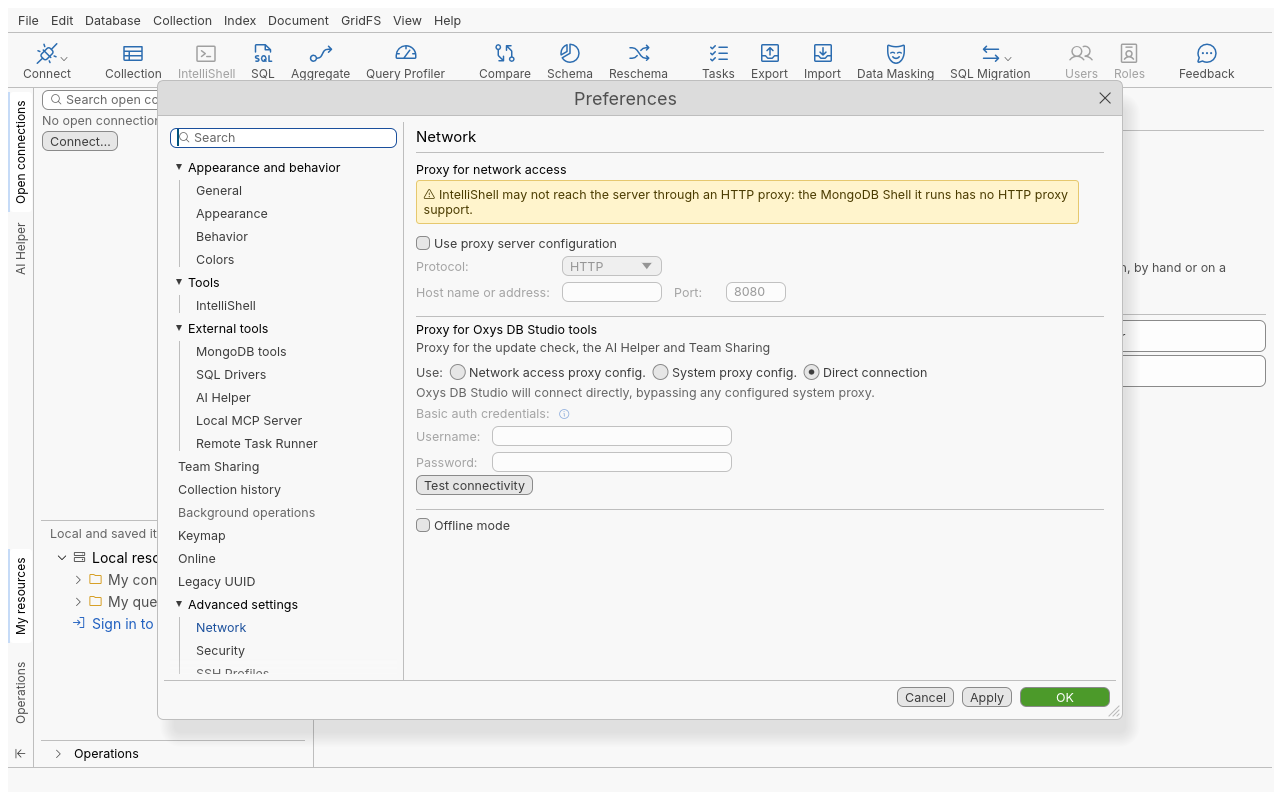
The update check and download, the AI Helper and Team Sharing use the proxy chosen in Edit › Preferences › Advanced settings › Network under Proxy for Oxys DB Studio tools: the network access proxy (HTTP or SOCKS), the system proxy, or a direct connection, which ignores the proxy environment variables. Database connections use their own proxy and SSH settings in the connection dialog.
Offline mode
Edit › Preferences › Advanced settings › Network › Offline mode turns every request above off at once: the update check and download, the AI Helper and Team Sharing stop with a message before anything is sent. Signing out of Team Sharing then only forgets the session on this computer. Database connections are not affected.
What stays on your computer
Settings, connections, saved queries, history and logs stay in your per-user folders (see Preferences). Passwords are kept in the system’s credential store, or in an encrypted key store if you choose one (see Security).
The logs (log.txt, updater.log, install.log, global_exception.log) are never sent anywhere.
Save Logs Folder… in Help › Report a Problem… writes a report folder on your computer and shows it to you; it opens
the issue tracker only when you click, and what you attach is up to you. See
Troubleshooting and logs.
Help › Report a Problem… builds a bug report on your computer and shows you all of it: names become tokens, documents become their type and size, hosts, paths and secrets are replaced. It leaves your computer only if you open the GitLab issue in your browser, copy it or save it; a screenshot is taken only if you click Add Screenshot. A crash report is never sent either: the next start asks you to review it. See Reporting problems.
Revoke the AI Helper’s consent
Edit › Preferences › External tools › AI Helper › Revoke consent turns the AI Helper off. It asks for your consent again before it can be enabled.