Connect through an SSH tunnel
Reach a MongoDB server behind a bastion host, with a password, a private key or the SSH agent, and reuse the settings as SSH profiles.
When the database is only reachable from inside a private network, connect through an SSH server (a bastion or jump host) that can reach it. Every MongoDB host of the connection, including replica set members discovered later, is reached through the tunnel and resolved by the SSH server, so names known only inside the private network work.
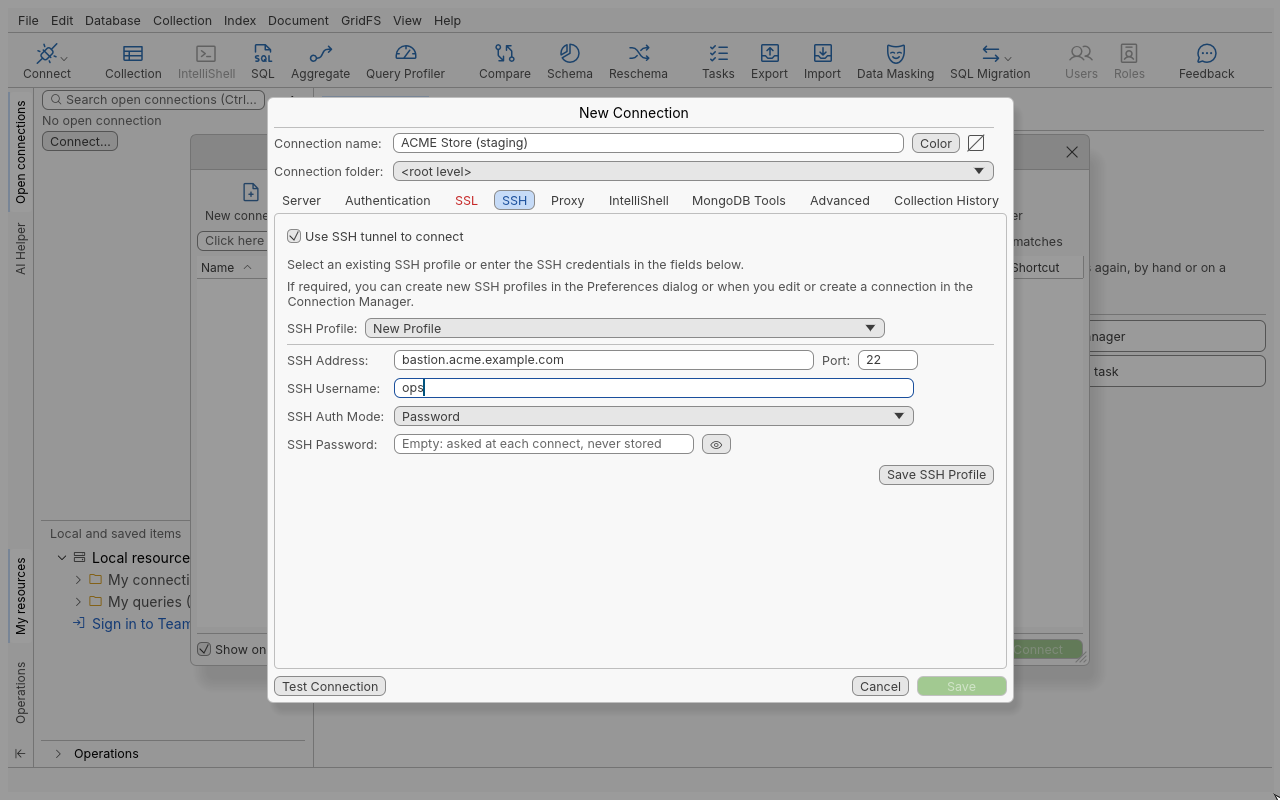
Set up a tunnel
- Open the connection dialog and click the SSH tab.
- Tick Use SSH tunnel to connect.
- Fill in SSH Address: (the bastion, for example
bastion.acme.example.com) and Port: (22 by default). - Fill in SSH Username:.
- Choose the SSH Auth Mode: and its secret (table below).
- On the Server tab, enter the MongoDB host as the bastion sees it.
- Click Test Connection. The Opening SSH tunnel step comes first.
- Click Save.
Authentication modes
| SSH Auth Mode | Fields | Notes |
|---|---|---|
| Password | SSH Password: | Saved in the credential store, or asked at each connect if left empty. |
| Private Key | Private Key: file, Passphrase: | OpenSSH, PEM, PKCS#8 or PuTTY (.ppk) key files. The passphrase field is enabled only for an encrypted key. |
| SSH Agent | none | The keys of the running SSH agent (SSH_AUTH_SOCK) are offered; nothing is stored. |
Trust the SSH server’s host key
The first time you connect to an SSH server whose key is unknown, nothing is sent to it. An
SSH host key box shows the server, the key type and its SHA256: fingerprint.
- Compare the fingerprint with the one your administrator gives you (on the server:
ssh-keygen -lfon its host key). - Click Accept and Remember if they match (a click is required; Enter does not accept), or Cancel.
The accepted key is recorded in the application’s own known_hosts file (your ~/.ssh/known_hosts
is read but never modified). Keys already in ~/.ssh/known_hosts are trusted without asking.
If the server later presents a different key than the one recorded, the connection is refused as a
possible man-in-the-middle attack, and the application offers no way to accept it. If the change is
legitimate (the server was reinstalled), remove the old line from the known_hosts file and connect
again.
Scheduled tasks, the command line and agents never accept an unknown key: open the connection once in the application first.
SSH profiles
An SSH profile saves a tunnel (address, port, user, mode and secret) under a name, so many connections can share it and a change applies to all of them.
- In the SSH tab, SSH Profile: lists your profiles. Pick one to fill the fields, or keep New Profile and click Save SSH Profile to save the current fields under a name.
- Edit > Preferences > Advanced settings > SSH Profiles lists the profiles with the number of connections using each. From there: Add Profile, Edit Profile, Delete Profile (asks first; the connections keep their settings) and Assign to Connections (tick the connections that should use the profile).
Troubleshooting
| Problem | What to do |
|---|---|
| The SSH host name does not resolve, or the port is refused | Check SSH Address: and Port:, and that the bastion is reachable from your computer. |
| Timeout at Opening SSH tunnel | A firewall is dropping the traffic. |
| Host key changed | See above: confirm with the administrator before removing the old key. |
| Authentication refused | The message lists the methods the SSH server accepts; check the user, key and passphrase. |
| No SSH agent | Start your agent and make sure SSH_AUTH_SOCK is set in the environment the application starts from. |
| The tunnel opens but no MongoDB server is found | The bastion cannot reach the MongoDB host or port given on the Server tab. |
In the browser version, the private key you choose with Browse… is uploaded and kept by the gateway with the connection, like a saved password, and the connection keeps its own list of known host keys (see Use Oxys DB Studio in a browser).