Authentication
Sign in with SCRAM, X.509 certificates, LDAP, Kerberos (including Windows single sign-on), AWS IAM or OpenID Connect.
The Authentication tab of the connection dialog sets how the connection signs in. Pick a mode in Authentication Mode:; the fields below change with it.
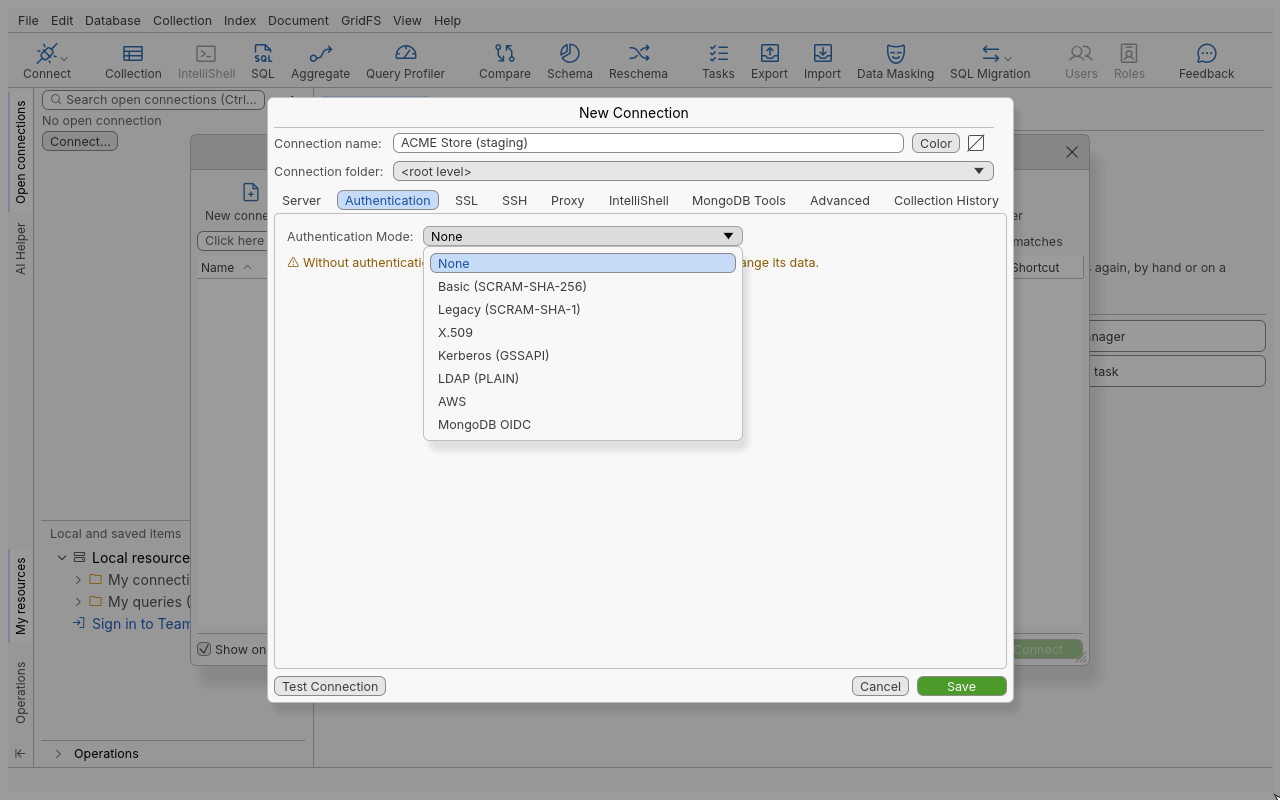
Set the authentication mode
- Open the connection dialog (New connection, or Edit on a saved connection).
- Click the Authentication tab.
- Choose a mode in Authentication Mode: and fill in its fields (see the sections below).
- Click Test Connection, then Save.
Modes at a glance
| Mode | Server mechanism | Fields | Authentication database |
|---|---|---|---|
| None | none | none | none |
| Basic (SCRAM-SHA-256) | SCRAM, negotiated with the server (SCRAM-SHA-256 when it supports it) | User name, Password, Authentication DB | admin by default |
| Legacy (SCRAM-SHA-1) | SCRAM-SHA-1 | User name, Password, Authentication DB | admin by default |
| X.509 | MONGODB-X509 | the client certificate on the SSL tab | $external |
| Kerberos (GSSAPI) | GSSAPI | Principal, Service name, Service realm, Canonicalize host name | $external |
| LDAP (PLAIN) | PLAIN | User name, Password | $external |
| AWS | MONGODB-AWS | AWS access key id, AWS secret access key, AWS session token | $external |
| MongoDB OIDC | MONGODB-OIDC | User name (optional) and sign-in options | $external |
With None the tab warns that anyone who can reach the server can read and change its data. With Legacy it reminds you that SCRAM-SHA-1 is weaker than SCRAM-SHA-256.
For every mode other than None, two options control what the connection tree shows when the user cannot list everything:
- Always show the authentication database of the user account
- Always show all databases and collections defined in roles of the user account
Username and password (SCRAM)
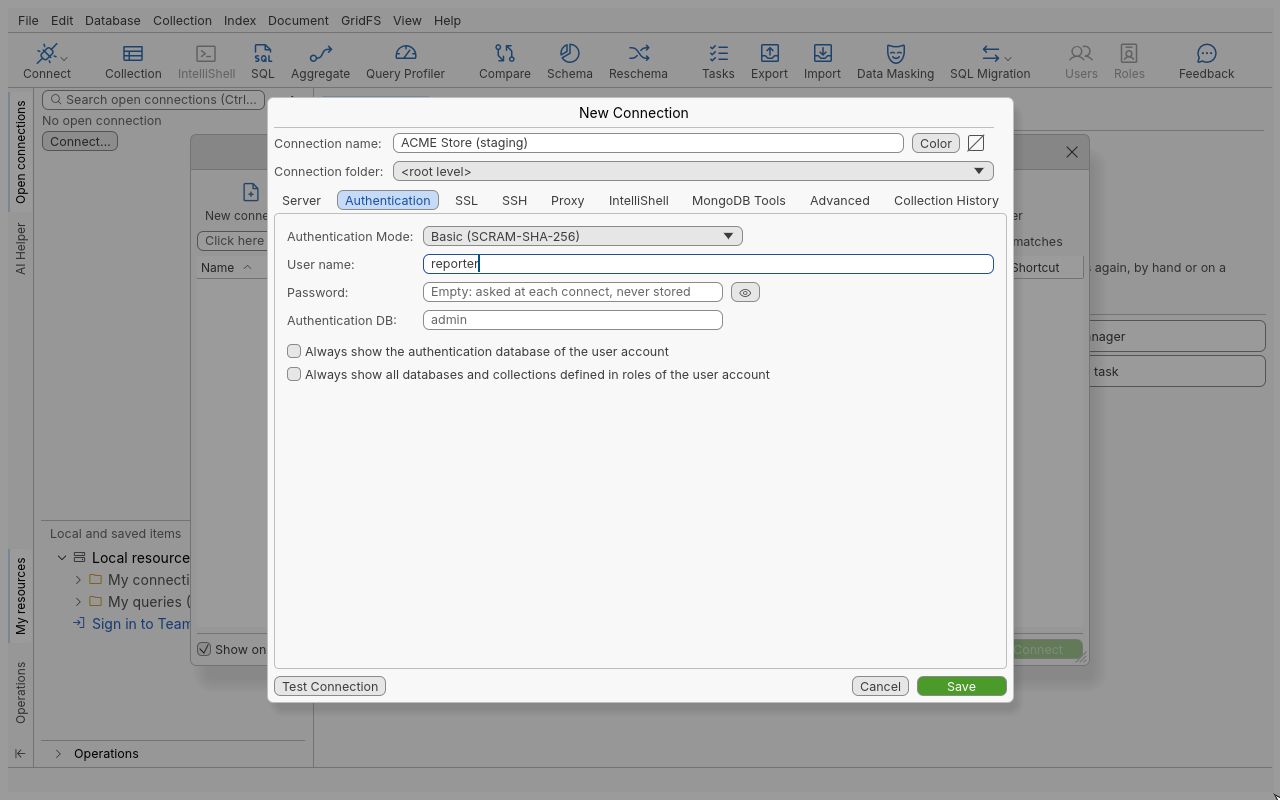
- Choose Basic (SCRAM-SHA-256).
- Enter User name: and Password:. The eye button shows or hides the password.
- Set Authentication DB: if the user is not defined in
admin.
Leave Password: empty to be asked at each connect. Once saved, the field shows “Saved (type to replace)” and a checkbox lets you forget the saved password.
X.509 certificates
- On the SSL tab, tick Use SSL protocol to connect and choose a Client certificate file: (a PEM file with the certificate and its private key). See TLS/SSL.
- X.509 User: is filled with the certificate’s subject. Keep it unless the server expects another user name.
- On the Authentication tab, choose X.509. The Open the SSL tab link takes you back to the certificate.
LDAP
Choose LDAP (PLAIN) and enter the directory User name: and Password:. The
authentication database is $external. LDAP needs a MongoDB server configured for LDAP (an
Enterprise feature). The password travels as plain text inside the connection, so use TLS.
Kerberos (GSSAPI)
- Choose Kerberos (GSSAPI).
- Enter the Principal: (for example
[email protected]). - Change Service name: only if the server does not use
mongodb. - Set Service realm: when the server’s realm differs from the principal’s (cross-realm trust).
- Tick Canonicalize host name if your Kerberos setup needs the server’s canonical name.
There is no password field: Kerberos uses the ticket you already hold.
| Platform | How the ticket is found |
|---|---|
| Windows | Single sign-on: the ticket of your Windows logon session is used (SSPI, part of Windows). Sign in to Windows with your domain account and connect; nothing else to install. |
| Linux | The system Kerberos library (MIT Kerberos, libgssapi_krb5.so.2) and your ticket cache: run kinit first. The library is loaded only when Kerberos is used. The .deb and .rpm packages recommend it (libgssapi-krb5-2 / krb5-libs); if it is missing, the connection says which package to install. |
| macOS | Not available yet (there is no macOS build). |
AWS IAM
- Choose AWS.
- Either enter AWS access key id: and AWS secret access key: (plus AWS session token:
for temporary credentials), or leave the key id empty to use the credentials of the environment:
environment variables, the
~/.awsfiles, SSO or the instance role.
The secret access key is kept in the credential store like a password. The session token is saved with the connection.
The identity confirmation
When the key id is empty, the connection would sign in with this computer’s own AWS identity. A server that is neither MongoDB Atlas nor this computer could misuse that identity. So the first time such a connection opens, an AWS identity box names the servers and asks whether to use your identity with them.
- Use My AWS Identity confirms. The answer is saved with the connection, for those servers only.
- If the servers change later, you are asked again.
- Scheduled tasks, the command line and agents never confirm on your behalf: an unconfirmed connection is refused there.
OpenID Connect (OIDC)
- Choose MongoDB OIDC.
- Optionally enter a User name: (sent to the identity provider as a hint).
- Connect. Your browser opens at the identity provider the server names; sign in there. The browser then returns to a small page served by the application on this computer, and the connection opens.
| Option | Use it when |
|---|---|
| Use ID token instead of Access token | Your identity provider does not issue JWT access tokens. |
| Consider target endpoint trusted | The server is neither MongoDB Atlas nor localhost and you trust it. Without it, tokens are only sent to Atlas and local servers, and the connection stops before sending anything. |
| Use device authorization flow | You want to sign in on another device with a code instead of a redirect to this computer. |
| Redirect URI: | The provider expects a redirect other than the default http://localhost:27097/redirect. |
| Token file (workload): | A workload gets its token from a file instead of a sign-in. |
Tokens stay in memory only and are reused silently for new tabs on the same servers while they are valid; an expired token is renewed without the browser when the provider allows it. Turn off Cache OIDC tokens in Edit > Preferences > Behavior to sign in at every connection. OIDC needs MongoDB 7.0 or later; an older server refuses it with its own message.
Troubleshooting
| Message | What to do |
|---|---|
| Authentication failed | Check the user name, password and Authentication DB: (the database where the user was created). |
| “Kerberos (GSSAPI) authentication is not available on this machine: …” | Install the system Kerberos library named in the message. |
| A Kerberos connection fails on Linux | Run kinit and check klist; check the service name and realm. |
| OIDC: “the sign-in at the identity provider did not finish … and was abandoned” | The browser sign-in took more than 5 minutes or was closed. Connect again. |
| OIDC refused before any sign-in | The server is not Atlas or local: tick Consider target endpoint trusted if you trust it. |
| AWS connection refused in a scheduled task | Open it once in the application and confirm the AWS identity box. |