TLS/SSL
Encrypt the connection, choose how the server certificate is checked, and sign in with a client certificate.
The SSL tab of the connection dialog turns on TLS (often still called SSL) and sets how the server’s certificate is checked. It is also where you choose a client certificate, for X.509 authentication or for servers that require one.
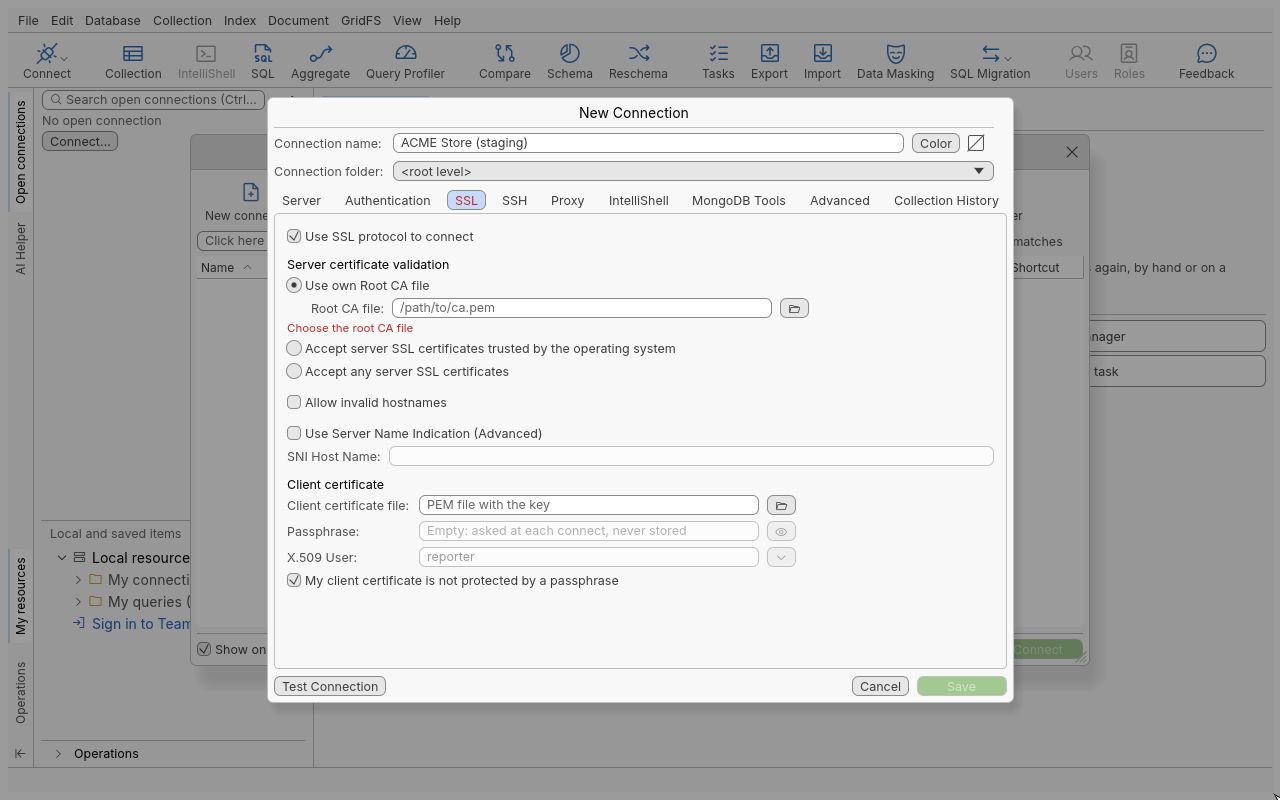
Encrypt a connection
- Open the connection dialog and click the SSL tab.
- Tick Use SSL protocol to connect.
- Under Server certificate validation, choose how the server is trusted (table below).
- Click Test Connection, then Save.
A mongodb+srv:// connection, or a URI with tls=true, turns TLS on for you.
Server certificate validation
| Option | When to use it |
|---|---|
| Accept server SSL certificates trusted by the operating system | The server’s certificate is signed by an authority your system already trusts (public clouds, company authorities installed on the machine). |
| Use own Root CA file | The server uses a private certificate authority. Choose its PEM file in Root CA file: (or Browse for the root CA file). |
| Accept any server SSL certificates | Testing only: the traffic is encrypted but the server is not verified, so anyone in the middle can pretend to be it. |
| Checkbox | Effect |
|---|---|
| Allow invalid hostnames | Accepts a certificate whose name does not match the host you connect to. Use only when you know why the names differ. |
| Use Server Name Indication (Advanced) | Sends SNI Host Name: instead of the host name during the TLS handshake (for servers behind a proxy that routes by name). |
Use a client certificate
- In Client certificate, choose the Client certificate file:: a PEM file holding the certificate followed by its private key.
- If the key is encrypted, enter its Passphrase:, or leave it empty to be asked at each connect (“Empty: asked at each connect, never stored”). If the key is not encrypted, tick My client certificate is not protected by a passphrase.
- X.509 User: shows the certificate’s subject. It is the user name used by X.509 authentication; the button next to it lists the certificate’s subject, to pick it again after a change.
A saved passphrase goes to the credential store, never to the connection file, and can be forgotten with Forget the saved passphrase.
Tips
- Prefer a root CA file over Accept any server SSL certificates: the second protects against eavesdropping but not against impersonation.
- Servers older than MongoDB 4.2 cannot be reached over TLS (see Older servers); use an SSH tunnel on untrusted networks.
Troubleshooting
| Symptom | What to do |
|---|---|
| The Configuring SSL connection step fails with a certificate error | The server’s authority is not trusted: choose Use own Root CA file with the right CA. |
| Host name mismatch | Connect with the name written in the certificate, or, knowingly, tick Allow invalid hostnames. |
| “The certificate has no subject” | The file holds no certificate subject: check that it is the client certificate, not the CA. |
| Asked for a passphrase at every connect | Type it once in Passphrase: and save the connection. |
In the browser version, the root CA file and client certificate you choose with Browse… are uploaded and kept by the gateway with the connection, like a saved password (see Use Oxys DB Studio in a browser).