Run scripts in IntelliShell
Write and run MongoDB shell scripts with completion, result tabs, confirmations before destructive commands and a read-only guard.
IntelliShell is the MongoDB shell inside Oxys DB Studio. You write JavaScript and shell commands in an editor, run the whole script, one statement or a selection, and see the documents in result tabs with the Table, Tree and JSON views. Each IntelliShell tab has its own shell process, so variables survive from one run to the next.
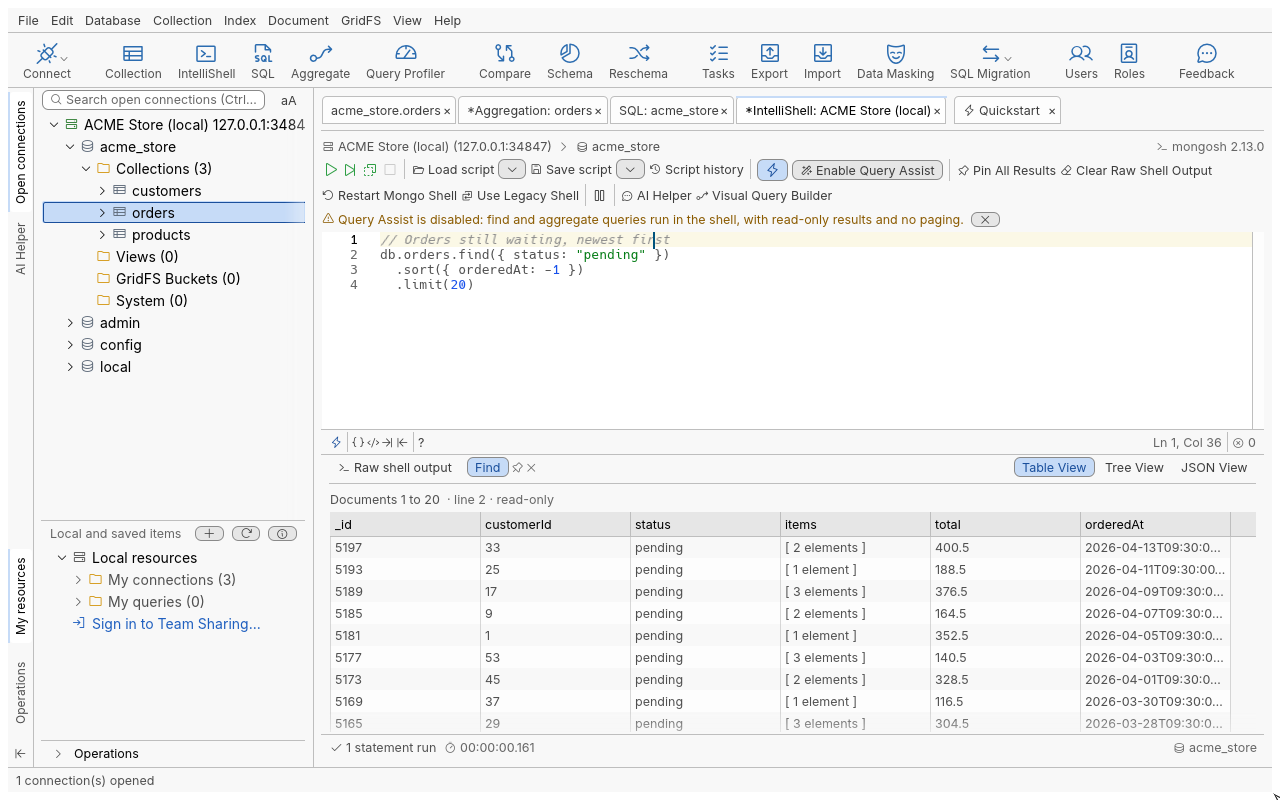
Open IntelliShell
- Connect, then select a connection, database or collection in the connection tree.
- Press Ctrl+L, click IntelliShell in the toolbar, or right-click and choose Open IntelliShell.
The tab is titled IntelliShell: <connection name>. Its current database is the one you selected.
Opened on a collection, the editor holds that collection’s default query (db.getCollection("orders").find({}))
and runs it, unless you turned that off (see Preferences below).
IntelliShell runs mongosh, which ships with the application. Nothing else needs to be installed.
Run a script
-
Type your script in the editor, for example:
use acme_store 20 -
Choose how much to run:
| Command | Shortcut | Runs |
|---|---|---|
| Run entire script | F5 | Every statement, in order |
| Run statement at cursor | F6 | The statement containing the cursor |
| Run selection | F9 | The statements in the selected text |
- Watch the progress (
Executing..., with the elapsed time). To stop, click Stop the running script: the server operation is interrupted first; JavaScript that never yields is stopped by ending the shell process, and the next run starts a fresh shell.
Statements run one at a time. The first statement that fails stops the script and is reported with
its line. Statements end at ; or at a line break, unless the next line continues them (a line
starting with . for chained methods, for example).
Before anything runs, the script is checked: unbalanced brackets or an unterminated string or comment is reported as Syntax error at line N and nothing is sent.
Results
- Raw shell output shows the text output of every command, as the shell prints it. A cursor
prints its first 20 documents; type
itand run it to continue. - Documents become result tabs (
Find,Aggregate,Shell Output), with Table, Tree and JSON views. Results kept from the shell are read-only and hold at most 1,000 documents. - Every run replaces the result tabs that are not pinned. Pin a tab (Pin Result: keep it after the next run) or click Pin All Results to keep them.
Query Assist
With Query Assist on (the default), a standalone db.<collection>.find(…), findOne(…) or
aggregate([…]) statement is run by the application instead of the shell. Its result tab
(Find Query (line N), Aggregate Query (line N)) is then paged and editable like a
Collection Tab. A wand next to the line number marks the
statements Query Assist will run. Other statements still go to the shell, in order.
Safety
Confirmation before destructive commands
A script that can update or delete documents, or drop a database, collection or index
(updateMany, deleteOne, drop, dropIndex and the like) asks first. The Run Script dialog
names the methods it found. Click OK to run, or Cancel to run nothing. Tick
Don’t show this message again to stop asking, for every tab and connection; turn it back on with
the Confirm destructive operations preference.
Scripts that build a command as they run
Some scripts only reveal a destructive command while running (a command name assembled from variables, for example). IntelliShell then stops the script before that command is sent, and asks:
- Run the rest resumes at the stopped line in the same shell. What already ran is not run again.
- If the stopped statement had already written something, it cannot be resumed partway: Run the rest skips the rest of that statement and continues with the statements after it.
- Any other run in the tab, or answering no, discards the stopped run; it can no longer be resumed.
Read-only connections
On a connection with the Read-Only Lock (see read-only connections), a script that calls a write method (insert, update, delete, drop, index or collection creation, user and role changes) is refused before anything runs: The connection ‘…’ is read-only: the script uses … and was not run. The shell itself also runs under a guard that refuses writes, spawning processes and writing files.
This check is a strong safety net, not a permission system. The guarantee that nothing is written is a database user without write privileges.
The legacy mongo shell cannot enforce the lock, so IntelliShell does not run it on a read-only
connection.
Scheduled scripts run isolated
When an IntelliShell script runs as a scheduled task (see Scheduled scripts below),
its shell is isolated: it cannot load code from files, start processes, write files outside its own
temporary folder, or use eval, load, snippet, fetch or dynamic import. The script is checked
when you schedule it, and constructs that could reach around these limits are refused then, with the
reason. Scheduled runs need mongosh (the bundled one qualifies); the legacy shell is refused.
Scripts: load, save, history
| Command | Shortcut | What it does |
|---|---|---|
| Load Script | Ctrl+O | Opens a saved script, or Load Script from File… (several files at once: one tab each) |
| Save script | Ctrl+S | Saves the script |
| Save Script As… | Shift+Ctrl+S | Saves it to a new file |
| Open recent | Recently opened script files | |
| Script History and Browser | Scripts you ran and saved, with a search (Ctrl+F) and a preview |
Toolbar and editor reference
| Item | Shortcut | What it does |
|---|---|---|
| Restart Mongo Shell | Starts a fresh shell: variables are reset | |
| Use Legacy Shell | Switches this tab between mongosh and a legacy mongo shell you installed | |
| Clear Raw Shell Output | Empties the Raw shell output tab | |
| Raw shell mode | Alt+Shift+R | Turns Query Assist off for this tab: everything runs in the shell |
| Retain previous result tabs | Alt+Shift+P | Pins every result tab shown now, so the next run keeps them |
| Enable Query Assist | Turns Query Assist on or off for this tab and new tabs | |
| Visual Query Builder | Ctrl+B | Builds a find from rules and writes it into the script (details) |
| Open Auto-Completion | Ctrl+Space | Suggests collections, methods, fields and operators |
| Horizontal split | Puts the result view beside the editor | |
| Find, Replace | Search and replace in the script (Match case, Replace All) |
Preferences
Open Edit > Preferences (Ctrl+P), then Tools > IntelliShell. A connection can override the shell choice in its own IntelliShell tab (see the connection manager).
| Preference | Default | What it does |
|---|---|---|
| Enable IntelliShell | On | Off: IntelliShell cannot be opened |
| Shell | mongosh | mongosh, or the legacy mongo shell |
| Shell executable | The bundled one | Or the one on the PATH, or a file you choose |
| Legacy mongo shell | On the PATH | Where the legacy shell you installed is (never bundled) |
| Raw shell output line limit | 10,000 | Lines kept in Raw shell output |
| Maximum number of result tabs | 10 | Result tabs kept per run |
| Confirm destructive operations | On | Ask before updates, deletions and drops |
| Run the default query when a new IntelliShell tab opens | On | Runs the collection’s default query on open |
| Enable Query Assist in new IntelliShell tabs | On | See Query Assist |
| Load a startup script (mongorc.js) when the shell starts | Off | Runs ~/.mongoshrc.js or ~/.mongorc.js, or the file you name |
Older servers
Servers older than 3.6 are opened on the legacy mongo shell, which you install yourself (it is never
bundled). See older servers.
Troubleshooting
| Symptom | What to do |
|---|---|
| mongosh was not found… | The shell executable setting points nowhere. Choose the bundled shell again, or a mongosh file, in Tools > IntelliShell. |
| A script stops at the first error | That is by design: fix the reported line and run again, or run from the cursor with F6. |
| Type “it” for more | The cursor has more documents: run it, or use Query Assist for paged results. |
| Variables are gone | The shell was restarted or stopped; the next run starts a fresh one. |
| The connection ‘…’ is read-only… | The connection has the Read-Only Lock; remove it in the connection’s settings if you mean to write. |
| IntelliShell does not reach the server through an HTTP proxy | The shell has no HTTP proxy support; use a SOCKS proxy or a direct connection. |
Scheduled scripts
IntelliShell scripts can run as tasks: in the Tasks view, click New Task and choose
IntelliShell Script, pick the script’s source and its connection, then give the task a schedule.
Scheduled runs always use the isolated shell described above, so a script that works in an
IntelliShell tab may be refused at schedule time if it relies on eval, load or file access.