The Connection Manager
Open, filter, sort, edit, duplicate, colour and delete saved connections.
The Connection Manager lists every saved connection. You open connections from it, create new ones and keep the list tidy.
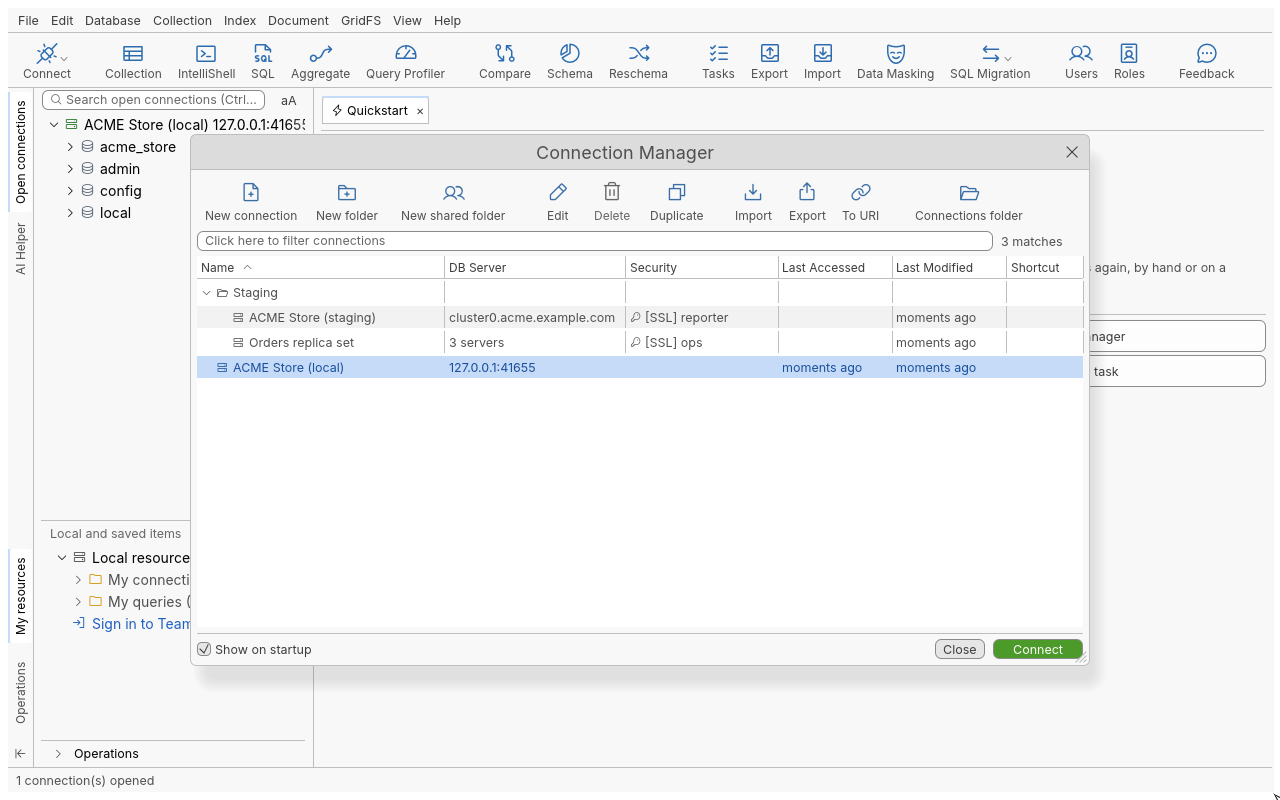
Open the Connection Manager
Any of these opens it:
- the Connect button at the left of the global toolbar;
- Ctrl+N (⌘N on macOS builds);
- Connect in the context menu of an empty area of the connection tree;
- Manage connections in the context menu of a connection under My resources.
By default it also opens when the application starts. Clear Show on startup at the bottom of the window to stop that.
Connect to a saved connection
- Click the connection’s row. Ctrl-click or Shift-click selects several.
- Click Connect (or double-click a row).
- A Connecting box shows each step (“Initializing connection”, “Retrieving DNS Records”, “Opening SSH tunnel”, “Connecting to server”…) with its status. Show details unfolds what happened at each step.
- When every selected connection is open, the window closes and the connections appear in the connection tree.
If a password, passphrase or SSH password was not saved, you are asked for it; it is not stored.
The toolbar
| Button | What it does |
|---|---|
| New connection | Starts the New Connection wizard (URI or form). |
| New folder | Creates a folder in the list (Folders). |
| New shared folder | Shares connections with your team (only with Team Sharing on). |
| Edit | Opens the connection dialog of the selected connection. |
| Delete | Deletes the selected connections after a confirmation. An open connection cannot be deleted: disconnect it first. |
| Duplicate | Copies the selected connection, secrets included, under a new name. |
| Import | Imports connections from a file (Import connections). |
| Export | Exports the selected connections, or all of them when none is selected (Export and share). |
| To URI | Shows the selected connection as a connection string. |
| Connections folder | Loads the connections from another local folder (Folders). |
The list
| Column | Content |
|---|---|
| Name | The connection name, in its colour, inside its folder. |
| DB Server | The host and port, the SRV host name, or the number of servers. |
| Security | TLS ([SSL]), the user name, and the tunnel when there is one. |
| Last Accessed | When you last opened it. |
| Shortcut | Its quick connect key, if any. |
Click a column header to sort by it. Type in the filter field above the list (“Click here to filter connections”) to narrow the list; matching folders unfold and the footer counts the matches.
The context menu
Right-click a connection:
| Item | What it does |
|---|---|
| Connect | Opens the selected connections. |
| Edit… | Opens the connection dialog. |
| Delete… | Deletes, after a confirmation. |
| Clone… | Duplicates the connection. |
| To URI… | Shows its connection string. |
| Export… | Exports it. |
| Choose Color | Default, Red, Gold, Green, Purple, Blue or a custom colour. The colour marks the connection in the tree and on its tabs. |
| Assign quick connect shortcut | Binds the connection to Alt+1 … Alt+9, or None. |
Quick connect
Once a connection has a quick connect shortcut, pressing Alt+ that digit opens it from anywhere in the main window, without the Connection Manager. Several connections can share a key: they open together.
Disconnect and refresh
In the connection tree, right-click an open connection:
| Item | Shortcut | What it does |
|---|---|---|
| Disconnect | Ctrl+Alt+D | Closes the connection and its tabs. |
| Disconnect Others | Closes every other connection. | |
| Disconnect All | Closes every connection. | |
| Refresh Selected Item | Ctrl+R | Reads the selected node again; asks an unreachable server again. |
| Refresh All | Shift+Ctrl+R | Reads the whole tree again. |
Tips
- Test Connection in the connection dialog runs the same steps as Connect without opening the connection.
- A connection file written by a newer version of the application is shown read-only, with a tooltip saying so; it is not overwritten.
Troubleshooting
| Symptom | What to do |
|---|---|
| FAILED: … in the Connecting box | Click Show details to see the step that failed and the server’s message. The copy button copies the error. |
| “No server could be reached … Is the server running?” | Check the host, port and firewall; for a server only reachable through a bastion, use an SSH tunnel. |
| Delete is greyed out | The connection is open: disconnect it first. |