A tour of the window
The menu bar, the Global Toolbar, the sidebar, the tabs and the status bar of the main window.
Everything in Oxys DB Studio happens in one main window. Each tool (a collection, IntelliShell, the Aggregation Editor, an import) opens as a tab in the middle; the sidebar on the left shows what you are connected to.
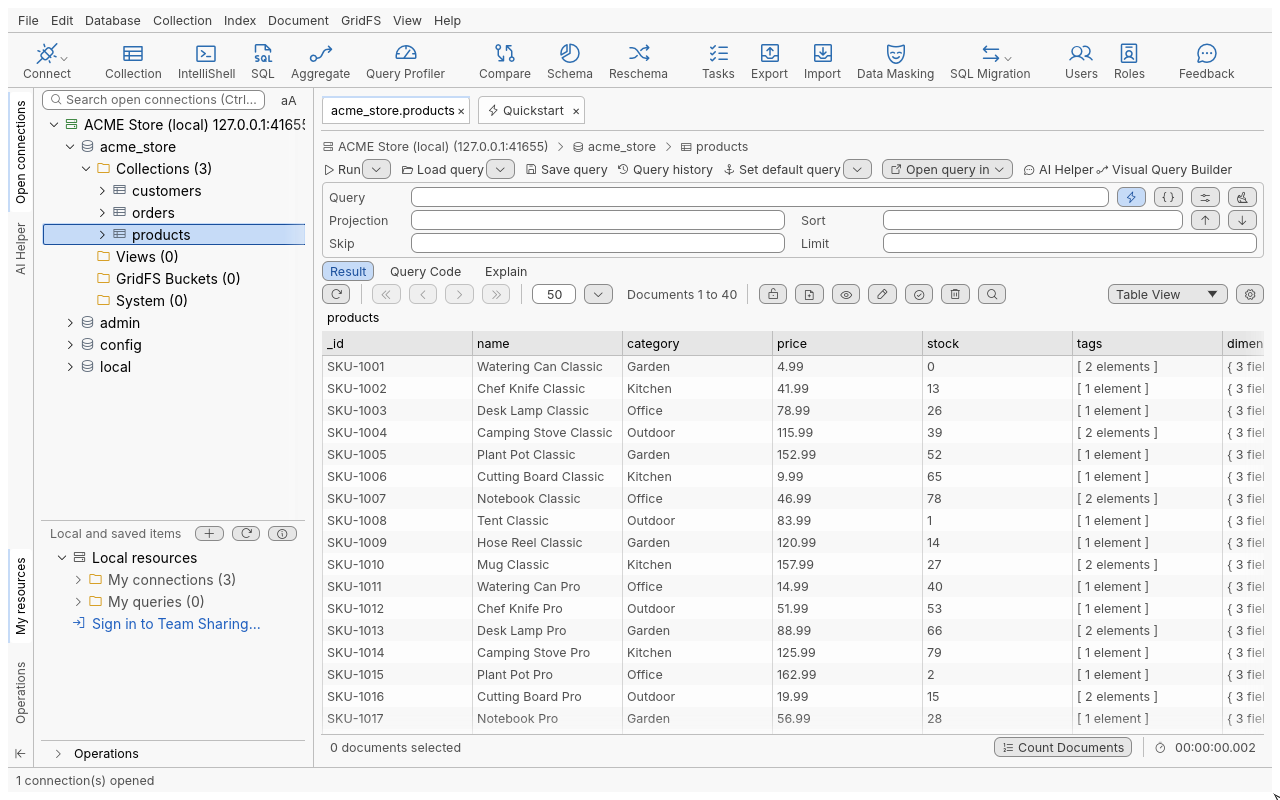
The parts of the window
| Part | Where | What it is for |
|---|---|---|
| Menu bar | Top | File, Edit, Database, Collection, Index, Document, GridFS, View, Help. Each item shows its shortcut; items that do not apply to the current selection are greyed. Preferences are under Edit > Preferences. |
| Global Toolbar | Below the menu bar | Large buttons that open the main tools (see the table below). Hover a button to see what it does and its shortcut. Hide or show it with View > Show/Hide Global Toolbar (Ctrl+Alt+B). |
| Sidebar strip | Far left | Vertical labels that switch the sidebar panel: Open connections, AI Helper, My resources, Operations. The arrow at the bottom collapses the sidebar. |
| Open connections | Left panel | The connection tree: each open connection, its databases, and their collections, views, GridFS buckets and system collections. A search field at the top (Ctrl+F) filters the tree. |
| Local and saved items | Under the tree | Your saved connections and saved queries (Local resources > My connections, My queries). |
| Operations | Under the tree, or from the strip | Long-running jobs (imports, exports, copies), with their progress and a cancel button. |
| Tabs | Centre | One tab per open tool. The active tab is highlighted; × closes a tab. |
| Status bar | Bottom | The last message from the application (for example “1 connection(s) opened”). |
Global Toolbar buttons
| Button | Opens |
|---|---|
| Connect | The Connection Manager (Ctrl+N). Its arrow lists your connections for a quick connect. |
| Collection | A Collection Tab on the collection selected in the tree. |
| IntelliShell | A script editor connected to the selected connection (Ctrl+L). See IntelliShell. |
| SQL | A SQL Query tab (Shift+Ctrl+L). See SQL Query. |
| Aggregate | The Aggregation Editor on the selected collection (F4). See Aggregation Editor. |
| Query Profiler | The query profiler of the selected database. |
| Compare, Schema, Reschema | Data compare, schema analysis and schema changes. |
| Tasks, Export, Import, Data Masking, SQL Migration | Saved tasks, data transfer and migration tools. |
| Users, Roles | User and role management of the selected database. |
| Feedback | Send feedback about the application. |
A button is greyed when it needs something you have not selected yet, for example Aggregate without a collection selected in the tree.
To change how the toolbar looks, right-click an empty part of it (Customize Global Toolbar): choose Large icons, Small icons or No icons, and tick or untick Show labels. Icons and labels cannot both be off. The choice applies at once and is kept across restarts.
Working with tabs
- Open a collection: double-click it in the tree, or select it and press Enter.
- Switch tabs with Ctrl+PgDn (next) and Ctrl+PgUp (previous), or click a tab.
- Drag a tab header onto another to reorder the tabs.
- Right-click a tab header for more: Close Tab, Close Other Tabs, Close Tabs to the Left, Close Tabs to the Right, Close All Tabs, Duplicate Tab, Move Tab to the Front, Rename Tab… and more. See Windows and tabs.
- Close the active tab with Ctrl+F4. If it holds unsaved work, you are asked first; Shift+Ctrl+F4 closes it without asking.
Tips
- F1 (Help > Help for This View) opens the help page for the view you are in.
- Help > Documentation opens this documentation in your browser.
- Help > Keyboard Shortcuts opens the Keymap page of the Preferences, where you can search every shortcut and change it. The default list is also in Keyboard shortcuts.
- When no tab is open, the Quickstart page lists your recent connections; see First launch.
- Quitting with unsaved scripts or pipelines asks before anything is lost.
Next: Your first connection.