Build an aggregation pipeline
Write a pipeline stage by stage, preview each stage's input and output, run it, explain it, export its result and turn it into code.
The Aggregation Editor builds a MongoDB aggregation pipeline one stage at a time. You can look at the documents going into and out of any stage before running the whole pipeline, which makes long pipelines easy to write and to debug.
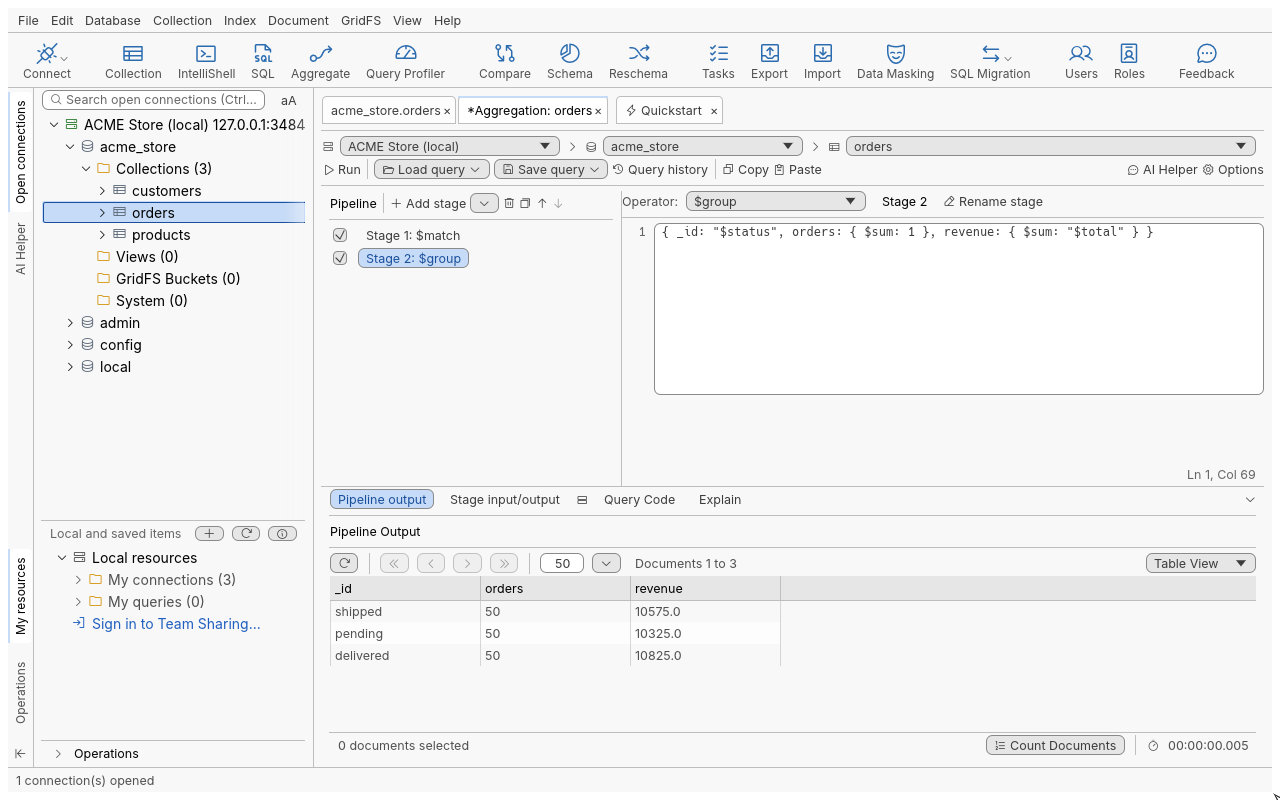
Build and run a pipeline
- Select a collection in the connection tree (or open it).
- Press F4, click Aggregate in the toolbar, or choose Collection > Open Aggregation Editor.
A new tab
Aggregation: <collection>opens with Stage 1, a$match. - In the stage editor, type the stage’s body, for example
{ status: { $ne: "cancelled" } }. - Press Ctrl+Shift+N (Add New Stage) and pick an operator in Operator:, for example
$group. The stage editor fills with that operator’s template. - Write the body:
{ _id: "$status", orders: { $sum: 1 }, revenue: { $sum: "$total" } }. - Press F5 (Run the Entire Pipeline). The result opens in Pipeline output.
Nothing runs while you edit: each result pane runs only when you ask.
From a Collection Tab, Open query in > Aggregation Editor starts a pipeline from the query bar’s filter, sort, skip, limit and projection.
Preview a stage
| Command | Shortcut | Shows |
|---|---|---|
| Show input to this stage | F6 | The documents entering the selected stage |
| Show output from this stage | F7 | The documents leaving the selected stage |
| Run the Entire Pipeline | F5 | The result of every included stage, in Pipeline output |
Each pane shows one page of documents, with paging, Count Documents, Refresh (Ctrl+R) and the elapsed time. Documents are not counted until you click Count Documents. An empty pipeline returns the collection’s documents.
Work with stages
| Command | Shortcut | What it does |
|---|---|---|
| Add New Stage | Ctrl+Shift+N | Appends a $match stage and selects it |
| Add New Stage Before Selected Stage / Add New Stage After Selected Stage | Inserts next to the selected stage | |
| Duplicate Selected Stage | Alt+K | Copies the stage right after it |
| Move Selected Stage Up | Shift+F8 | Swaps it with the stage above |
| Move Selected Stage Down | Ctrl+F8 | Swaps it with the stage below |
| Delete Selected Stage | Removes it | |
| Exclude Stage From Pipeline / Include Stage in Pipeline | Keeps the stage, but skips it when running (the stage’s check box) | |
| Rename stage | Gives the stage a name, shown as Stage N (name): $operator | |
| Copy Stage, Paste Stage | One stage, through the clipboard | |
| Autocomplete | Ctrl+Space | Suggests stages, operators and field names |
Use the Up and Down arrows to move between stages in the list.
The Operator list
The list holds every aggregation stage, with a tooltip saying whether it must come first (such as
$collStats, $geoNear, $documents), last ($out, $merge), or is for Atlas only ($search).
Stages that need a newer server than the one you are on are greyed out, with the version they
need as their tooltip. Choosing an operator inserts its template when the body is still
empty or a template; your own text is kept. You can also type an operator that is not listed: any
$name is sent to the server.
Bodies accept the relaxed shell syntax of the query bar: unquoted names,
comments, ISODate(…), date tags. A body can be any value: a number for $limit and $skip, a
string for $count or $out.
Options
Click Options (Aggregation Options):
| Option | What it does |
|---|---|
| Allow disk use | Lets stages use temporary files beyond the server’s memory limit |
| Use custom collation | String comparison rules (locale, strength, case…), as in Find Query Options |
| Index hint: | An index name, or a key pattern such as { $natural: -1 } |
| Max time (ms): | Stops the pipeline after this many milliseconds |
The options apply to every run, preview and count.
Explain, code, export
| Command | Shortcut | What it does |
|---|---|---|
| Explain pipeline | F8 | Visual Explain of the included stages, in the Explain tab |
| Query Code | The pipeline in every Query Code language | |
| Copy Aggregate Query | The pipeline as db.getCollection("…").aggregate([…], { … }) | |
| Paste Aggregate Query | Replaces the stages with a pasted aggregate(…) statement or [ … ] array; the tab’s collection stays | |
| Export Documents (right-click a result pane) | Exports the pane’s result as JSON, CSV, Excel, SQL, BSON or into a collection | |
| Create View | Creates a view with this pipeline (Create view from this aggregate query) | |
| Save query > Save query | Ctrl+S | Saves the pipeline to the Query Manager |
| Save query > Save file | Shift+Ctrl+S | Saves it to a file |
| Load query | Ctrl+O | Opens a saved pipeline |
| Load file | Shift+Ctrl+O | Opens a pipeline file; Open recent lists the last ones |
| Query history | Pipelines you ran |
The connection, database and collection selectors at the top move the pipeline to another target; the result panes empty.
Pipelines that write
A pipeline with an included $out or $merge writes into a collection. It:
- asks for confirmation first, naming the target collection;
- is refused on a read-only connection;
- shows The result was written to … instead of documents.
Counting and full explain leave a final $out or $merge out, so they never write.
Troubleshooting
| Message | Meaning |
|---|---|
Stage 3: expected … (line 1, column 7) | The body of stage 3 does not read; nothing was sent. |
Stage 2 ($group): <server message> | The server refused the pipeline; the editor names the stage that fails. |
| A memory limit error | A stage needed more than the server allows: turn on Allow disk use. |
| An operator is greyed out | The server is too old for it; its tooltip says which version it needs. |