Import data
Load JSON, CSV, mongodump folders and archives, a SQL table or another collection into MongoDB, with insertion modes and error handling.
The Import wizard loads data into a MongoDB collection. It reads files, the clipboard, a table of a SQL database or another collection, and writes in batches. Large files therefore never need to fit in memory.
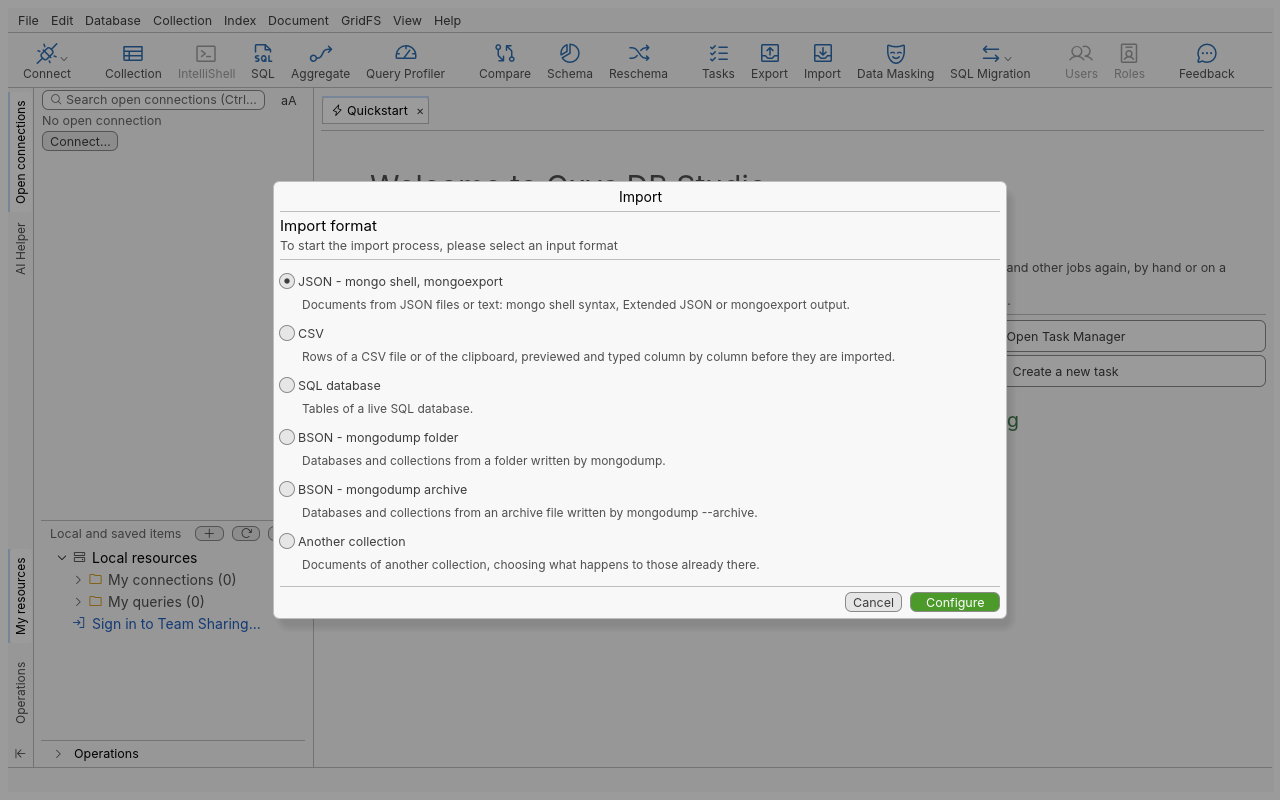
Open the Import wizard
Use any of these:
- Import on the global toolbar.
- In the connection tree, right-click a connection (Import…), a database or its collections folder (Import Collections…), or a collection (Import Data…).
- Database › Import Collections… or Collection › Import… in the menu bar.
When you open it from a collection, that collection becomes the target. Then pick a format in the Import format list and click Configure. A tab opens for that format.
Supported formats
| Format in the list | Tab | Reads |
|---|---|---|
| JSON - mongo shell, mongoexport | JSON Import | JSON files or clipboard text: mongo shell syntax, Extended JSON, or one document per line as mongoexport writes it |
| CSV | CSV Import | A CSV file or clipboard text, with or without a header row |
| SQL database | SQL Import | One table of a saved SQL connection, one column per field |
| BSON - mongodump folder | BSON Folder Import | A folder written by mongodump (the dump root or one database folder), or a single .bson file |
| BSON - mongodump archive | BSON Archive Import | An archive written by mongodump --archive, gzipped (.agz) or plain |
| Another collection | Collection Import | A collection on any open connection, on the same server or another |
The BSON formats are read and written by the app itself, so you don’t need mongodump or mongorestore installed. Excel files are an export format only: to import a spreadsheet, save it as CSV first.
Import a JSON file
Example: load customers.json into acme_store.customers.
- Open the wizard on the
acme_storedatabase and choose JSON - mongo shell, mongoexport. - Click Add source and pick one or more files, or use Paste from clipboard to import JSON you copied.
- Each source has its own row, with a target database, a target collection and an Insertion mode. By default, the database is the file’s folder name and the collection is the file name without its extension. Double-click a cell to change it.
- Optional: tick Validate JSON before import. The file is then read once without writing. If any document is malformed, nothing is imported.
- Check the first documents in JSON output preview.
- Click Run and confirm.
Import a CSV file
- Choose CSV, then select the File or the Clipboard as the source.
- On Source options, set the Delimiter, the Text qualifier, Skip first <n> lines
and File contains header with field names. Changing these options detects the columns again.
Without a header, the fields are named
field_0,field_1, and so on. - On Target options, click Select target to pick the collection, then choose the insertion mode and the CSV handling options (table below).
- In Import options, each column has a row: untick a column to leave it out, set its Type, or give it another name in Overwrite Name. Date columns keep the detected date format.
- Check Import source preview (first 100 rows) and the JSON output preview, then click Run.
Column names with dots become embedded documents (address.city becomes
{ address: { city } }), and names such as tags.0, tags.1 become arrays. Tick
Don’t infer document structure or Don’t detect arrays to turn these off.
Import a table of a SQL database
- Choose SQL database.
- Click Click here to connect to a server and pick a saved SQL connection. The session is read-only.
- Click Click here to select a table and choose the table in Select the table to import.
- In Import options, untick the columns you don’t want, then rename fields and change each Mongo type as needed.
- Choose a target collection, set the SQL options (table below), then click Run.
To join several tables, embed rows as arrays or run a custom query, use Migrate from SQL to MongoDB instead.
Restore a mongodump folder or archive
- Choose BSON - mongodump folder (then the dump folder, a database folder or one
.bsonfile) or BSON - mongodump archive (then the archive file). - A folder lists its collection files in Import sources, each with a target database and
collection.
system.*collections start unticked. An archive lists its collections, and Import data only for database and Import data only for collection limit the restore. - Set the BSON options (table below) and the insertion mode, then click Run.
A folder import restores documents only: the indexes and collection options in the dump’s
.metadata.json files are not restored yet. An archive import creates each collection with its
options.
Copy from another collection
Choose Another collection. Use Select source and Select target to pick the source and target collections on any open connection, set the insertion mode, then click Run. You can also use Copy and paste collections, which also copies indexes and validators.
Insertion modes
The insertion mode decides what happens when a document’s _id already exists in the target.
| Insertion mode | Effect |
|---|---|
| Insert with new _id if _id exists | Documents with an existing _id are inserted with a new one. |
| Overwrite documents with same _id | Documents with an existing _id replace the existing document. This is the default. |
| Skip documents with existing _id | Documents with an existing _id are left out and counted as skipped. |
| Always insert with new _id | Every document is inserted with a new _id. |
| Drop collection first if it already exists | The target is dropped, then filled. |
| Clear collection first if it already exists | All documents of the target are deleted, then it is filled. Indexes and options stay. |
| Abort if _id already exists | The import stops at the first document whose _id exists. |
Overwrite, Drop and Clear can destroy data, so the confirmation names them. Drop and Clear run just before the first batch is written: if the first record cannot be read, the target is left untouched.
Error handling
The On error option decides what happens to a record that fails: a CSV row that cannot be read, or a document the server refuses (validation, duplicate key).
| On error | Effect |
|---|---|
| Abort import | The import stops at the first failing record. Documents written before it stay. The message says how many were imported. |
| Skip and continue | The failing record is left out. Its position and reason are listed, and the import goes on. |
Some errors always stop the import, whatever the option. A malformed JSON document or a damaged BSON frame means the next record cannot be found. In that case, the documents read before the error are written first, and the message gives the record number and how many documents were imported.
Abort if _id already exists and Abort import never roll back. What was written before the stop stays in the target. To undo an import, import into a new collection first, check the result, then rename it.
Options reference
CSV
| Option | Values |
|---|---|
| Delimiter | Comma (,), Tab (\t), Semicolon (;), or Other (any single character) |
| Text qualifier | The quote character, or none (quotes read as text) |
| Skip first <n> lines | Lines ignored before the data or header |
| File contains header with field names | On: the first row names the fields |
| Empty fields | Import as Null, Import as empty string, Exclude |
| Trim spaces | None, Leading, Trailing, All |
| Unescape control characters in strings (with \) | Turns \n, \t and similar into the characters |
| Don’t infer document structure | Dots in names become _; documents stay flat |
| Don’t detect arrays | tags.0, tags.1 stay a sub-document |
| Type (per column) | String, Int32, Int64, Double, Decimal128, Boolean, Date, ObjectID |
SQL database
| Option | Values |
|---|---|
| SQL null values | Convert to null (default), or Skip field |
| On error (a value that cannot be converted to its Mongo type) | Add null value (default), Skip document, Abort import |
| Enable embedded document creation | a.b field names make embedded documents |
| Array creation | With embedded documents on, numeric sub-field names make arrays |
BSON (folder and archive)
| Option | Notes |
|---|---|
| Don’t update index version (–keepIndexVersion) | |
| Don’t restore indexes (–noIndexRestore) | |
| Don’t restore collection options (–noOptionsRestore) | |
| Preserve order of documents during restoration (–maintainInsertionOrder) | |
| Stop restoring if an error is encountered on insert (–stopOnError) | |
| Bypass document validation during the operation (–bypassDocumentValidation) | Needs an external mongorestore |
| Restore user and role definitions for selected databases (–restoreDbUsersAndRoles) | Needs an external mongorestore |
| Replay oplog for point-in-time restore (–oplogReplay) | Needs an external mongorestore; --oplogLimit takes <seconds>[:ordinal] |
| Force disable retryable writes by setting writeConcern to 0 | Needs an external mongorestore |
To use an external mongorestore, set it in Edit › Preferences › External tools › MongoDB tools:
the bundled tools, the executable found on the PATH, or a custom path. Connections through an SSH
tunnel always use the bundled tools.
Field masking
The JSON, CSV, SQL and collection imports can mask fields as they are written: open the field masking editor from the tab’s Data Masking section. The techniques are the same as in Mask data.
Save the import as a task
Save task keeps this configuration so you can run it again, and Schedule runs it on a schedule. Load task fills the tab from a saved import task. See Automation.
Tips
- Run a first import into a scratch collection (
acme_store.customers_import) with Skip and continue, check the listed errors, then run it for real. - For very large JSON files, leave Validate JSON before import off: it reads the file twice.
- The clipboard is handy for a few documents copied from a web page or a ticket.
Troubleshooting
| Problem | What to do |
|---|---|
| “record N: … (X document(s) imported before the error)” | The file is malformed at record N. Fix it and import again, with Skip documents with existing _id to avoid duplicates. |
| The import is refused before the prompt | The target connection has the read-only lock. Choose another target or unlock the connection. |
| “Needs an external mongorestore” | One of the BSON options needs the real tool. Install it and select it in Preferences, or untick the option. |
| Indexes are missing after a folder restore | Folder imports restore documents only. Recreate the indexes, or restore from an archive. |
| Documents counted as failed | The server refused them (a validator or a unique index). With Skip and continue, the summary lists each one with its reason. |