Copy and paste collections
Copy collections, views, buckets or whole databases in the connection tree and paste them into another database, on the same server or another, with their indexes and validators.
Copy and paste in the connection tree duplicates collections between databases and servers. Copy puts only the names on the clipboard, never the documents. Paste recreates each collection on the target with its options (capped, collation, schema validator, a view’s pipeline) and its indexes, then streams the documents in batches as one job in the Operations pane.
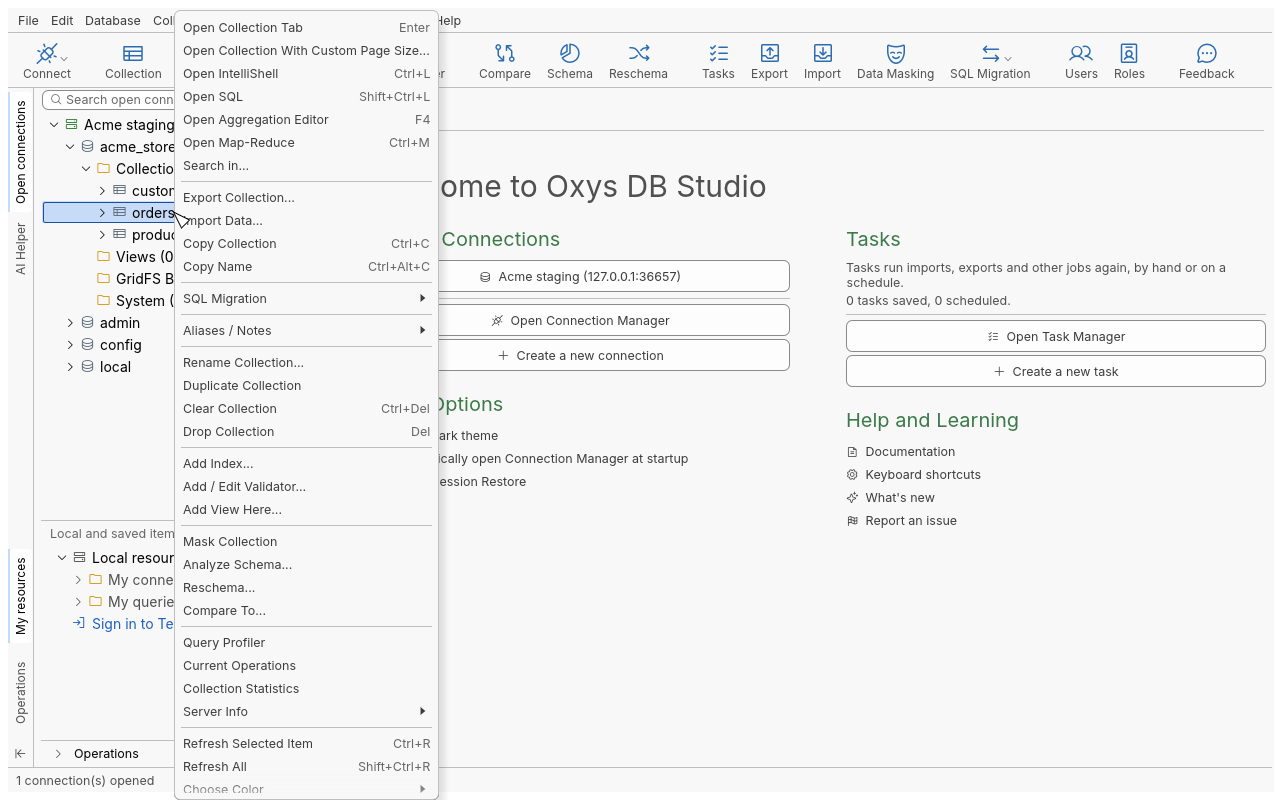
Copy a collection to another server
Example: copy acme_store.products from production to a local test server.
- In the tree, select
productsand press Ctrl+C (or right-click it and choose Copy Collection). Select several collections to copy them together. - On the other connection, select the target database (or its collections folder) and press Ctrl+V (Paste Collections).
- If no collection of that name exists on the target, the copy starts at once. Otherwise the Copy Collection dialog asks what to do (next section).
To copy a whole database, right-click it and choose Copy Database, or
Copy All Collections/Views/Buckets. Then paste onto another database or a connection. A GridFS
bucket is copied with Copy Bucket, which includes its .files and .chunks.
Paste Collections appears in the menus only when the clipboard holds collections.
When the target already exists
The Copy Collection dialog lists the source and target of each collection that already exists. The others are copied as new collections.
| Collections Copy Mode | Effect |
|---|---|
| Append to existing target collection | Adds the documents to the existing collection, as the Documents Copy Mode says |
| Replace existing target collection | Drops the target and copies the source in its place. This asks for confirmation first. |
| Copy to a new collection | Copies under the New collection name you give |
| Documents Copy Mode (with Append) | Effect on an _id already in the target |
|---|---|
| Overwrite documents with same _id | Replaces the document |
| Skip documents with existing _id | Keeps the target’s document |
| Insert with new _id if _id exists | Inserts the copy with a new _id |
| Always insert with new _id | Inserts every document with a new _id |
| Abort if _id already exists | Stops at the first existing _id; what was copied before stays |
| Option | Default |
|---|---|
| Copy indices from the source collection | On |
| Copy the schema validator, if it exists | On |
Click Copy Collection to start. A paste never picks a mode by itself. If a target exists and no mode was given (for example from the command line), the paste is refused and nothing is written.
Tips
- Copying between two databases on the same server is the quickest way to make a scratch copy before you try a reschema or a bulk update.
- Duplicate Collection in the collection’s context menu makes a copy in the same database in one step.
- For a copy that keeps only some documents or fields, export to another collection with a query instead (Export data).
Troubleshooting
| Problem | What to do |
|---|---|
| Paste is not in the menu | The clipboard holds no collection. Copy again from the tree. |
| The paste is refused | The target connection has the read-only lock, or a target exists without a chosen mode. |
| Append is greyed out | Views cannot be appended to, and a collection cannot be appended to itself. Use Copy to a new collection. |
| The copy stopped partway | The Operations pane shows the reason for each collection. What was written before the error stays, so check the target before you paste again. |