Export data
Export collections, views, query results or selected documents to JSON, CSV, Excel, SQL, a mongodump folder or archive, the clipboard or another collection.
The Export wizard writes the documents of a collection, a view, a query or a selection to a file, to the clipboard or to another collection. An export only reads its source. Files are written next to their target and renamed into place when complete.
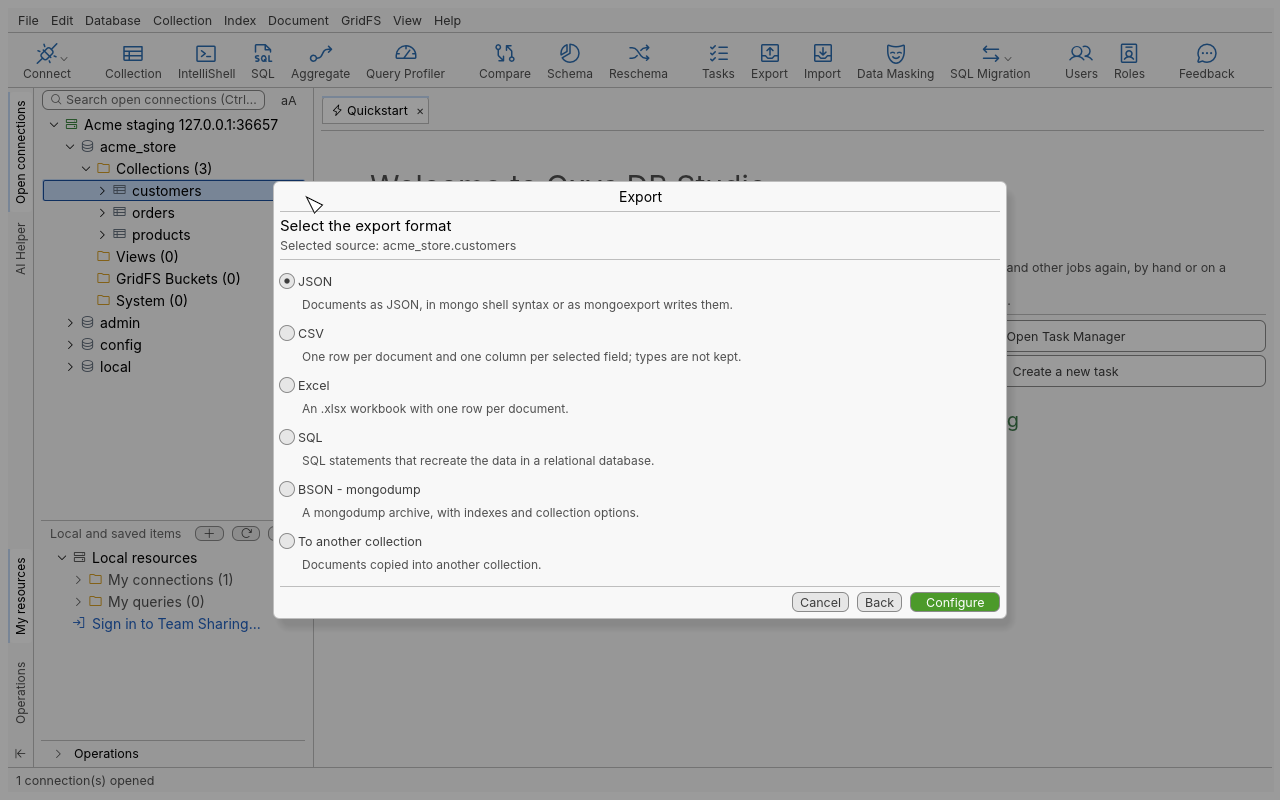
Open the Export wizard
- Export on the global toolbar.
- In the connection tree, right-click a connection (Export…), a database or its collections folder (Export Collections…), a collection (Export Collection…), a view (Export View…) or a GridFS bucket (Export Bucket…).
- Database › Export Collections… or Collection › Export… in the menu bar.
- From a collection tab or an IntelliShell result, to export what you are looking at.
Export a collection to a file
Example: export acme_store.orders to CSV.
- Right-click
ordersand choose Export Collection…. - Under Select the export format, choose CSV, then click Configure. An Export tab opens
with one unit,
Export unit #1 - CSV. - In Select fields, untick the fields you don’t want, reorder them, or use Add custom field for a field the scan did not find. The fields come from a scan of the first documents. Use Rescan Source, or Change scan method to read every document.
- Set the format options and the Export target: File (with its path) or Clipboard.
- Check the Output preview, then click Run and confirm.
Choose what to export
Opened from the toolbar or the tree, the wizard asks for the source first. Choose Connection tree item, Find query or Aggregation query, then click Next. A find query takes Query, Projection, Sort, Skip and Limit. An aggregation query takes the Pipeline.
Opened from a collection tab, the sources are:
| Source | Exports |
|---|---|
| Entire Collection/View | Every document |
| Current Query Result | The documents of the current query, all pages |
| Current Cursor | The documents of the current cursor |
| Selected Documents | Only the documents selected in the result view |
From an IntelliShell result, Current Query Result and Selected Documents are offered.
Opened on a database or a connection, the wizard lists its databases, collections and views: each one ticked becomes an export unit. You can also use Load saved query… to make a unit from a saved find or aggregation query.
Formats
| Format | Writes | Targets |
|---|---|---|
| JSON | Documents as JSON: JSON - mongo shell (shell syntax, indented) or JSON - mongoexport (canonical Extended JSON, one document per line) | File, Clipboard |
| CSV | One row per document, one column per selected field; types are not kept | File, Clipboard |
| Excel | An .xlsx workbook (or .xls), one row per document | File |
| SQL | INSERT statements for MySQL Server, Microsoft SQL Server, Oracle Database or PostgreSQL | File, Clipboard |
| BSON - mongodump | A mongodump folder (<db>/<collection>.bson with metadata) or a single archive | Folder or file |
| To another collection | The documents, copied into a collection on any open connection | Collection |
BSON output restores with the standard MongoDB tools. You don’t need mongodump installed.
Run several units
An Export tab can hold several units, each with its own source, format and target. Use the Export overview to Add unit, Clone Unit, Edit unit (Ctrl+E) or Remove unit. Run exports the units one after the other.
Options reference
General export settings
| Setting | Effect |
|---|---|
| Target folder for new export units | Default folder of new file units (your home folder by default) |
| File name for new file-based export units | Empty: the source’s name. Placeholders such as ${exportsource} are allowed. |
| Replace OS reserved characters | Makes generated names safe for the file system |
| Simplified progress | Skips the document count before the run, so a large export starts at once |
| When the source of an export unit changes | Ask, Always update the target path, or Never update the target path |
| Advanced Features › Show Data Masking options | Shows the Data Masking section of export units |
JSON
| Option | Values |
|---|---|
| JSON format | JSON - mongo shell, JSON - mongoexport |
| Advanced | Export documents one after the other, Export with commas between documents, Export as document array |
CSV
| Option | Values |
|---|---|
| Preset | Default, Excel, MySQL, RFC4180, TDF, Custom |
| Delimiter | Comma (,), Semicolon (;), Tab (\t), Other |
| Encapsulate complex values with | A quote character, or empty to escape with \ |
| Record separator | Windows (\r\n) or Unix (\n); the default follows your system |
| Escape control characters in strings (with \) | |
| Leave null fields empty | Otherwise nulls are written null |
| Add column headers |
Excel
| Option | Values |
|---|---|
| Excel format | .xlsx (default) or .xls |
| Include column headers | With Bold and Italic |
| Auto-size columns | Measures the first documents |
| Text alignment | Left, Center, Right |
An .xls sheet holds 65,536 rows: past that, the export goes on in a new sheet with the headers
again. More than 256 fields is refused in .xls; use .xlsx.
SQL
| Option | Effect |
|---|---|
| SQL format | MySQL Server, Microsoft SQL Server, Oracle Database, PostgreSQL |
| SQL table name | Empty: the source’s name |
| Add CREATE TABLE statement | On by default |
| Add DROP TABLE IF EXISTS statement | Off by default |
| SQL column name / SQL column type (per field) | Override the generated name (. becomes _) and type |
To create real tables with relations instead of one flat file, see Migrate from MongoDB to SQL.
BSON - mongodump
| Option | Effect |
|---|---|
| Output | Folder or Archive |
| Enable Compression (–gzip) | An .agz archive, or .bson.gz files |
| Force a table scan (–forceTableScan) | Reads in natural order instead of through the _id index |
To another collection
Insertion method uses the same modes as the import (see Import data). Drop and Clear run just before the first batch.
Incremental exports
A saved export task can export only the documents added since its last run: each unit remembers the value of a tracked field and exports what comes after. Set it in Incremental execution options. See Automation.
Tips
- Use the clipboard target to paste a few documents into a ticket or a chat.
- Prefer JSON - mongoexport to keep types (dates, decimals, ObjectIds) for a later import.
- CSV and Excel flatten documents. Arrays and embedded documents are written as text.
Troubleshooting
| Problem | What to do |
|---|---|
| A field is missing from the CSV columns | The scan read only the first documents. Use Change scan method for a full scan, or Add custom field. |
| The export was cancelled or failed | The previous file at the target path is untouched, and no partial file replaces it. |
| A huge export waits before starting | It is counting documents. Turn on Simplified progress. |
| “To another collection” is refused | The target connection has the read-only lock. |