Compare and sync collections
Compare two collections, on the same server or on two servers, see every difference down to the field, and copy documents or fields from one side to the other.
Data Compare and Sync compares the documents of a source collection with those of a target collection. Then you can fix differences one document or one field at a time. A comparison only reads: both collections are streamed in rounds, so their size does not matter. Sync writes only to the collection and side you choose, and only after a confirmation.
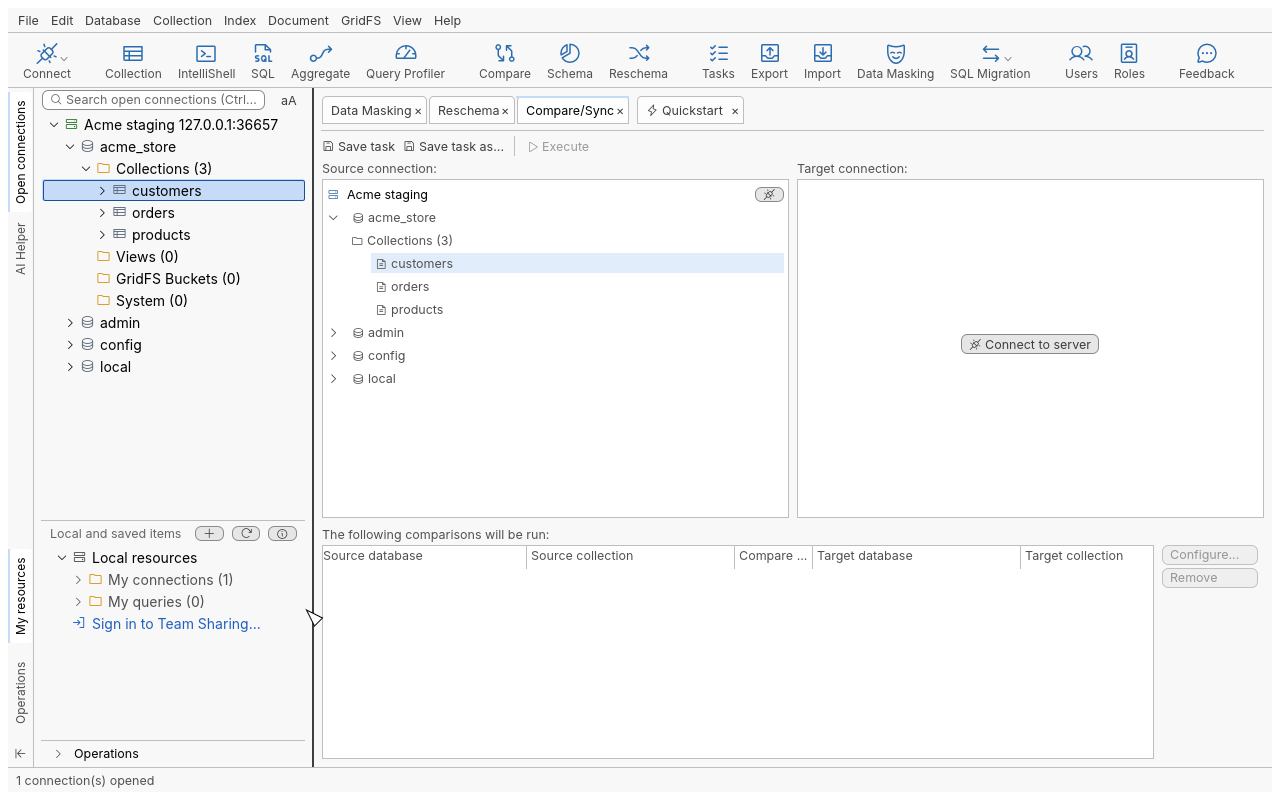
Compare two collections
Example: compare acme_store.products on staging with the same collection in production.
- Right-click
productson the staging connection and choose Compare To…. You can also use Collection › Compare To… or Compare on the global toolbar. A Compare/Sync tab opens with staging as the source. - Next to Target connection:, connect to the production server.
- Drag
productsfrom the source tree ontoproductsin the target tree to make a collection pair. The names need not match. Drag a database onto a database to pair every collection that has the same name in both. - Optional: select the pair and click Configure… (table below).
- Click Compare (Ctrl+R runs the comparison).
Read the results
Each pair has these result views:
- Overview: the number of source and target documents, identical documents, differing documents, documents with no match on either side, documents in multiple matches, unreadable documents, and the duration.
- Differences: the documents, filtered by state (different, only in the source, only in the target, identical). Select one to see its fields side by side. Show Differing Fields Only hides the equal fields, and Show Legend explains the colours.
- Multiple Matches (n:m): match values carried by more than one document on a side, with Show Documents to see them.
Refresh difference (Ctrl+Shift+R) reads a document again on both sides after you changed it.
Sync differences
From the context menu of a document or a field in the results:
| Action | Shortcut | Effect |
|---|---|---|
| Copy Document to Target | Ctrl+I | Writes the source document to the target |
| Copy Document from Target | Ctrl+U | Writes the target document to the source |
| Copy Field to Target | Ctrl+I | Copies one field’s value to the target |
| Copy Field from Target | Ctrl+U | Copies one field’s value to the source |
| Delete Document | Shift+Del | Deletes the document on the side you choose |
| Edit Value / Type… | Edits a field in place | |
| Rename Field…, Remove Field, Add Field/Value… | Edit a document’s fields in place |
Each write asks first, and is refused on a read-only side. Documents are read again when the sync runs. An overwrite is an atomic replace that is refused if the document changed in the meantime, so a stale view never overwrites newer data.
Sync works one document or field at a time. There is no single action to apply every difference at once. To bring a whole collection in line, use Copy and paste collections or an export to another collection (Export data).
Copy a field from the differences
The same context menu copies a field of either side to the clipboard. The value is read from the database at that moment, and nothing is written.
| Action | Shortcut | Copies |
|---|---|---|
| Copy Value As Text | Ctrl+C | The value as the grid shows it |
| Copy Value | Alt+Shift+C | The value in shell syntax, for example ISODate("…") |
| Copy Field | Ctrl+Alt+C | The field name and its value, as "name" : value |
| Copy Field Path | Ctrl+Shift+Alt+C | The dotted path of the field, for example address.city |
Comparison Configuration
| Page | Option | Default |
|---|---|---|
| Match On | Fields that pair source and target documents, one per line. Choose fields with unique values, indexed in both collections. | _id |
| Match On | Match null or missing values like any other value | |
| Compare | Batch size (documents per round, 1 to 10,000) | |
| Compare | Treat different numeric types with equal values as equal (e.g. Int32 and Int64) | |
| Compare | Use noCursorTimeout (cursors are not closed by the server’s idle timeout) | On |
| Compare | Fields: Compare all fields, Compare only these fields, or Ignore these fields (one field path per line, such as address.city) | Compare all fields |
| Compare | Sync: Retain original target document _id | |
| Filter | Query filter applied to the source and target collections | none |
| Projection | Number of fields to compare (top-level fields per document, 0 for all) | 0 |
Export the differences
Export comparison results writes the differences of a pair To a CSV file or To the clipboard.
Save as a task
Save task keeps the pairs and their configuration as a Data Compare and Sync task (Automation).
Tips
- Match on a field that is unique and indexed on both sides. Otherwise documents fall into Multiple Matches.
- Use Ignore these fields for fields that always differ, such as
updated_at. - To compare only part of a large collection, set a Filter.
Troubleshooting
| Problem | What to do |
|---|---|
| “Read-only connection: sync cannot write here” | That side has the read-only lock. Sync the other way, or unlock it. |
| A sync is refused because the document changed | Someone wrote it after the comparison. Refresh difference, then sync again. |
| Many documents in multiple matches | The match fields are not unique. Add a field to Match On. |
| The comparison stops on a long run | Keep Use noCursorTimeout on, so the server does not close idle cursors. |