Sign in to a team server
Connect Oxys DB Studio to your team's server with your e-mail address and password.
Team Sharing needs an account on your team’s Oxys DB Studio team server. Your administrator gives you
the server address (for example https://team.example.com:8443) and either creates your account or
lets you create it yourself.
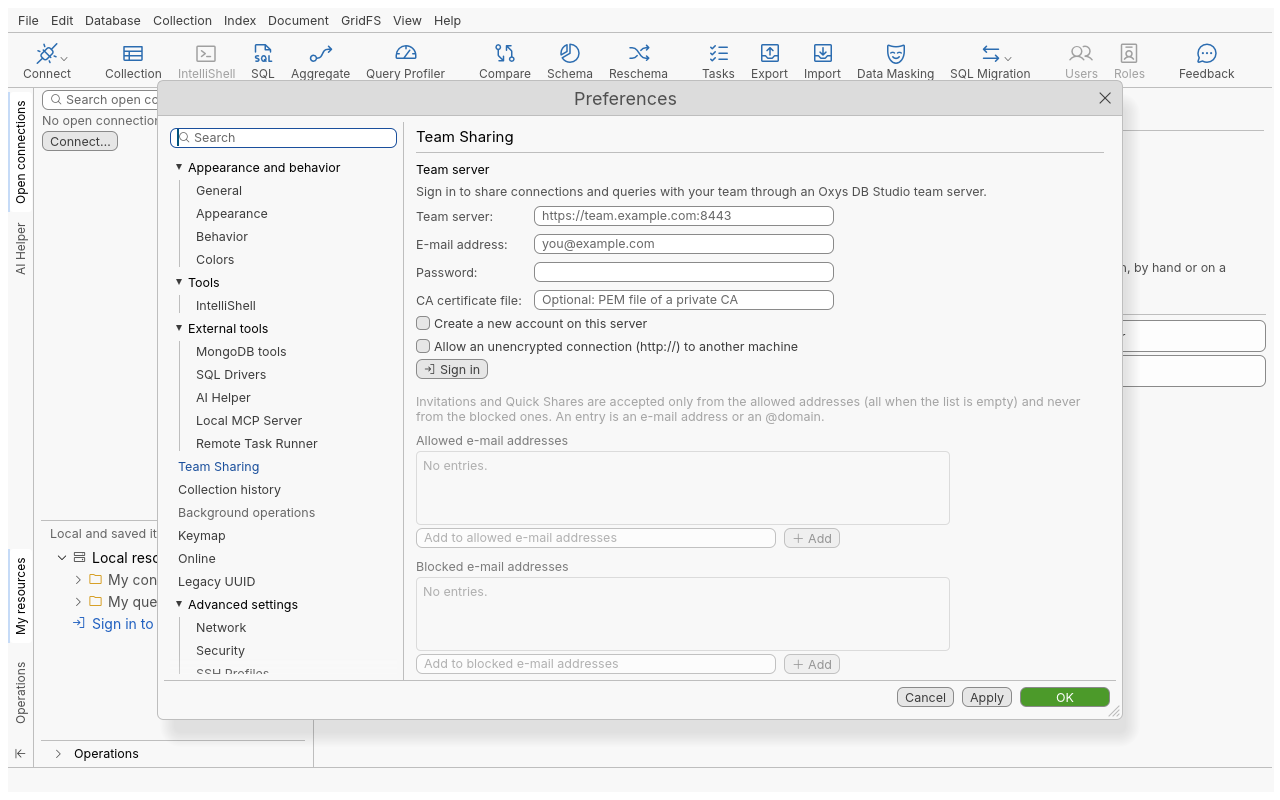
Steps
- Open Edit › Preferences › Team Sharing, or click Sign in to Team Sharing… at the bottom of My resources in the sidebar.
- Fill in:
- Team server: the address your administrator gave you, starting with
https://; - E-mail address and Password.
- Team server: the address your administrator gave you, starting with
- If the server uses a certificate from a private certificate authority, give its PEM file in CA certificate file.
- If you have no account yet and the server allows sign-up, tick Create a new account on this server. The button becomes Create account.
- Click Sign in (or Create account). The status bar says Signed in to Team Sharing as …, and My resources shows your shared folders, your invitations and your Quick Share requests.
The page then shows Server and Signed in as. Colleagues invite you to their shared folders with this e-mail address. The same information, with your recent notifications, is behind the Team Sharing account button of the My resources bar.
To sign out, click Sign out in Edit › Preferences › Team Sharing or in the Team Sharing account dialog. The session ends on the server and the token is removed from this computer. If the system’s credential store cannot remove it (a locked keychain), a warning says so, and the session still stays signed out, also after a restart: the next start tries again to remove the token, and only signing in again uses the server.
Options
| Field | Meaning |
|---|---|
| Team server | Address of the server. https:// is required, except to this computer (127.0.0.1, localhost) |
| E-mail address | Your account. Addresses are compared in a normal form, so case and spacing do not matter |
| Password | Your account’s password. It is sent to the server only, never stored |
| CA certificate file | Optional PEM file of a private CA, when the server’s certificate is not trusted by the system |
| Create a new account on this server | Creates the account instead of signing in (only on servers that allow sign-up) |
| Allow an unencrypted connection (http://) to another machine | Accepts http:// to a remote server. Leave it off: your password would travel in clear |
What is stored where
| Item | Where |
|---|---|
| Server address, e-mail, CA file | team.json in the settings folder |
| Session token | The operating system’s credential store. Without one, the token lasts until you quit, and you see a warning |
| Your allow and block lists (see Quick Share) | On the server, so they follow you to other computers |
A session lasts 30 days. A password change on the server signs the account out everywhere.
Tips
- Accounts created through sign-up receive invitations and Quick Shares only after the administrator
has verified them (
oxysdb-server verify-account), unless the server is configured to trust sign-up. Until then you cannot invite anyone or send Quick Shares either. Ask your administrator if invitations do not arrive. - The server never follows redirects: the address must be the server itself, not a page that forwards to it.
- Command line and agents:
share.sign-in,share.sign-outandshare.account(see Automation).
Troubleshooting
| Message or symptom | What to do |
|---|---|
| Wrong e-mail address or password | Check both. The server gives the same message for an unknown address and a wrong password, on purpose |
| Sign-in becomes slow after several failures | The server delays repeated failed attempts (the delay doubles, up to 15 minutes from one address for one account). Wait, or ask the administrator to reset your password (oxysdb-server set-password) |
| Cannot reach the team server … | The server is down or unreachable from your network. Local work continues; My resources shows a Retry button and the shared folders come back by themselves when the server answers |
| A certificate error | The server uses a private CA: give its PEM file in CA certificate file |
http:// is refused | Use https://. Plain HTTP is accepted only to this computer, or with the explicit option above |
| Signed in, but every call says Post-quantum encryption is required | Require post-quantum encryption with the team server and the task runner is ticked in Edit › Preferences › Advanced settings › Network, and the server is reached over plain http://. share.account reports it as blockedReason. Use https://, or untick the option |
| Server busy (429) | Too many sign-ins at the same moment; try again in a few seconds |