Find slow queries with the Query Profiler
Switch on the database profiler, list a database's slow find and aggregate queries over a period, and open or explain any of them.
MongoDB can record the queries that take longer than a threshold in each database’s profiler log. The Query Profiler switches that recording on and off, groups the recorded find and aggregate queries, and shows how often each ran and how long it took. From any execution you can read its code, open it in an editor, or see its plan.
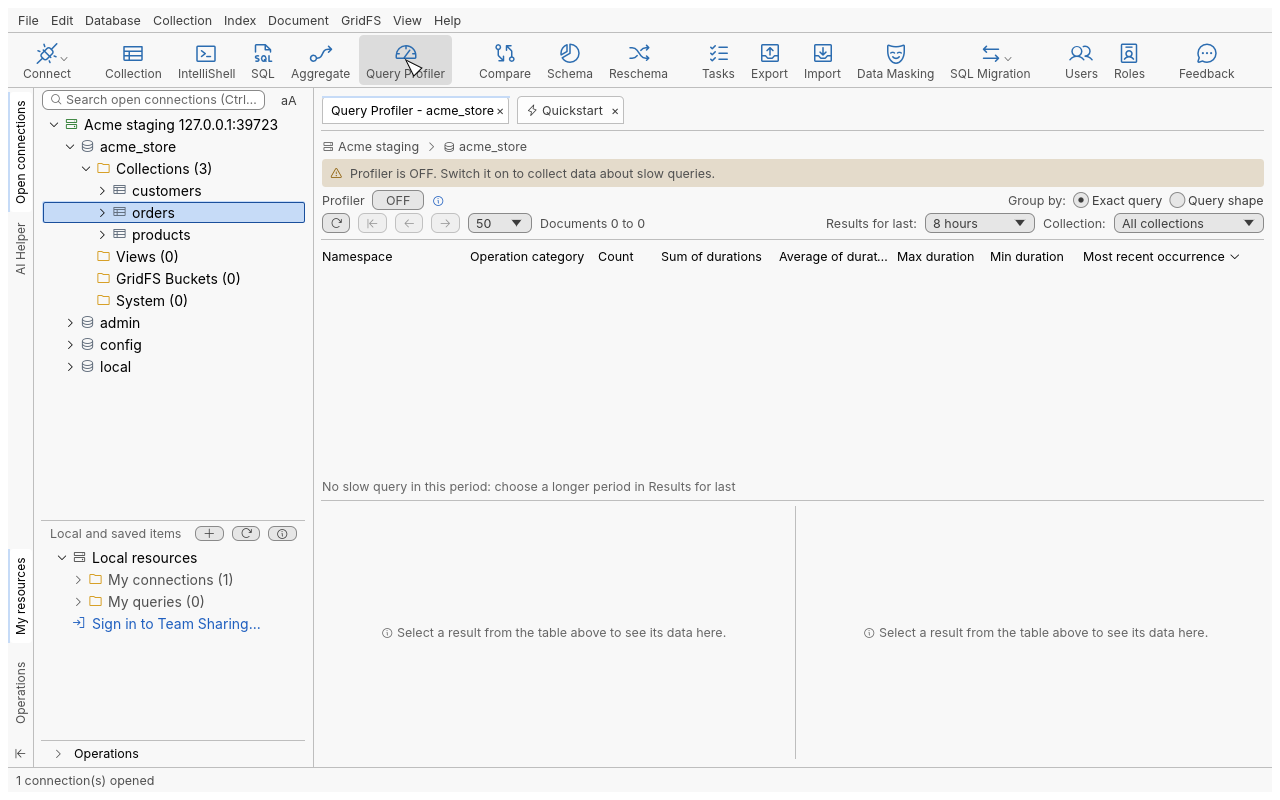
Open the Query Profiler
Right-click a database (for example acme_store) and choose Query Profiler, or select a database
and click Query Profiler in the global toolbar. From a collection, Query Profiler opens the
profiler of its whole database. A Query Profiler - acme_store tab opens; if one is already open for
that database, it comes to the front.
Switch the profiler on
- While the profiler is off, a bar says Profiler is OFF. Switch it on to collect data about slow queries.
- Turn the Profiler switch ON. A confirmation, Enabling database profiler, explains that find and aggregate queries slower than 100 ms will be recorded, and that profiling slows the database down and uses disk space. Click OK.
- Use your application as usual. Slow queries appear after the next Refresh.
- When you are done, turn the switch OFF. Nothing is asked; the entries already collected stay listed.
Find the slowest queries
- Pick the period under Results for last and, if needed, one Collection (default: All collections).
- Choose Group by:
- Exact query groups executions with the same fields and the same values;
- Query shape groups queries that differ only by their values (the server’s query hash), for
example every
find({ "customer_id": … })onorders.
- Click a column header to sort by it (descending first, click again to reverse). Sort by Sum of durations to find what costs the most overall, or by Max duration for the worst single run.
- Select a row. The bottom-left pane lists its executions, newest first, with User, Operation category, Timestamp, Duration and Keys Examined.
- Select an execution. Query Code shows its query as shell code; Explain plan shows its Visual Explain (find queries only).
Act on an execution
| Button | What it does |
|---|---|
| Copy code | Copies the shell code of the query. |
| Open in Collection Tab | Opens the collection with the query, projection, sort, skip and limit, and runs it (find queries only). |
| Open in Aggregation Editor | Opens the pipeline’s stages (aggregations only). |
| Open in IntelliShell | Opens the code in IntelliShell without running it. |
| View Full JSON | Shows the whole profiler entry of the execution. |
Reference
| Column | Meaning |
|---|---|
| Namespace | database.collection of the query. |
| Operation category | find or aggregate. With Query shape, Query hash takes its place. |
| Count | Number of executions in the period. |
| Sum / Average of durations | Total and mean time. |
| Max / Min duration | Slowest and fastest execution. |
| Most recent occurrence | When it last ran. Default sort, newest first. |
| Setting | Values | Default |
|---|---|---|
| Results for last | 30 minutes, 60 minutes, 8 hours, 24 hours, 3 days, 7 days, 30 days | 8 hours |
| Collection | All collections, or one collection of the database | All collections |
| Group by | Exact query, Query shape | Exact query |
| Page size | rows per page | 50 |
Tips
- Switch the profiler on for a limited time (during a load test, or while users report slowness), then off again.
- Group by Query shape to find a query pattern that needs an index, then confirm with Explain plan and create the index (see Manage indexes).
- For what is running right now rather than over time, use Current Operations: see Monitor a server.
Troubleshooting
| Symptom | What to do |
|---|---|
| “No slow query in this period: choose a longer period in Results for last” | Nothing slower than 100 ms was recorded in the period, or the profiler was off. |
| The switch is refused | The profiler level is a change on the server: a read-only connection refuses it, and your user needs the right to change profiling on that database. |
| “The profiler log is large: only its newest entries were read” | Each listing reads a bounded number of the newest entries. Choose a shorter period or one collection. |
| An execution’s full JSON is no longer available | The profiler log has a fixed size; older entries are overwritten by new ones. |
| Explain plan or Open in Collection Tab is greyed out | The selected execution is an aggregation; use Open in Aggregation Editor. |