Monitor a server
Watch live server activity, read server status and build information, find and kill long-running operations, and read collection and database statistics.
These views answer “what is the server doing right now?”: live charts of operations, connections and network traffic, the full server status, the server’s version and build, the operations running at this moment, and the size figures of collections and databases.
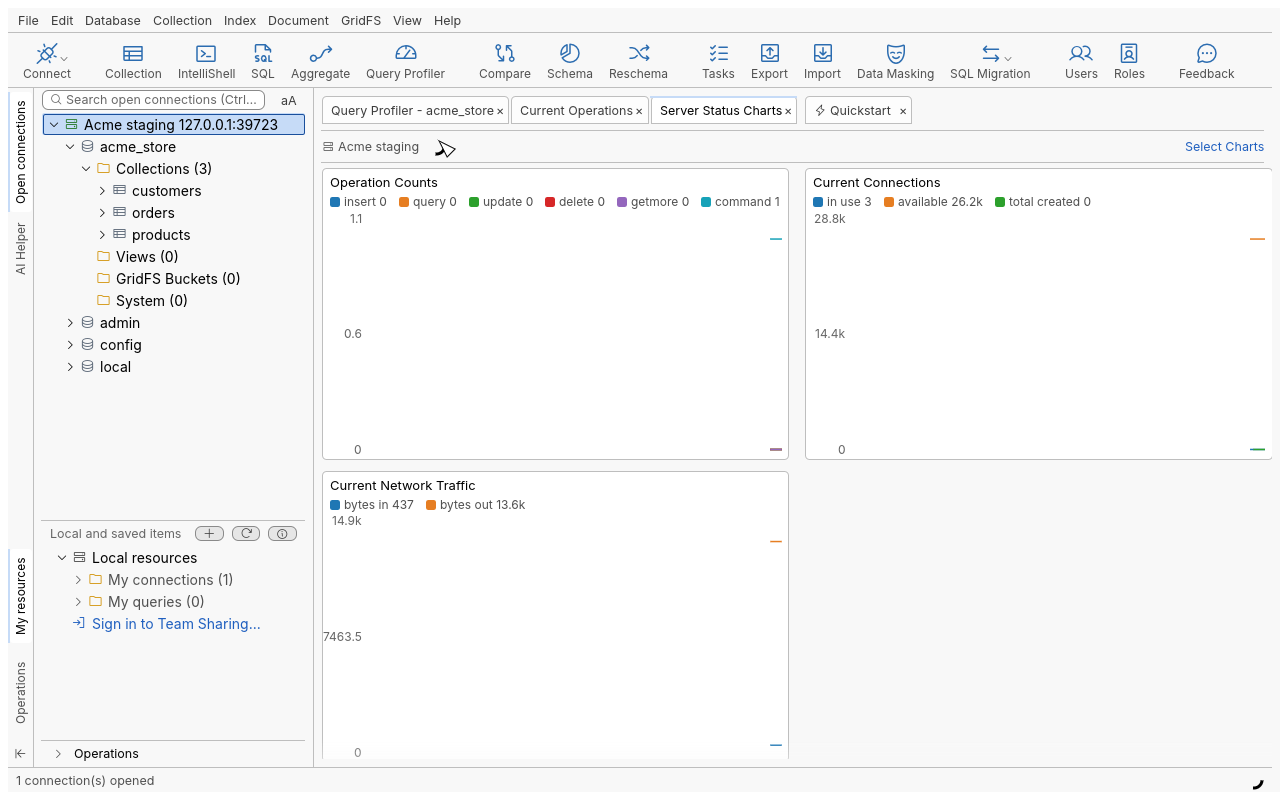
Watch live server activity (Server Status Charts)
- In the connection tree, right-click the server (or any database or collection under it) and choose Server Info › Server Status Charts.
- The tab draws a new sample every two seconds while it is shown.
- Click Select Charts to choose which charts appear.
| Chart | Shows | Shown by default |
|---|---|---|
| Operation Counts | Inserts, queries, updates, deletes, getmores and commands per period | Yes |
| Current Connections | Connections in use and available now, and created per period | Yes |
| Current Network Traffic | Bytes in and out per period | Yes |
| Active Clients | Active readers and writers now | No |
| Current Queue | Readers and writers waiting now | No |
| Current Network Requests | Requests per period | No |
| Total Connections Created | Connections created since the server started | No |
| Total Network Requests | Requests since the server started | No |
| Total Network Traffic | Bytes in and out since the server started | No |
“Per period” values are the difference with the previous sample, so they appear from the second sample on.
Read the server status
Right-click the server and choose Server Info › Server Status. The server’s full status report is shown as a tree with Key, Value and Type columns. Click Refresh to read it again.
See the server version and build
Right-click the server and choose Server Info › Server Build Info. The version is at the top, followed by every build detail (modules, compiler, storage engines…) in the same Key / Value / Type tree.
Find and kill long-running operations (Current Operations)
- Right-click the server, a database or a collection and choose Current Operations. It is also in the menu bar under Database › Current Operations. The list covers what you right-clicked: the whole server, one database or one collection.
- The table refreshes on its own at the Update frequency you pick, and with Refresh.
- Narrow the list with the filters (see below). Tick Show Only Slow Ops to keep only operations running longer than the threshold.
- Select one or more operations (Ctrl or Shift to select several) and click Kill Operation, or right-click and choose Kill operation. A confirmation names the operations and the server; click Kill.
Right-click an operation for Show JSON Document (the full description of the operation) and Show
All Embedded Fields, which turns each field of the embedded documents (such as command.find) into a
column of its own. Hide All Embedded Fields returns to the compact view.
| Filter | Values | Default | Effect |
|---|---|---|---|
| Operation types | n (none), u (update), i (insert), q (query), g (getmore), r (remove), k (killcursors) | none selected (every type) | Select one or more letters to show only those types. |
| Show Only Slow Ops | threshold 1, 3, 10 or 30 sec | off, 3 sec | Only operations running longer than the threshold. |
| Retain Expired Ops for | 10 sec, 30 sec, 1 min, 2 min, 5 min, 10 min, all | off, 30 sec | Keeps finished operations in the list, greyed out, for that long, so a short spike is not missed. |
| Show Own Ops only | on / off | off | Only the operations of your own user. |
| Show Sys Ops | on / off | off | Includes the server’s internal operations. |
| Update frequency | 1, 2, 5, 10, 30, 60 sec | 2 sec | How often the list refreshes. |
Read collection and database statistics
- Right-click a collection and choose Collection Statistics (menu bar: Collection › Collection Statistics): every level of the collection’s statistics as a tree, numbers shown exactly.
- Right-click a database and choose Database Statistics (menu bar: Database › Database Statistics).
- From the menu bar, Database › Collection Statistics with a database selected shows every collection of the database side by side.
Use Sizes in to show sizes in Bytes, KB, MB or GB, and Copy to copy the figures as shell JSON.
Tips
- Leave Current Operations open on a slow-query hunt with Show Only Slow Ops at 3 sec and Retain Expired Ops for 1 min: slow operations stay visible after they end.
- A long query you started by mistake from another tool can be stopped from here. Check the
nsandcommandcolumns before killing anything. - To see which queries were slow over hours or days, rather than right now, use the Query Profiler.
- These views refresh only while they are on screen, so they cost nothing when hidden.
Troubleshooting
| Symptom | What to do |
|---|---|
| “You are not allowed to run serverStatus on this server…” | The charts and the status need the clusterMonitor role, or a role with the serverStatus privilege. Ask your administrator. Click Try again once granted. |
| Current Operations shows only your own operations although Show Own Ops only is off | Your user lacks the privilege to see every user’s operations, so only yours are listed. |
| Kill is refused | The connection is read-only, or your user lacks the right to kill operations. |
| “At most 100 operations can be killed at once” | Kill them in smaller batches. |
| “(more not listed)” at the bottom | The server listed more operations than are shown. Narrow the scope (open it on a database or collection) or the filters. |
| An operation turns grey | It finished since the previous refresh (shown while Retain Expired Ops is on). |