Save and run tasks
Keep the configuration of an export, import, migration, comparison, masking, reschema or script job as a task, and run it again in one click.
A task is the saved configuration of a tool tab: an export, an import, a SQL migration, a data comparison, a masking job, a reschema or an IntelliShell script. You set the job up once, save it, and run it again whenever you need it, from the Tasks tab, on a schedule, from the command line or on a remote runner.
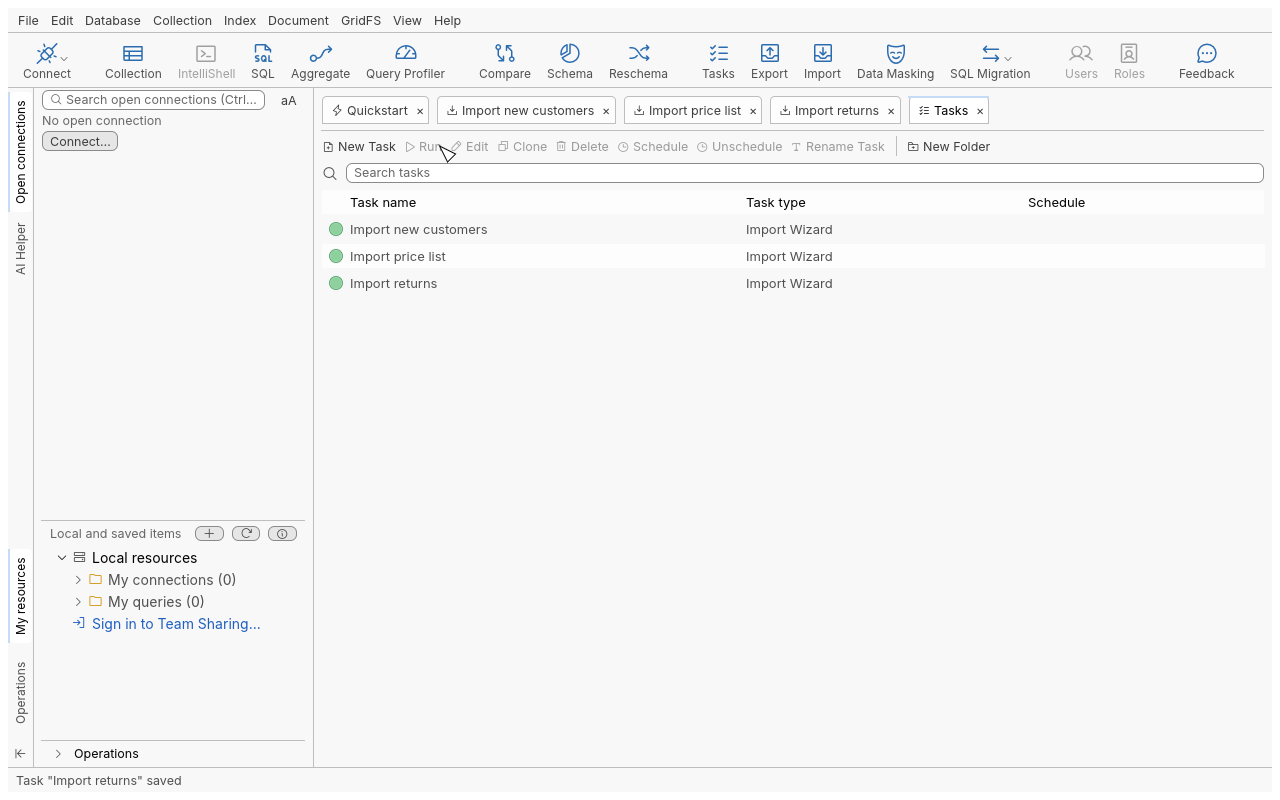
A task keeps the configuration only. It is run against the connections it names, with their saved settings, and goes through the same checks and confirmations as when you click Run in the tool itself.
Task types
| Task type | What it saves | Where you build it |
|---|---|---|
| Import Wizard | Import JSON, CSV or BSON data into collections | Global toolbar Import |
| SQL to MongoDB Migration | Move tables of a relational database into collections | Global toolbar SQL Migration |
| MongoDB to SQL Migration | Move collections into a SQL file or database | Global toolbar SQL Migration |
| Data Compare and Sync | Compare two collections and synchronise them | Global toolbar Compare |
| Export Wizard | Export collections or query results to files or the clipboard | Global toolbar Export |
| Data Masking | Mask or obfuscate fields of a collection | Global toolbar Data Masking |
| Reschema | Change the structure of the documents of a collection | Global toolbar Reschema |
| IntelliShell Script | Run MongoDB shell scripts and save their output | New Task (see Run IntelliShell scripts as tasks) |
Each tool is described in Data.
Save a tool tab as a task
- Open the tool and configure it, for example an export of
acme_store.ordersto a CSV file. - In the tool’s toolbar, click Save task.
- Type a Task name (for example
Nightly orders export), choose a Location (a task folder, or Tasks (top level)), and click Save. - The Task saved message offers Open Task Viewer, which opens the Tasks tab on your new task.
Once saved, the tab is linked to its task: Save task writes your later changes into the same task. Save task as… saves a copy under a new name and leaves the original untouched. Load task replaces the tab’s configuration with a saved task of the same type.
Create a task from the Tasks tab
- Click Tasks in the global toolbar.
- Click New Task (Ctrl+N).
- Choose the type of task to create. For an Import Wizard task, also choose the Import format (JSON Import, CSV Import or BSON Folder Import).
- The tool opens in a new tab. Configure it, then click Save task.
Run a task
- In the Tasks tab, select one or more tasks.
- Click Run (F5), or right-click and choose Run.
- Read the Run Task question. It names each task and says what the task will do, for example which collection an import will overwrite. Confirm to start.
Each run is a background job named after the task: follow it, or stop it, in the Operations pane. Several tasks can run at once. A Data Compare and Sync task opens its comparison results in a new tab.
If a task needs a connection that is not open, the connection is opened with its saved password. If no password is saved, you are asked for it.
Don’t show this message again is offered only when nothing can be lost: when every selected task only reads or adds data. Tasks that replace, remove or drop data always ask.
Organise tasks
| Action | How | Shortcut |
|---|---|---|
| Edit a task | Select it, Edit: its tool tab opens, linked to the task | Ctrl+E |
| Clone | Creates “Copy of …” next to the original | Ctrl+C |
| Rename | Rename Task, or Rename in the context menu (also renames folders) | F2 |
| Delete | Asks first. Deleting a folder moves its tasks to the parent folder | Delete |
| New folder | New Folder in the toolbar, or New Folder… in the context menu | – |
| Move | Drag tasks onto a folder, or between other tasks to reorder them | – |
| Find | Type in Search tasks: matches the task name or type | Ctrl+F |
| Run history | Context menu Run History… (see Schedule tasks) | – |
The task tree shows three columns: Task name, Task type and Schedule (the next run time, or none).
Reference
| Item | Limit or behaviour |
|---|---|
| Number of tasks | Up to 10,000 |
| Task name | Up to 256 characters, no control characters |
| Folder depth | Up to 16 levels |
| Run history | The last 20 runs of each task |
| Storage | tasks/tasks.json in your settings folder, written atomically, the previous version kept as a backup |
Tips
- Give tasks names that say what and where:
acme_store orders → CSV (nightly)reads better in a run history thanExport 3. - Clone a task to make a variant (another target file, another collection) without retyping the whole configuration.
- To run a task on a team server instead of this computer, use Run on Remote Runner in the context menu; see Team.
Troubleshooting
| Symptom | What to do |
|---|---|
| The tasks file was written by a newer version: tasks are read-only. | A newer Oxys DB Studio saved the tasks file. Tasks can be run but not changed here; update the application. |
| Tasks disappeared after a crash or a disk error | A file that cannot be read is moved aside (quarantined) and the list starts empty; the reason is reported when the Tasks tab opens. The previous version is kept next to it as tasks.json.bak. |
| the task “…” cannot be read | Only that task’s configuration is damaged; the others still run. Open the tool, configure it again and save over the task. |
| A run waits for a password | The task’s connection has no saved password. Connect once and save the password in the connection, or type it when asked. |
| A run is refused on a read-only connection | Read-only connections refuse every write, including from tasks. Use a connection that allows writes, or change the task’s target. |