Analyze a collection's schema
List every field of a collection with how often it appears and which types it holds, then explore, comment and document the result.
A document database does not force every document into the same shape. Over time a collection collects missing fields, misspelt names and values of the wrong type. The Schema Explorer reads a sample of the documents (or all of them) and shows every field path, the share of documents that contain it, the types it holds and statistics for each type. From there you can jump straight to the documents concerned, add comments, and export the whole analysis as Word or CSV documentation.
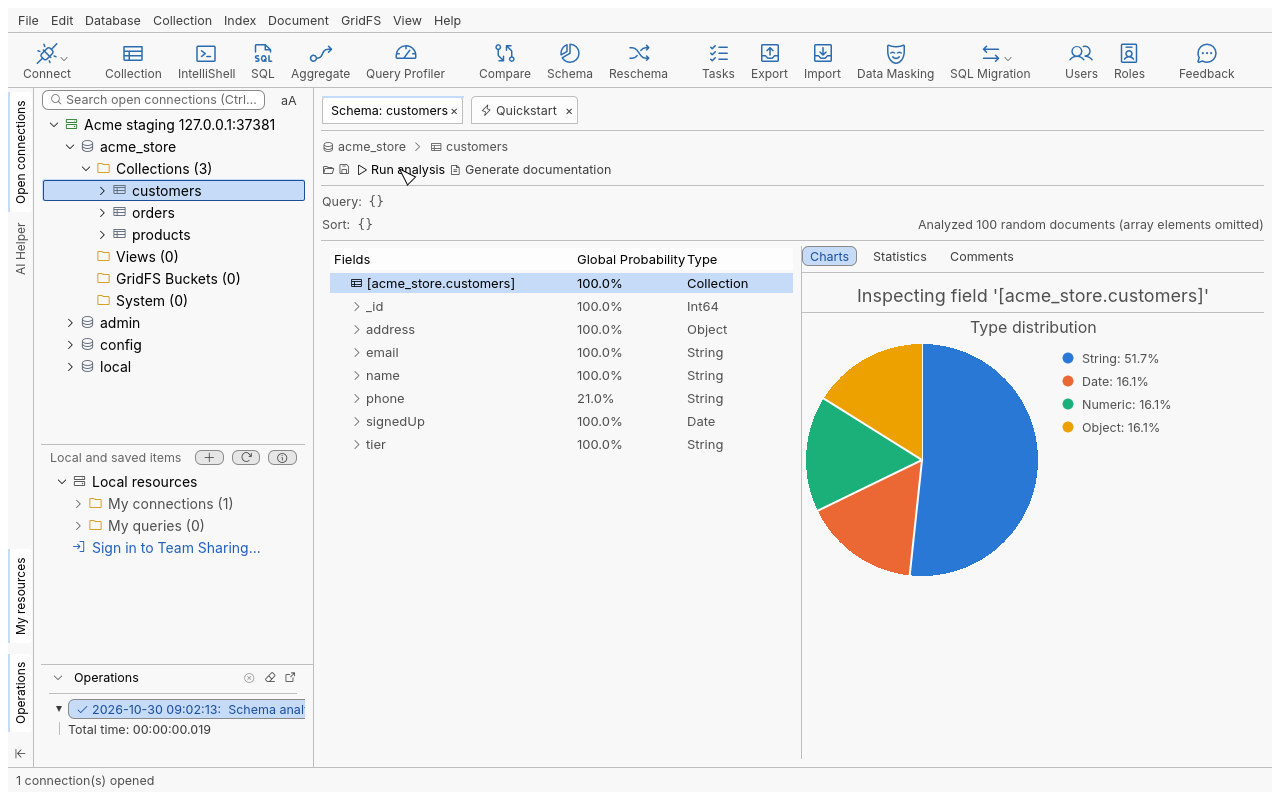
Analyze a collection
- In the connection tree, right-click the collection (for example
acme_store.customers) and choose Analyze Schema…. You can also select the collection and click Schema in the global toolbar, or use Collection › Analyze Schema… in the menu bar. Views can be analyzed too. - A Schema: customers tab opens on the analysis settings. Under Analysis source, choose how to pick documents (Random, First, Last or All) and how many.
- Optionally, under Base analysis on the following query, type a Query Criteria to analyze only some documents, and a Sort Order for First and Last.
- Click Run analysis. A progress bar shows how many documents have been read; Cancel stops the analysis, on the server too.
- When it finishes, the schema tree lists the fields with their Global Probability and Type. Select a field (or the collection’s root row) to see its Charts, Statistics and Comments on the right.
If you open the analysis from a collection tab that already has a query, that query is filled in as the Query Criteria.
Reading the result
- Global Probability of a field is the share of analyzed documents that contain it. A field at
99.8%incustomersis missing from a few documents: worth a look. - A field with several types shows
...in the Type column. Expand it: each type has its own row and probability, so you can see, for example, thatphoneis a String in most documents and an Int32 in a few. - An embedded document (Object type) expands to its own fields.
- The root row shows the type distribution of the top-level fields, with all number types grouped as “Numeric”.
- The Statistics tab gives the figures for the selected type: minimum, maximum, mean and standard deviation for numbers, lengths for strings and arrays, earliest and latest for dates, and the number of distinct values.
- The Charts tab draws them: Top Values or Top Strings, a Value Histogram for numbers, and for dates the distribution by hour, day of week, week of year and month.
Explore the documents behind a field
Right-click a field in the schema tree and choose:
- Explore documents containing selected field — the documents that have the field;
- Explore documents not containing selected field — the documents that lack it;
- Explore documents with selected field of type
(on a type row) — the documents where the field holds that type.
Each builds the matching query (an $exists or $type filter) so you can open and fix the
documents concerned. For instance, exploring phone of type Int32 in customers finds the documents
whose phone number was stored as a number.
Comment, save and share an analysis
- Select a field and type in the Comments tab (or right-click it and choose Edit Comment). Comments are saved with the analysis and included in the generated documentation.
- Save analysis (floppy-disk button) writes the analysis, settings and comments to a
.jsonfile. - Open analysis (folder button) opens a saved analysis in a Schema tab, even on another machine or after the connection was deleted. To run it again, the connection must exist.
- Generate documentation writes the analysis to a file. Choose the Output Format and the
Output File:
- MS Word (.docx): every chart, statistic and comment;
- CSV (.csv): one row per field, with the columns
name,global_probability,total_count,kind,field_typeandcomments.
Options
| Option | Values | Default | What it does |
|---|---|---|---|
| Analyze (mode) | Random, First, Last, All | Random | Random draws a random sample; First and Last read the first or last documents in the sort order (natural order without a sort); All reads every matching document. |
| Number of documents | 1 to 10,000,000 | 100 | Size of the sample. Ignored with All. |
| Omit individual array elements | on / off | on | When off, the elements of arrays are analyzed as a child field named [], and the fields of objects inside arrays appear below it. |
| Query Criteria | a query document | {} | Only matching documents are analyzed. |
| Sort Order | a sort document | {} | Used by First and Last only; Random ignores it. |
Tips
- Start with a random sample of a few hundred documents: it is fast even on very large collections, and usually enough to reveal the shape. Switch to All when you need exact counts.
- To compare two populations, analyze twice with different Query Criteria, for example
{ "country": "FR" }and{ "country": "US" }oncustomers. - After cleaning data, run the analysis again and compare the probabilities.
- To enforce the shape you found, write a validator: see Set validation rules.
Troubleshooting
| Symptom | What to do |
|---|---|
| “The number of documents must be a whole number of 1 or more” | Type a positive whole number in the size box. |
| An error about the query | Query Criteria and Sort Order must be valid documents; fix the text and run again. Nothing is analyzed until they are valid. |
| “The analysis returned nothing” | No document matched the query, or the collection is empty. |
| A note says some limits were reached | Very deep, very wide or very large documents are analyzed within fixed bounds (nesting depth, number of field paths, elements per array, distinct values). The result is still correct for what was read; the note lists which bound applied. |
| “Approximate counts” under Top Values | There were too many distinct values to count each one exactly; the most frequent ones are still shown. |
| Some documents are counted as unreadable | They could not be decoded by the client. They are counted, not analyzed. |
| A GridFS bucket cannot be analyzed | File buckets are not analysis sources. |
| “Explore…” refuses a field | Field names containing a dot or starting with $ cannot be addressed in a query filter. |
| A saved analysis says its connection was deleted | You can still read it; recreate or pick a connection to run it again. |