AI Helper
Ask questions about your MongoDB data in plain language with your own AI provider key: set it up, what is sent, and how to stop it.
The AI Helper answers questions about your data in plain language (“which customers of acme_store ordered more than five times this month?”), writes find queries, aggregation pipelines and shell scripts for you, and explains query plans. To answer, it can call read-only tools on your open connections: list databases and collections, find documents, analyse a schema, read indexes and statistics, explain a query. It never changes data, and it never runs the code it writes: you choose to apply it.
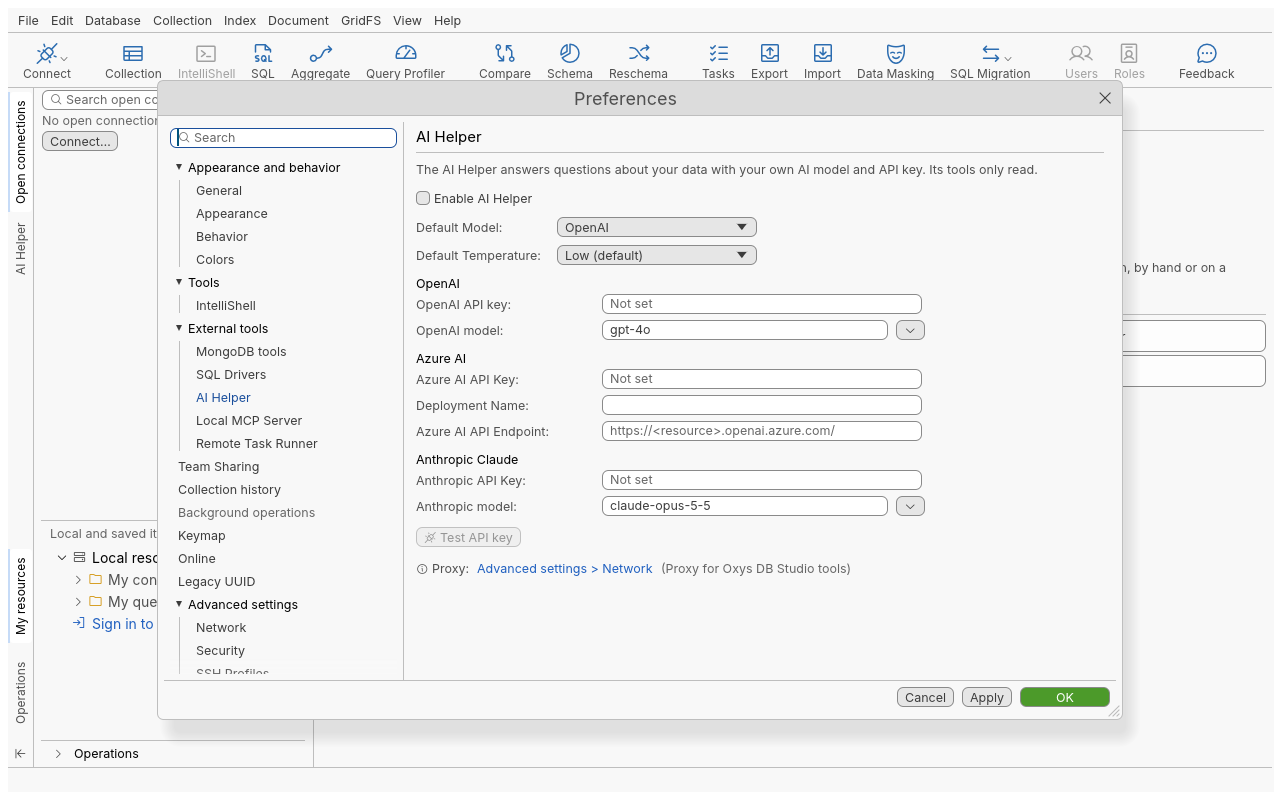
It uses the AI provider and the API key you bring: OpenAI, Azure AI or Anthropic Claude. It is off by default, and nothing is sent anywhere until you enable it and accept the consent message.
Set it up
- Open Edit › Preferences, then External tools › AI Helper.
- Choose the Default Model (the provider): OpenAI, Azure AI or Anthropic Claude.
- Enter that provider’s API key, and the model (or, for Azure AI, the Deployment Name and the
Azure AI API Endpoint,
https://<resource>.openai.azure.com/). - Click Test API key. A working key also fetches the list of models it can use.
- Tick Enable AI Helper. The first time, a message says what will be sent; click Accept and enable to turn it on.
- Click OK.
The key goes to your system’s credential store only. It is never written in a settings file, never shown again (the field says Saved (type a new key to replace it)), and never sent anywhere but to the provider you chose.
Ask a question
- Beside every tab: click the AI Helper tab of the sidebar strip. The active tab is always in
the context. Type
@(or click the context chip) to open Manage context and pin up to 10 open tabs or collections to the conversation. Keep several conversations with New conversation and Delete conversation. - In a Collection Tab, the Aggregation Editor or IntelliShell: click AI Helper in the tab’s toolbar, or press Ctrl+Shift+B, to open a panel for that tab. In the Aggregation Editor and IntelliShell, Select source chooses the collections the question is about.
- From an error message: Ask AI helper starts a question about the error.
Type the question and press Enter in the sidebar, or click Send (Ctrl+Enter) in a panel. Stop ends an answer that takes too long. Under an answer that holds code:
| Button | What it does |
|---|---|
| Copy snippet | Copies the answer |
| Change query | Puts the find query in the Collection Tab’s query bar (not run) |
| Change pipeline | Replaces the Aggregation Editor’s pipeline (not run) |
| Change script | Puts the script in an IntelliShell tab (not run) |
When the active tab cannot take the code, or has unsaved changes, a compatible tab opens instead.
What is sent to the provider
Only to the provider you chose, over HTTPS, with your key:
- your question and the conversation so far;
- the names and types of the fields of the collections the question is about, never their values. Click Review and change prompt data to untick fields, and Review prompt data to see exactly what will be sent;
- the results of the read-only tools the AI Helper calls to answer. These can include documents, statistics, indexes and query plans read from your open connections.
Nothing else: no telemetry, no account. The provider’s own terms apply to what it receives.
Agents, including the AI Helper, use only the connections you have open in the application.
Settings
| Setting | Default | Notes |
|---|---|---|
| Enable AI Helper | Off | When unchecked, nothing is sent to an AI model |
| Default Model | OpenAI | OpenAI, Azure AI or Anthropic Claude |
| OpenAI model | gpt-4o | Any model name can be typed; the list comes from the provider once the key works |
| Anthropic model | claude-opus-5-5 | Same as above |
| Deployment Name, Azure AI API Endpoint | – | Both required for Azure AI |
| Default Temperature | Low | Low, Medium or High: higher gives more varied answers |
| Proxy | From Advanced settings › Network | The AI Helper uses the proxy for Oxys DB Studio tools set there |
Stop sending data
- Untick Enable AI Helper: nothing is sent while it is off.
- Click Revoke consent: the AI Helper turns off and shows the consent message again before it can be enabled.
- Preferences › Advanced settings › Network › Offline mode stops every outgoing request of the application at once, the AI Helper included.
See also the privacy page in Administration.
Tips
- Ask narrow questions on a named collection: answers are faster and the tools read less.
- Open a read-only connection, or a staging copy, when exploring with the AI Helper.
- Ask it to explain a slow query: it runs an explain and points out collection scans and in-memory sorts.
Troubleshooting
| Symptom | What to do |
|---|---|
| The AI Helper is disabled. Enable it in Preferences > External tools > AI Helper; nothing was sent. | Enable it in Preferences. |
| Test API key fails | The provider’s own message is shown: check the key, the model or deployment name, and for Azure AI the endpoint. |
| No credential store is available: API keys cannot be saved on this computer. | Your system has no keyring service running. Start one (on Linux, a Secret Service provider), then enter the key again. |
| The request times out or cannot connect | Check the proxy in Advanced settings › Network, and that offline mode is off. |
| The answer says a connection is not open | Open that connection in the application first. |