Manage users and roles
Create, edit and drop MongoDB users, grant and revoke roles, and define custom roles with their privileges.
The Users and Roles tabs manage the accounts and roles of one database. Every change is sent to the server as the matching user-management command; nothing is kept locally, and passwords never appear in replies, logs, job labels or error messages.
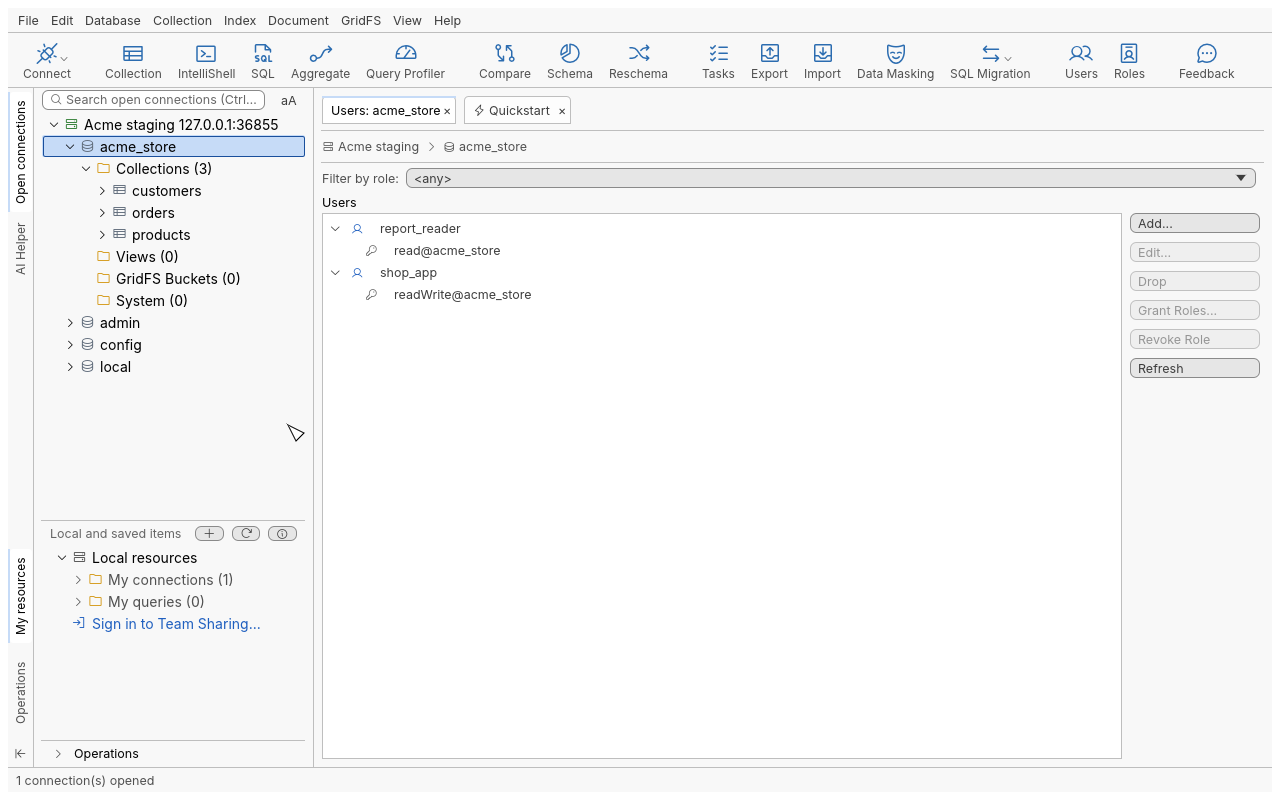
Open the Users tab
- In the connection tree, select a database, for example
acme_store. - Do one of the following:
- click Users on the Global Toolbar;
- right-click the database and choose Manage Users;
- choose Database › Manage Users.
The tab is titled Users: acme_store and lists each user with its roles. Filter by role shows
only the users holding one role (<any> shows them all). If a Users tab is already open for that
database, it comes to the front instead of opening a second one.
Add a user
- In the Users tab, click Add….
- Enter the Name and the Password. The eye button shows or hides what you typed.
- Under Roles, click Grant Roles…, select the database where the roles are defined, then type a role name or choose built-in or user-defined roles, and click Grant.
- Optional: under Custom Data, enter a JSON document; Validate JSON checks it and points at the line and column of an error.
- Optional: under Mechanisms, choose the authentication mechanisms the user may sign in with (SCRAM-SHA-1, SCRAM-SHA-256). At least one is required.
- Click Show Code to see the equivalent shell command (the password is replaced by a prompt), then click Add User.
Users of the $external database authenticate outside MongoDB (X.509 certificates, LDAP,
Kerberos): they have no password, and their mechanism comes from that directory.
Edit a user
Select a user and click Edit…. Change the roles, the custom data or the mechanisms, and click Update User. Leave the password field empty to keep the current password.
Grant or revoke roles on several users
Select one or more users, then click Grant Roles… or Revoke Role. Each user is changed separately: if one fails (for example for lack of privileges), the others still succeed and the failures are listed with the server’s reason.
Copy users to another database or server
- Right-click the selected users and choose Copy User.
- Open the Users tab of the target database (on the same or another connection), right-click and choose Paste User(s).
- Enter a password for each pasted user when asked: passwords are never copied.
Drop users
Select one or more users and click Drop. A confirmation lists them; nothing is dropped until you answer Yes.
Manage roles
Open the Roles tab with Roles on the Global Toolbar or Database › Manage Roles. Filter roles by switches between built-in roles, user-defined roles, or both.
- Add… opens Add New Role: enter the role’s name, add privileges with Add Privilege (a resource: a database and, optionally, some of its collections, the cluster, or any resource; and the actions allowed on it), and choose the roles it inherits from. Create Role sends it.
- View… shows a role: its own and inherited privileges, the roles it inherits, and Granted To, the users holding it. Refresh for current DB and Refresh for all DBs look those users up in this database or in every database. A user-defined role can be changed there and saved with Update Role; taking privileges or inherited roles away asks for confirmation first.
- Remove drops the selected user-defined roles after a confirmation. Built-in roles can be inspected, never changed or removed.
Reference
| Action | Where | Command id |
|---|---|---|
| Open the Users tab | Database › Manage Users; Global Toolbar › Users | user.manage |
| Add a user | Users tab › Add… | user.add |
| Update a user | Users tab › Edit… | user.edit |
| Grant or revoke roles | Users tab › Grant Roles…, Revoke Role | user.grant-roles, user.revoke-roles |
| Copy and paste users | Users tab context menu › Copy User, Paste User(s) | user.copy, user.paste |
| Drop users | Users tab › Drop | user.drop |
| Show the shell code | Show Code in the user and role dialogs | user.show-code, role.show-code |
| Open the Roles tab | Database › Manage Roles; Global Toolbar › Roles | role.manage |
| Create, update, remove a role | Roles tab › Add…, View…, Remove | role.add, role.update, role.remove |
| Grant a role to users | Role dialog › Granted To › Add | role.grant-to-users |
Every action can also run from the command line or the MCP server by its id.
Tips
- Edit › Preferences › Appearance has Show users in the connection tree and Show roles in the connection tree.
- Only roles created in the
admindatabase can hold cluster-wide privileges. - Show Code gives the exact command, ready for IntelliShell or a script.
Troubleshooting
| Problem | What to do |
|---|---|
| “not authorized” when listing or changing users | The connection’s account needs user-administration privileges on that database (for example the userAdmin role). |
| Add, Edit or Drop is refused at once | The connection has a Read-Only Lock: the application refuses writes before anything is sent. Use a writable connection. |
| A pasted user is missing | Users the server refused (for example because they already exist) are listed as failed, with the server’s reason. |
| The Roles tab says the roles cannot be listed | The tab still opens; check the account’s privileges, then refresh. |